
Logo

Cash Practice® Systems Help Center

Search our knowledge base to get answers to your questions, access video training & more!

Campaign Library: How to save campaigns from the Drip-Ed Library, to your account

Drip-Education® Email Marketing System (Frequent Contact)

Campaign Library: How to save campaigns from the Drip-Ed Library, to your account

For those of you who are subscribed to the Drip-Ed System, this article and video will show you how to access pre-made email campaigns from the Drip-Ed Resource Library.

Last updated on 13 Sept, 2025

Watch the video below for details!

Getting Started:

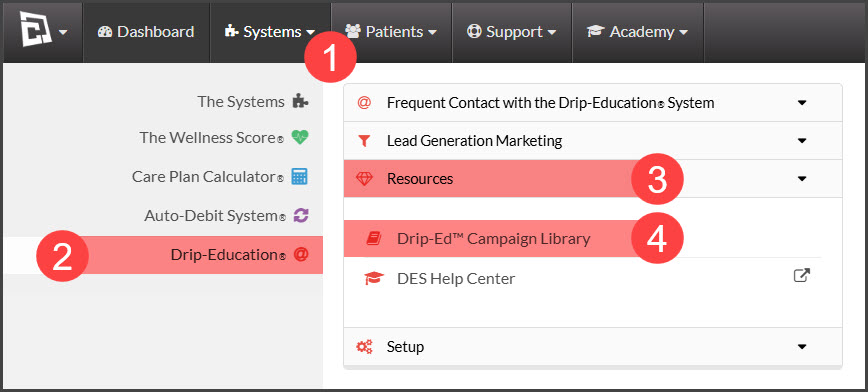
Step 1: Hover your mouse over [Systems] → click on [Drip-Education®] → [Resources] → [Drip-Ed™ Campaign Library].
Image

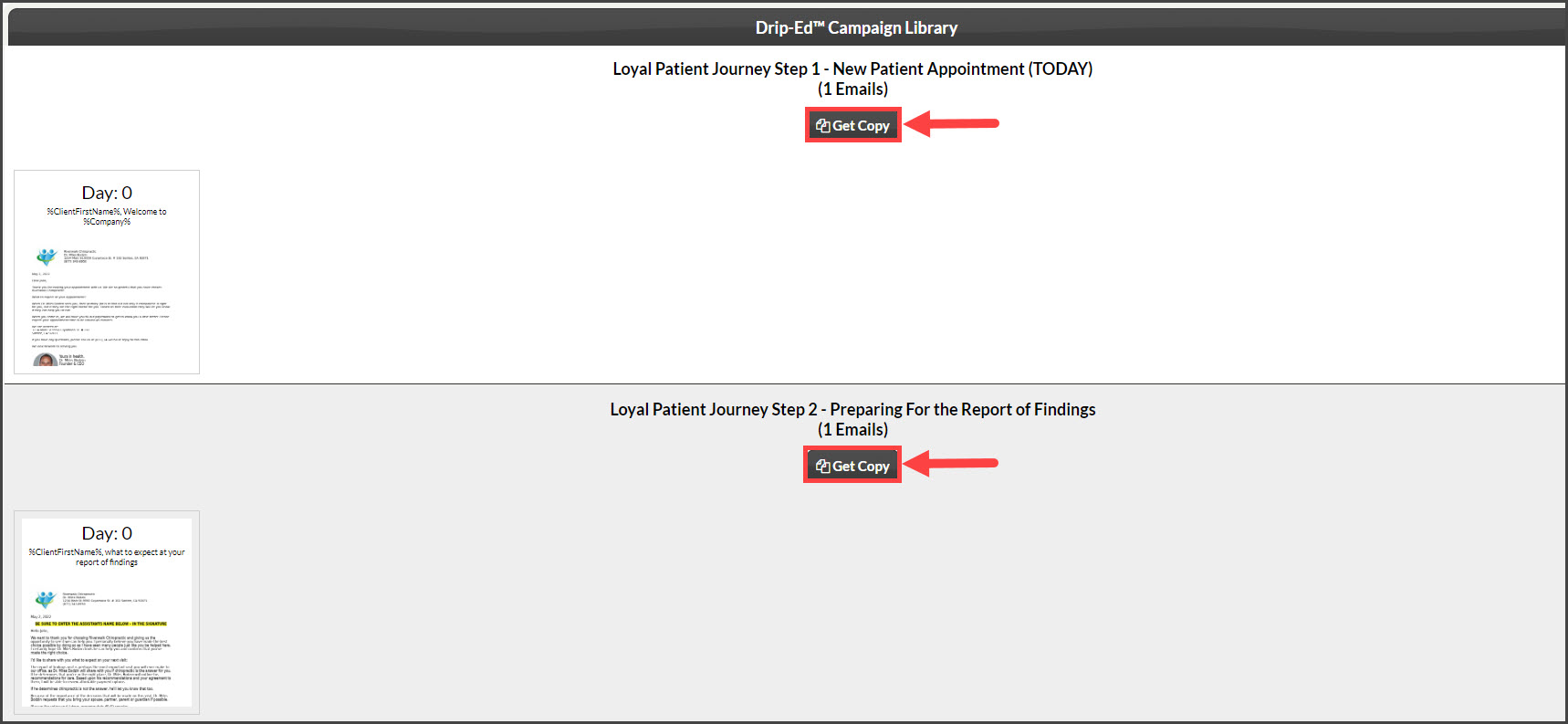
Step 2: Scroll down the page locate the campaign titled "Gift Card Marketing Email" and click the [Get Copy] button for the campaign you wish to use.
Image

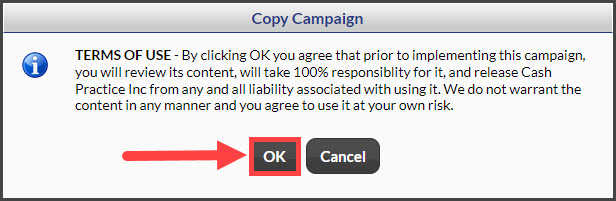
Step 3: Read and click [OK] to agree to our TERMS OF USE policy, and to confirm copying the campaign. 
Image

Step 4: The page will refresh and flash an alert that the campaign was successfully copied from the library.


More Info:

To learn how to send these emails, click HERE.


Did you find this article helpful?
Previous

Edit Campaign: How do I edit a Drip-Ed campaign?

Next

© 2026 Cash Practice Systems. All rights reserved.