

Continue frequent context and education while scheduling recurring payments simultaneously!
If you are subscribed to The Auto-Debit System®, you have the ability to assign a Drip-Ed™ campaign while collecting and scheduling payments in your office!
*NOTE - You MUST also be subscribed to the Auto-Debit System® to do this.
Step 1: After bringing up the Auto-Debit Scheduler and entering in payment information (see how HERE). Click "Show Additional Options" and then select the Drip-Ed™ Campaign that you wish to assign to the patient from the drop-down menu.
Step 2: Select the date at which you would like the campaign to begin in the Start date field.
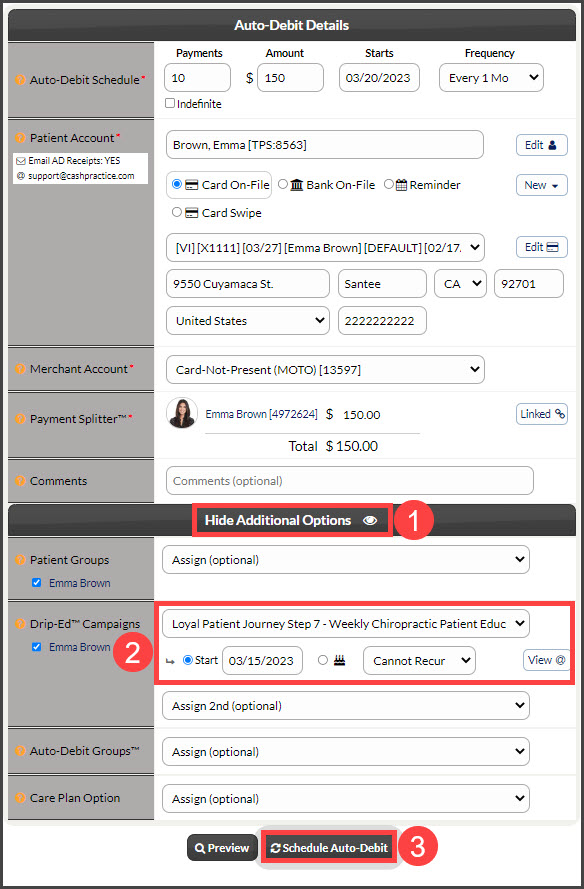
Step 3: Click the [Schedule Auto-Debit] button to schedule the auto-debit payments. Once the Auto-Debit Installment Authorization form is produced, the campaign will automatically be assigned.