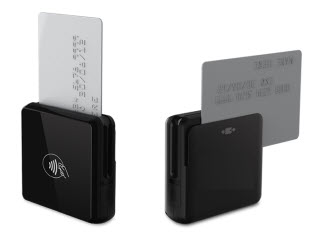
You can easily process a payment in the CP Mobile™ app by tapping or inserting a credit card using the CP Mobile™ Bluetooth Card Reader. You must use a device obtained from Cash Practice® Systems, as they have unique encryption. Other devices will not work with the CP Mobile™.
Effective 2019 - Present:
To process transactions within the app, our Retail merchant account is required and has merchant fees associated with it. In the event you cancel your CP Mobile™ Gateway, there will be a $25 fee each time you need to reactivate the gateway.
NOTE: If you updated the app and had previously purchased a CP Mobile™ swiper before January 2024, your device will not work with the new app. A new device will need to be purchased HERE in our shopping cart.
January 2024 - Present Steps:
Getting started:
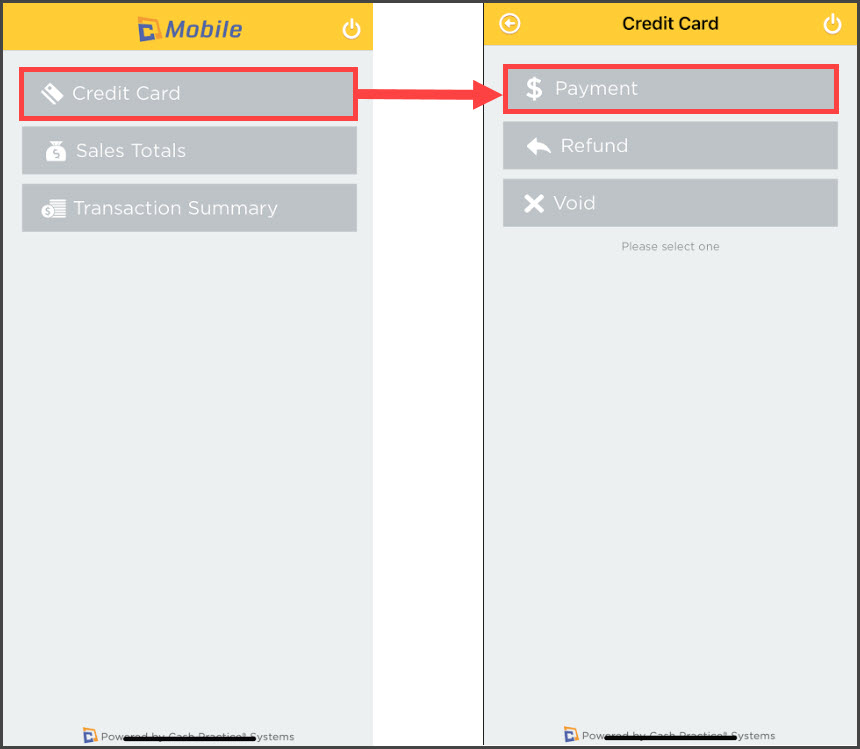
Step 1: Once you have signed in, from the CP Mobile™ home screen, select [Credit Card] → [Payment].
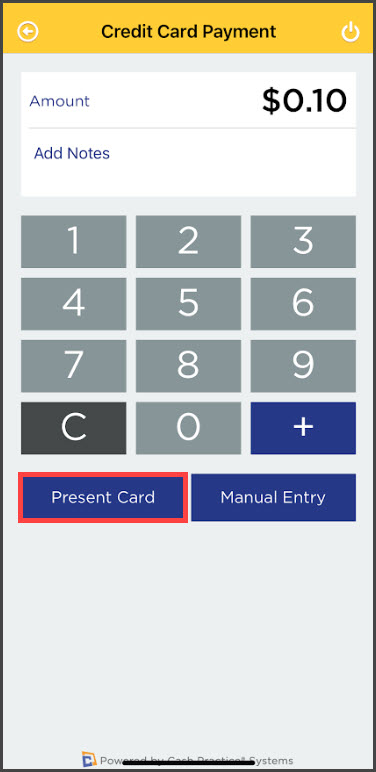
Step 2: Enter the Amount. You may also add a note (optional) that will appear as a comment in your Payments Report on the Cash Practice® website. Select the [Present Card] button.
Step 3: Tap or insert the card.
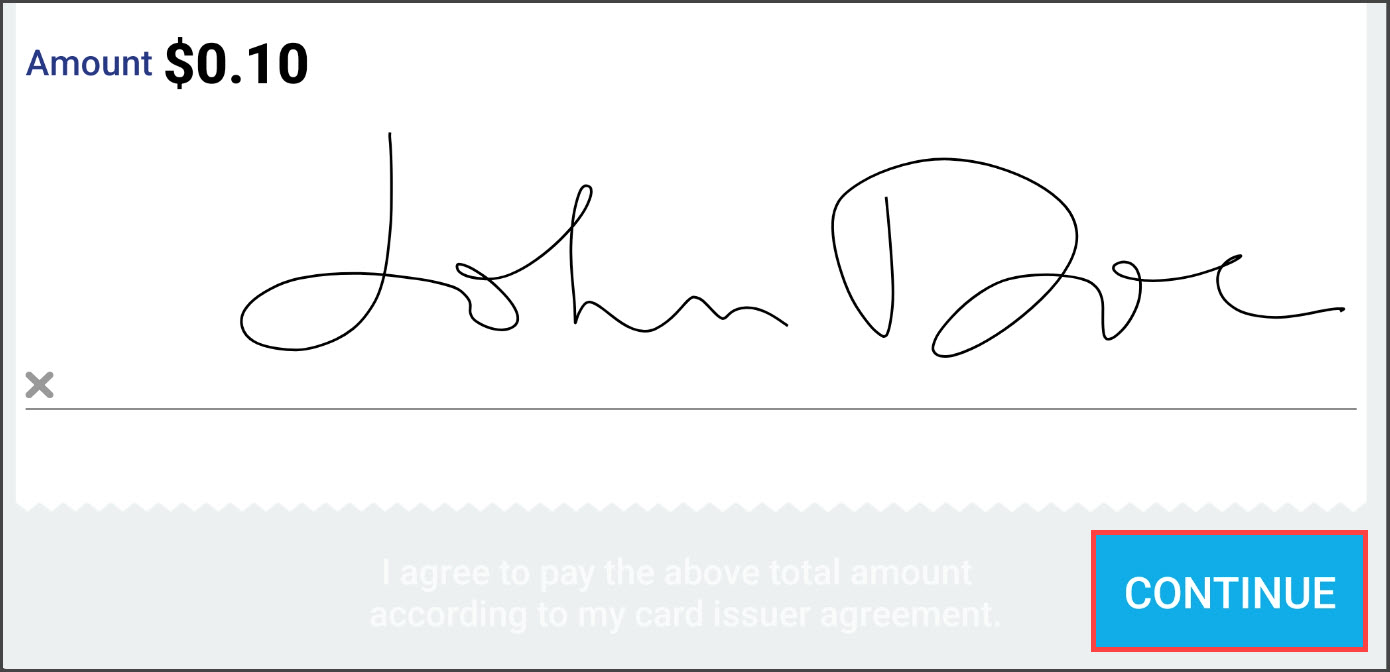
Step 4: Once approved, the signature screen will appear. Here, the customer can sign their name (to erase the signature, click the X on the far left of the signature line). After signing, click the [Continue] button.
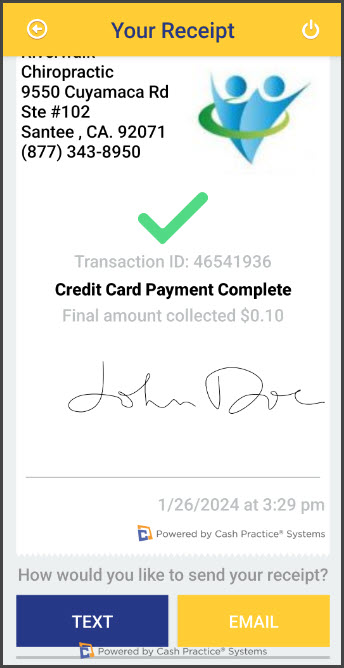
Step 5: After you click [Continue], you will be taken to the *receipt. From here, you can Text or Email the receipt to the customer. Once you are finished, click the [Done] button.