

Effective 2019 - Present:
To process transactions within the app, our Retail merchant account is required and has merchant fees associated with it. There is a $5/mo gateway access fee added to your subscription dues. These fees are waived with memberships that are $199/mo and up. In the event you cancel your CP Mobile™ Gateway (for Android and Apple devices), there will be a $25 fee each time reactivate the gateway.
NOTE: If you updated the app and had previously purchased a CP Mobile™ swiper before January 2024, this device will not work with the new app. A new device will need to be purchased.
January 2024 - Present Steps:
Getting started:
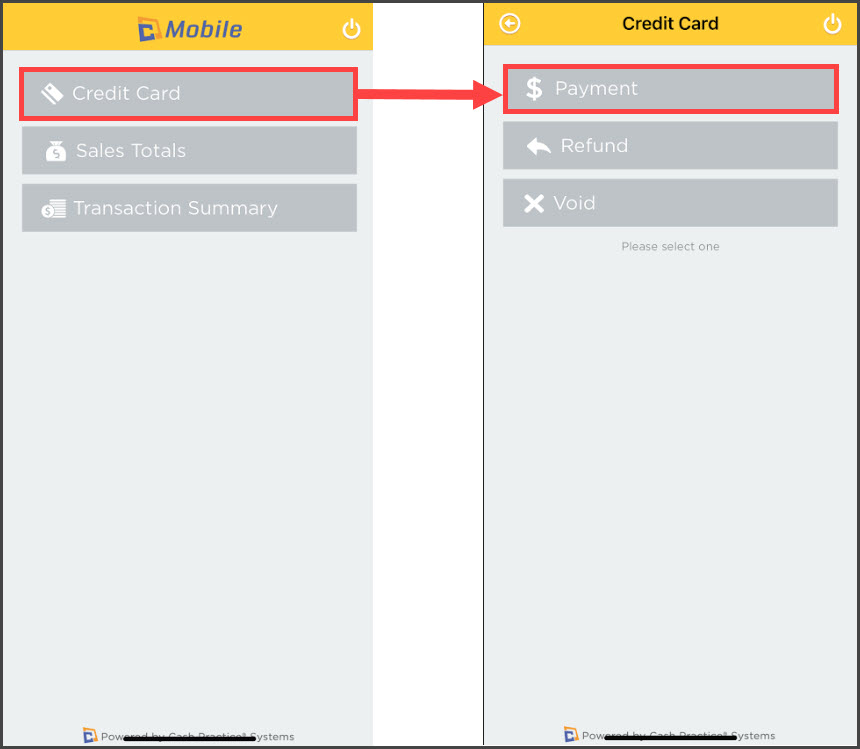
Step 1: Once you have signed in, from the CP Mobile™ home screen, select [Credit Card] → [Payment].
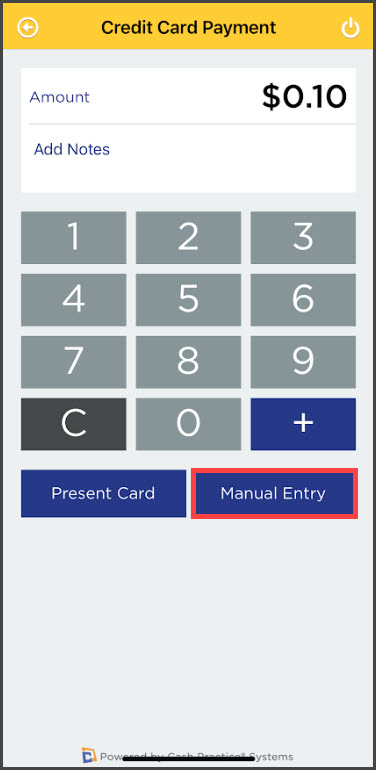
Step 2: Enter the Amount. You may also add a note (optional) that will show up as a comment in your Payments Report on the Cash Practice® website. Select the [Manual Entry] button.
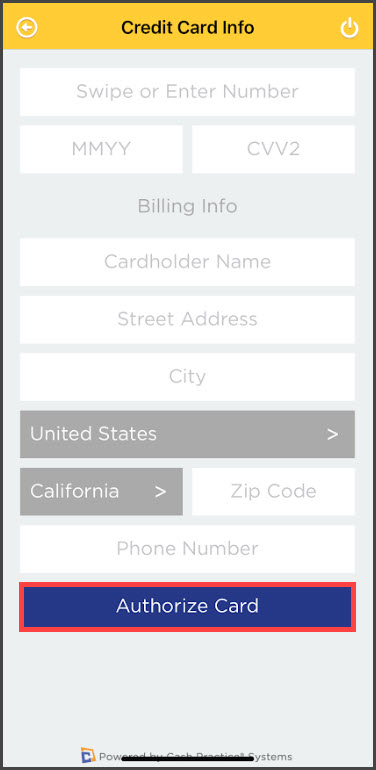
Step 3: Key enter all the required credit card information and click the [Authorize Card] button.
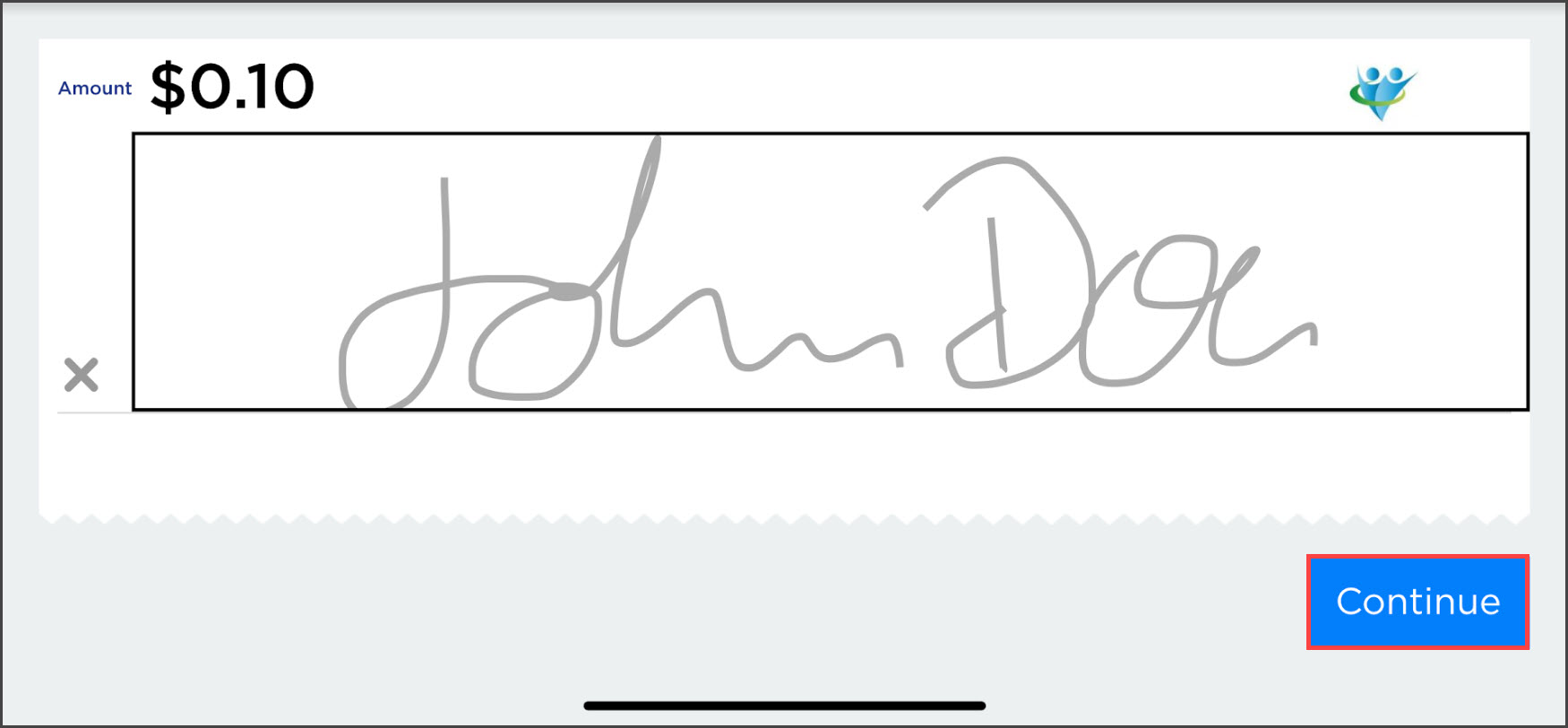
Step 4: Once approved, the signature screen will appear. Here, the customer can sign their name. To erase the signature, click the X on the far left of the signature line. After signing, click the [Continue] button.
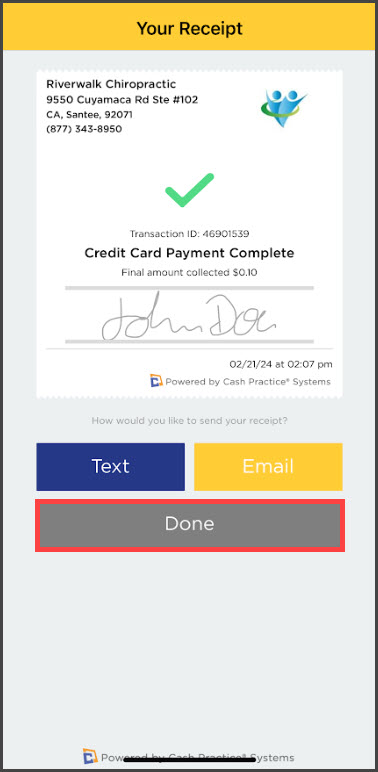
Step 5: After you click [Continue], you will be taken to the *receipt. From here you can Text or Email the receipt to the customer. Once you are finished, click the [Done] button.
Before January 2024 - The app has not been updated:
Getting started:
Step 1: Once you have signed in, from the CP Mobile™ home screen, select Credit Card.
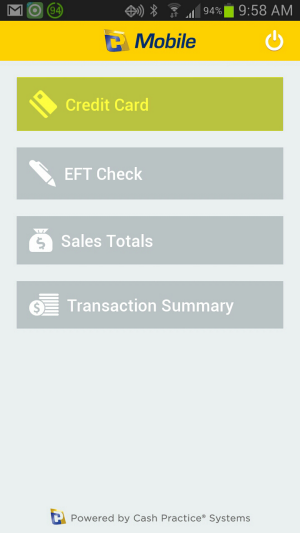
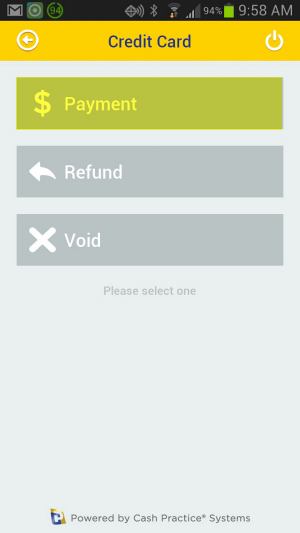
Step 2: Now you can select $ Payment.
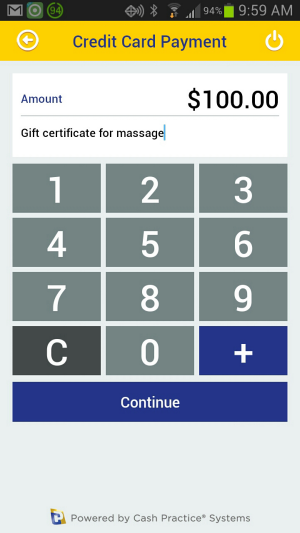
Step 3: Enter the Amount. You may also add a note (optional) that will show up as a comment in your Cash Practice® Systems Posted Payments Report. Select the [Continue] button.
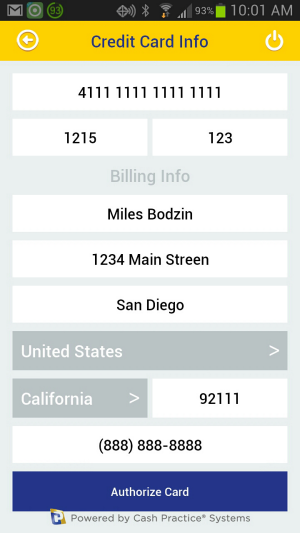
Step 4: Key enter all the required credit card information and click the [Authorize Card] button.
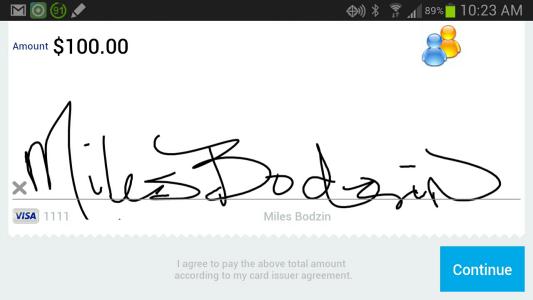
Step 5: Once approved, the signature screen will appear. On this screen, the customer can sign their name. To erase the signature, click the X on the far left of the signature line.
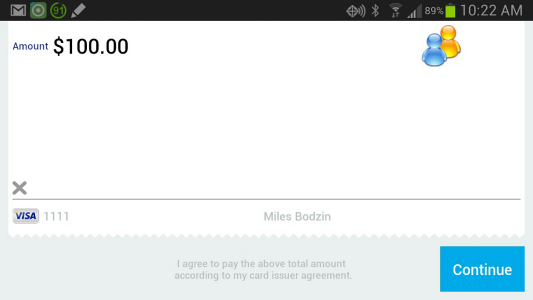
After signing, click the [Continue] button.
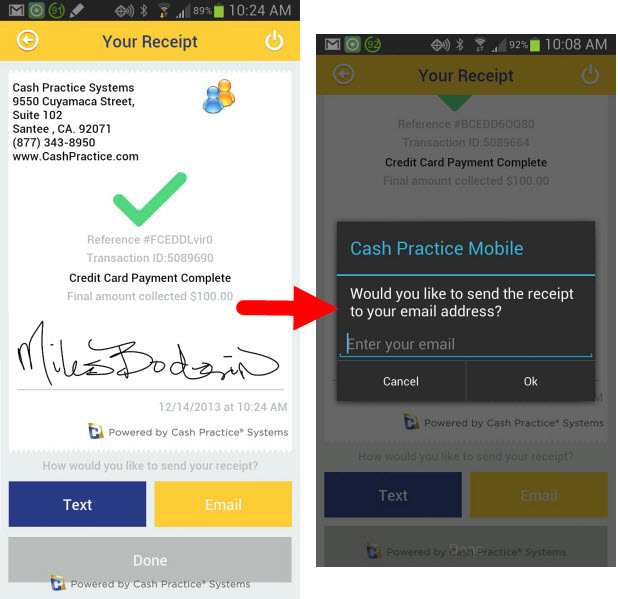
Step 6: After you click Continue, you will be taken to the *receipt. From here you can Text or Email the receipt to the customer. Once you are finished, click the [Done] button.
* Note:
Receipts cannot be texted to a customer from an iPad or any device that does not have FULL texting abilities. This would include Android tablets and iPads that only have iMessage.
Receipts can be printed directly from the CashPractice.com account if needed. Please see the linked instructions HERE.