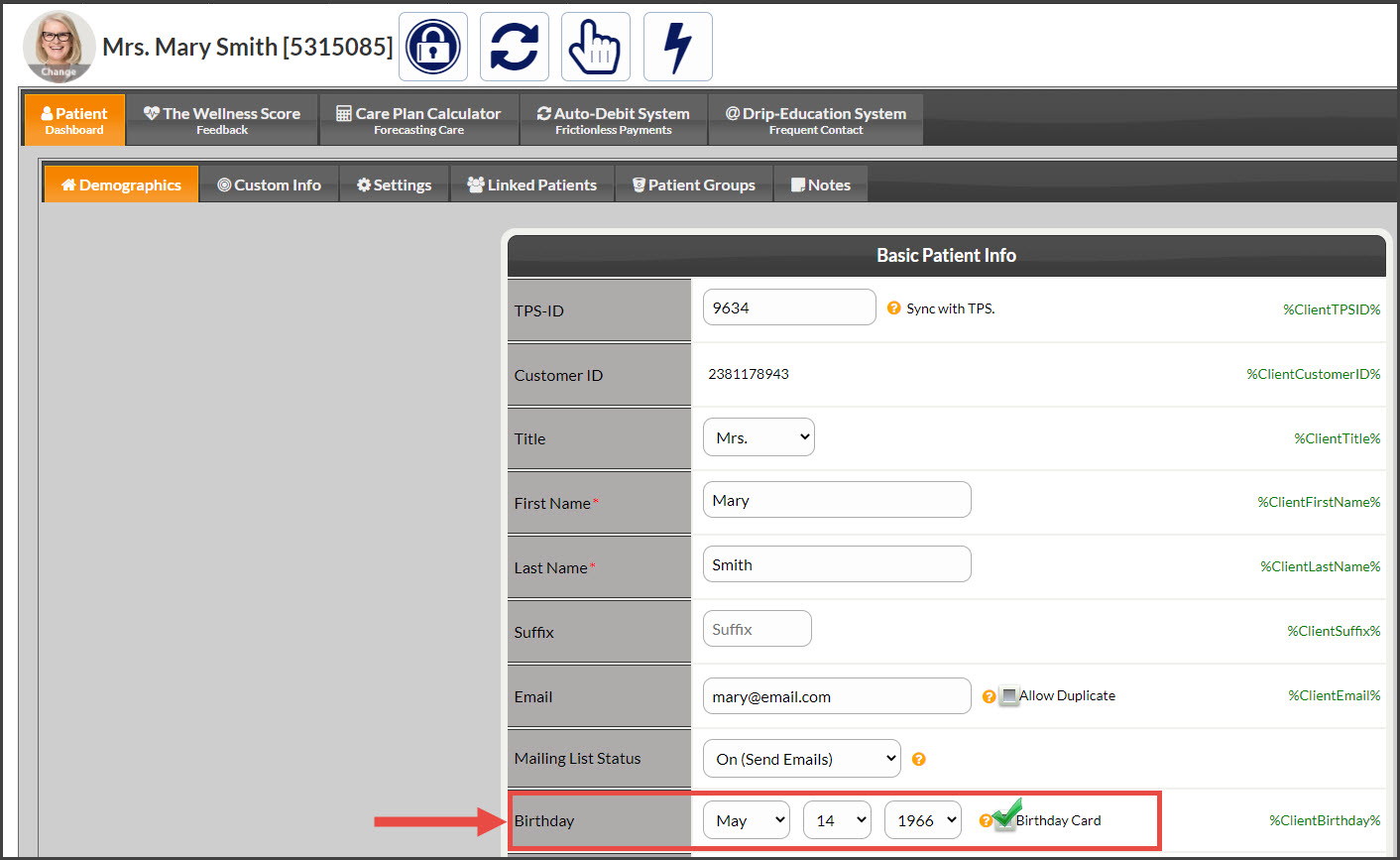
You've always had the ability to assign birthday campaigns to your [Patients] and [Patient Groups], but we've improved the process to make it even easier for your clients to be assigned to the [Birthday Card] email campaign with the click of a button! Once assigned, the client will automatically receive the birthday email campaign every year on their birthday.
First: One-Time Setup With the Drip-Ed Setup → Step 6. See HERE for details.
Second: The patient record must have the following information:
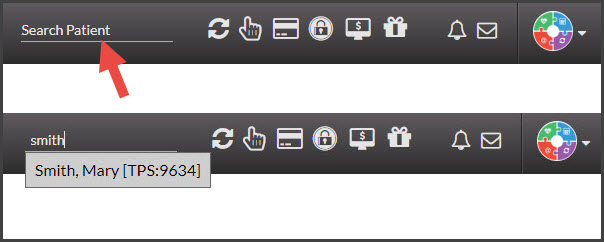
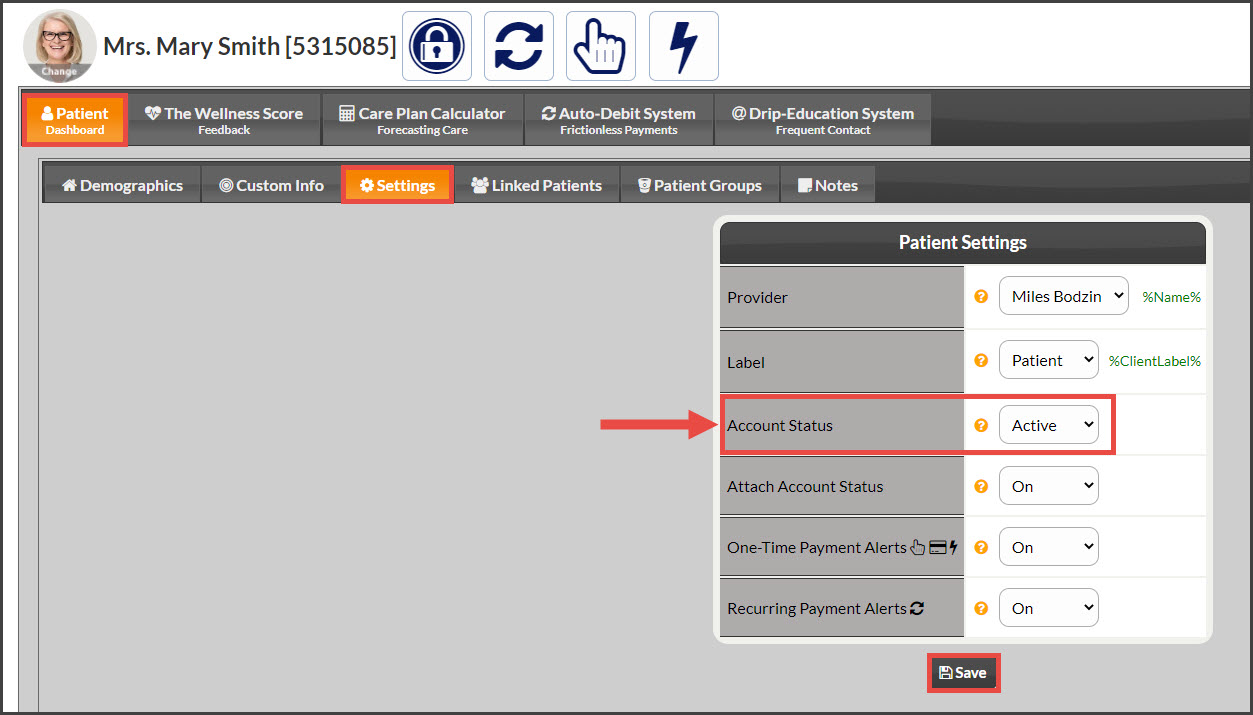
The patient [Account Status] is [Active].
The patient has a valid email on file.
The patient has a date of birth on file.
The patient [Mailing List Status] is [On].
Box checked to [Assign Campaign: Birthday Card]
This article outlines all the necessary settings within the [Patient Record] to make sure that your patients are set to receive email campaigns from the [DES] Drip-Ed Email Marketing System®.
Step 1: Within the [Patient Record], make sure the [Mailing List Status] is set to [On], and the [Account Status] field under the "Settings" tab is set to [Active]. Click HERE for instructions on how to access the patient record. Be sure to click [SAVE] if you make any changes.
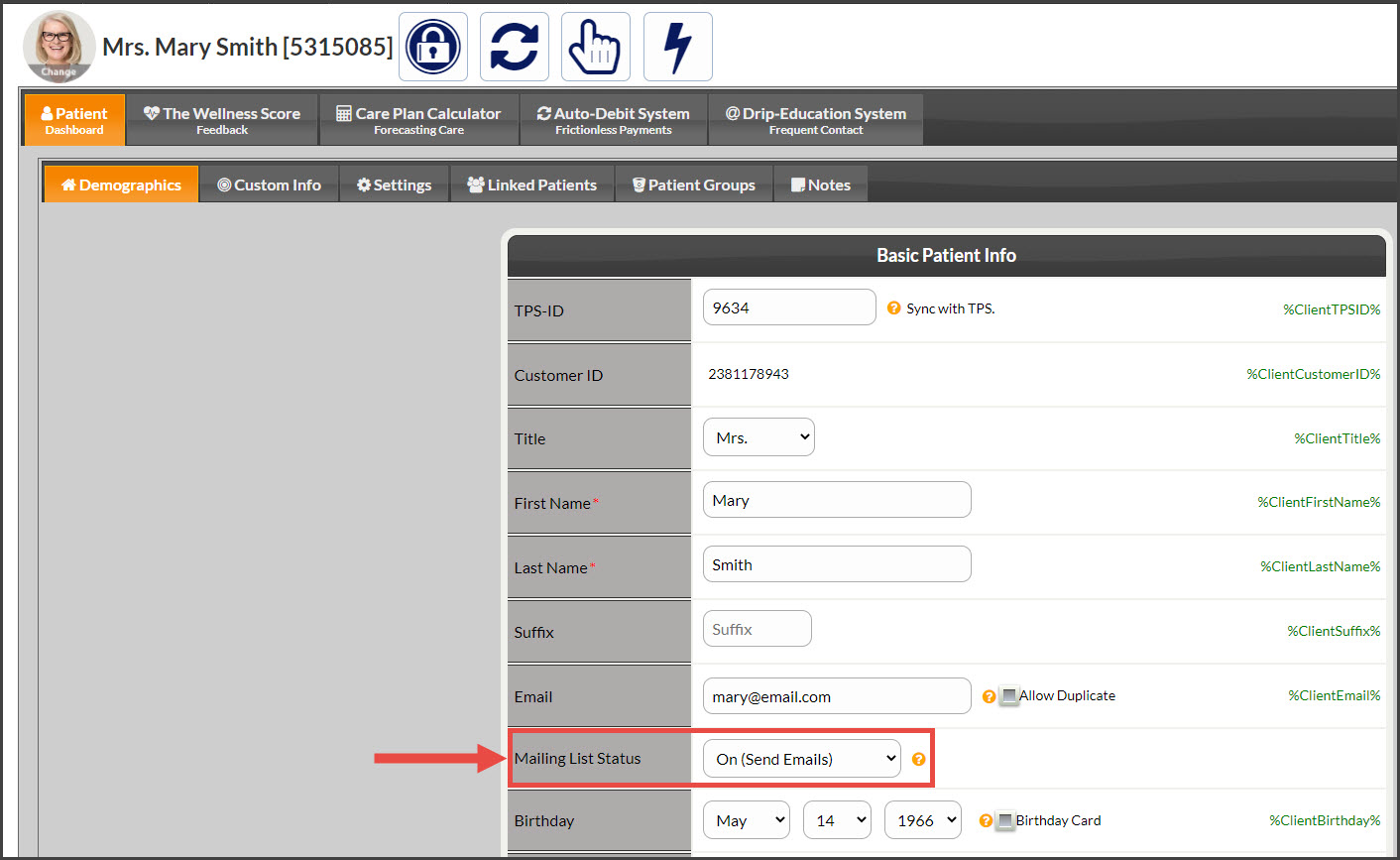
Step 2: Verify that the patient has a valid email address stored in their patient record. Be sure to click [SAVE] if you make any changes.
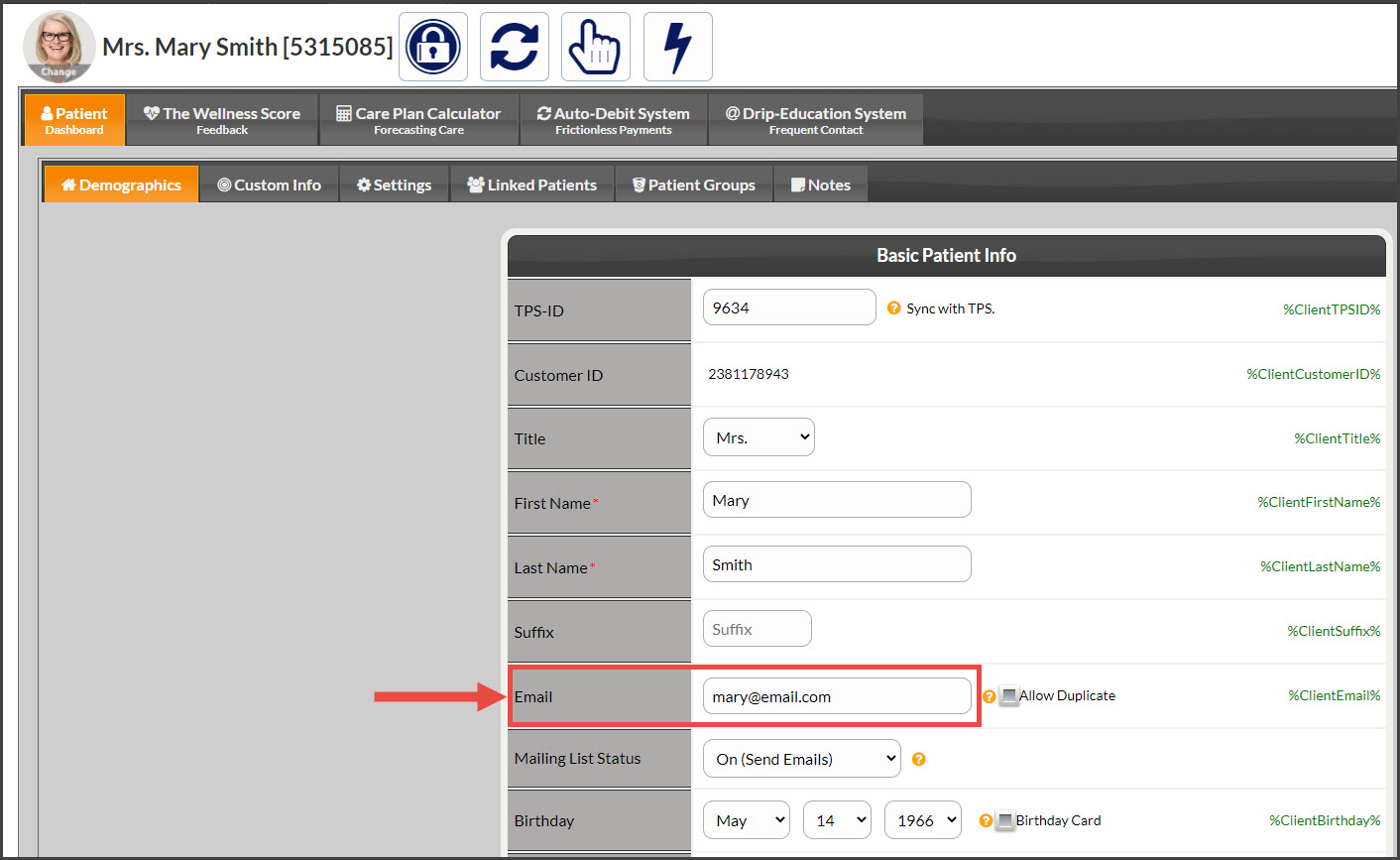
Step 3: Verify the patient has a date of birth on file and that the [Assign Campaign: Birthday Card] box is checked. Be sure to click [SAVE] if you make any changes.