

Use the Drip-Ed™ Categories to organize your Drip-Ed Campaigns™ and Link Trackers™.
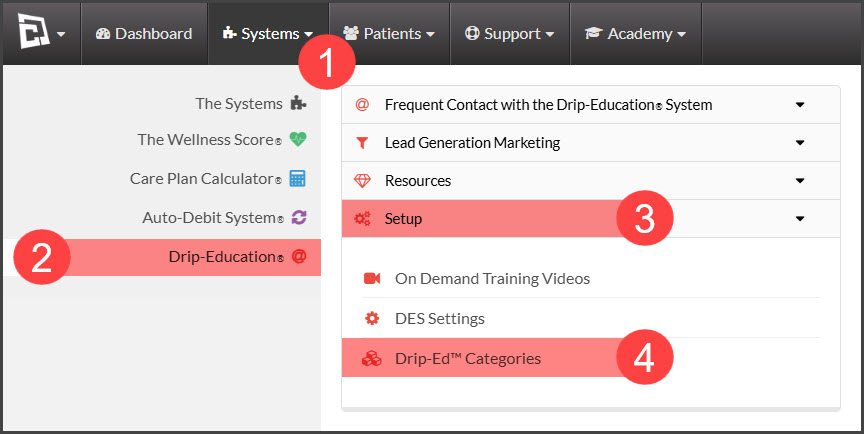
Step 1: Go to the [Systems] menu→ [Drip-Education®] → click [Setup] menu→ [Drip-Ed™ Categories].
Step 2: From here, you can manage your Drip-Ed™ Categories. See the options below.
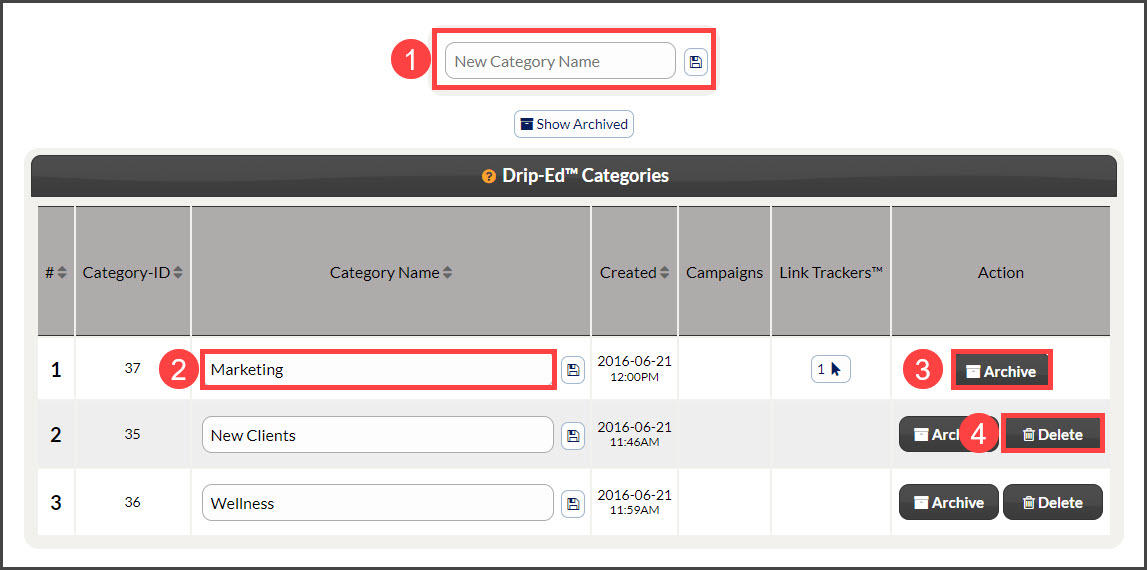
Add New Category: Add a new category by typing it into the [New Category Name] field→ click on the [Save] icon.
Category Name: Edit the category name in the [Category Name] column if you wish to rename it → click the [Save] icon.
Archive: Click on the [Archive] button under the Action column if you wish to archive the category name.
Delete: Click on the [Delete] button under the Action column if you wish to delete the category name.