This article outlines how to attach documents to your Campaign or Broadcast emails. Whether you want to attach new patient paperwork, educational material, or forms to register for a function, we've got you covered!
Getting started:
Step 1: Create your Campaign or Broadcast.
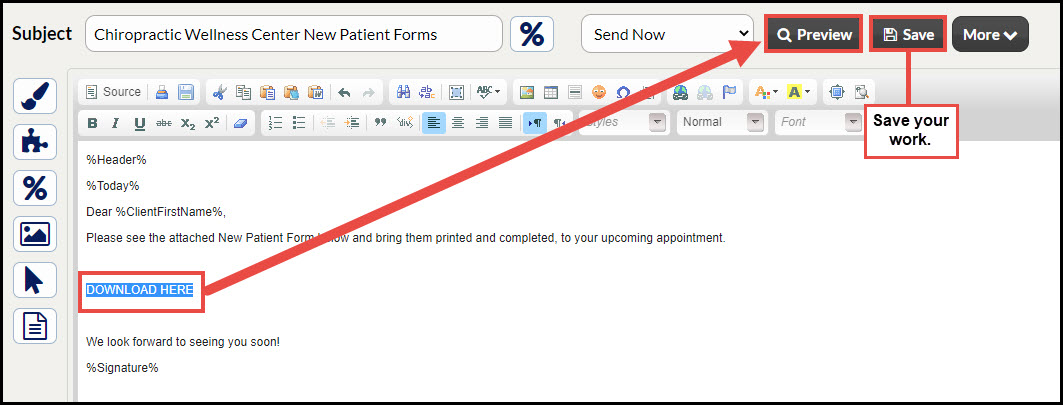
Step 2: Type out a word or phrase within your email editor and highlight this by right-clicking and dragging the mouse across the desired place for your document.
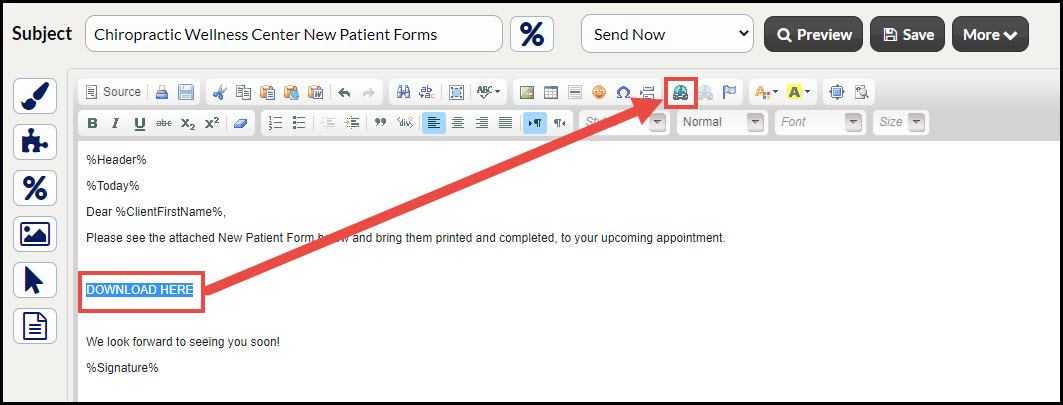
Step 3: Select the link icon from the email editor tools.
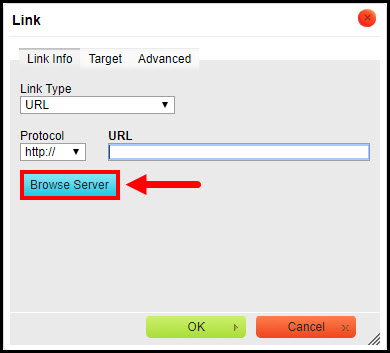
Step 4: The link attachment window will load. Select the [Browse Server] button.
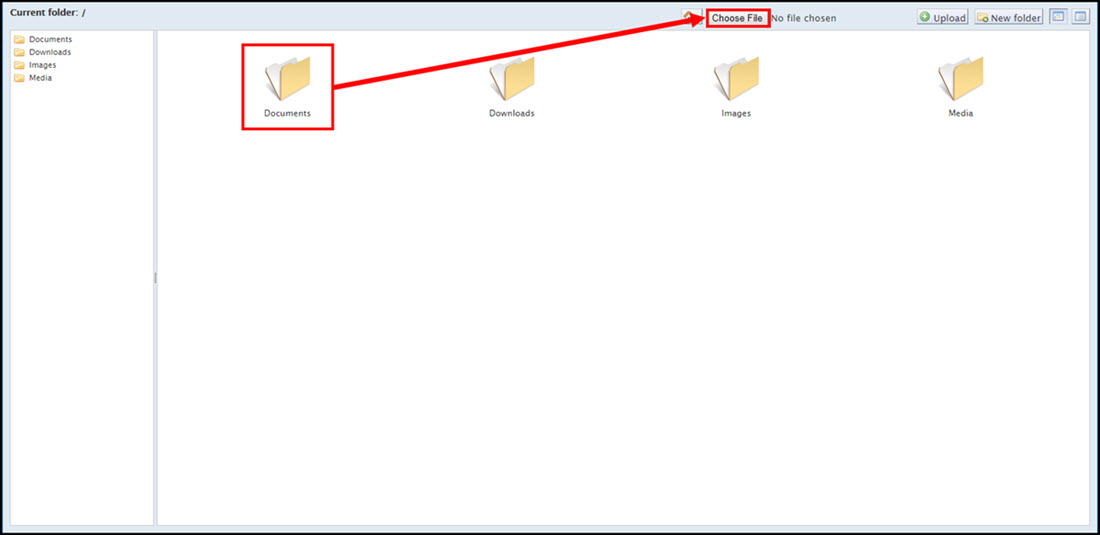
Step 5: The Server screen will load. Select the [Documents] folder → [Choose File].
Step 6: A window will open where you may narrow down the search for a document you wish to attach. Select your desired document and click [Open].
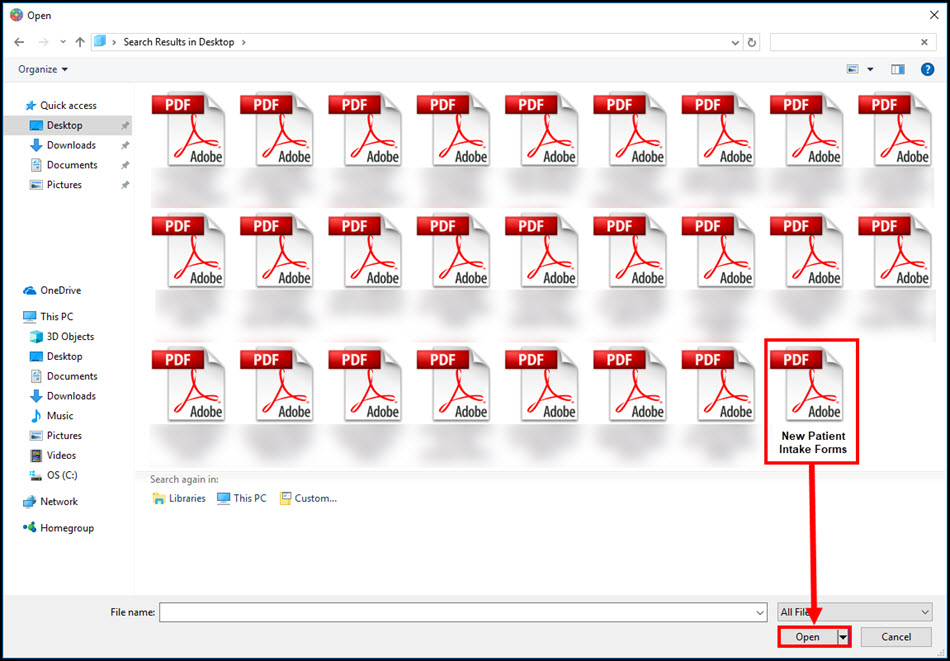
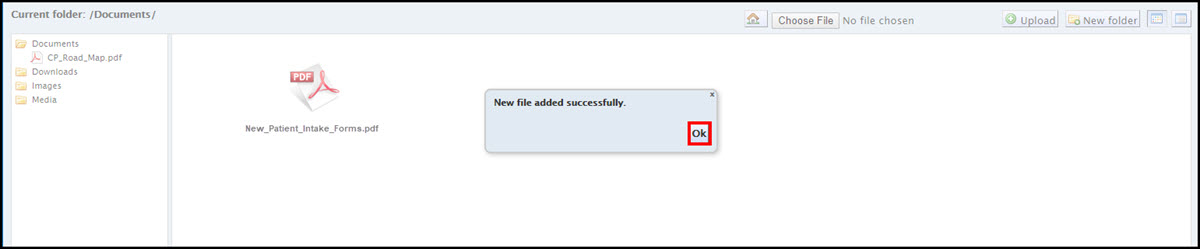
Step 7: The file will now appear next to the "Choose File" button near the top right side of this window. Click on the [Upload] button to add it to the server. Once transferred you will receive an alert like the example below. Click [Ok].

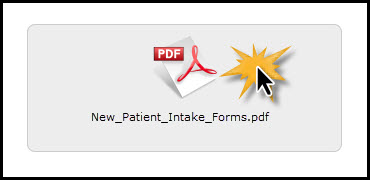
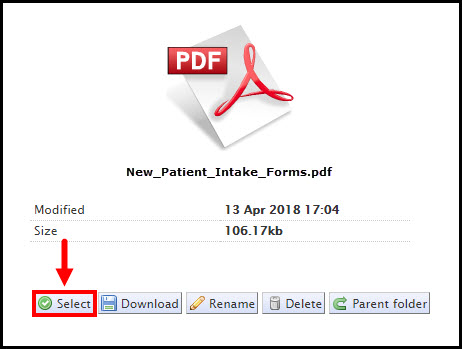
Step 8: Choose your just uploaded file, and click on the [Select] button.
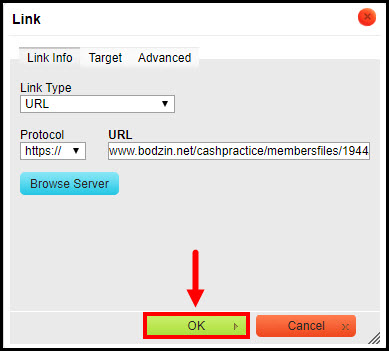
Step 9: Your document has now been set to open as a link. If you would like to have the document open in a separate tab when selected by your patient, you can click on the [Target] tab → select "New Window(_blank)". When finished, click [OK].
Step 10: Your document will be viewable by selecting the [Preview] button. Make sure to save any and all changes by clicking the [Save] button before closing out of the email editor completely.