

Step 1: You must be able to log into the Admin account OR as an Account User that has been given permission to the [My Account] settings.
If you do not see the [My Account] section in your [User Profile] you are not logged in as Admin OR you do not have permission to access the TPS information. You must contact your Admin on the account to collect this information.
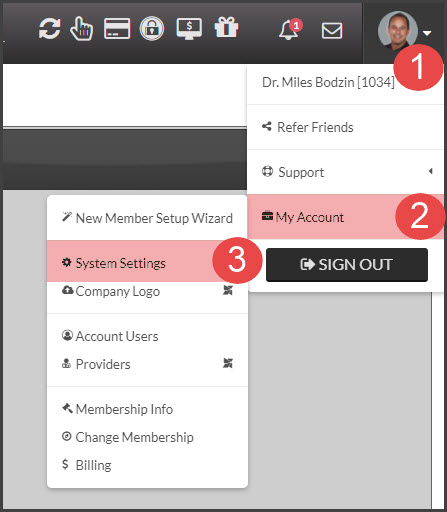
Step 2: Hover over your [User Profile] menu in the top right corner of your screen→ Hover over [My Account] → Click on [System Settings].
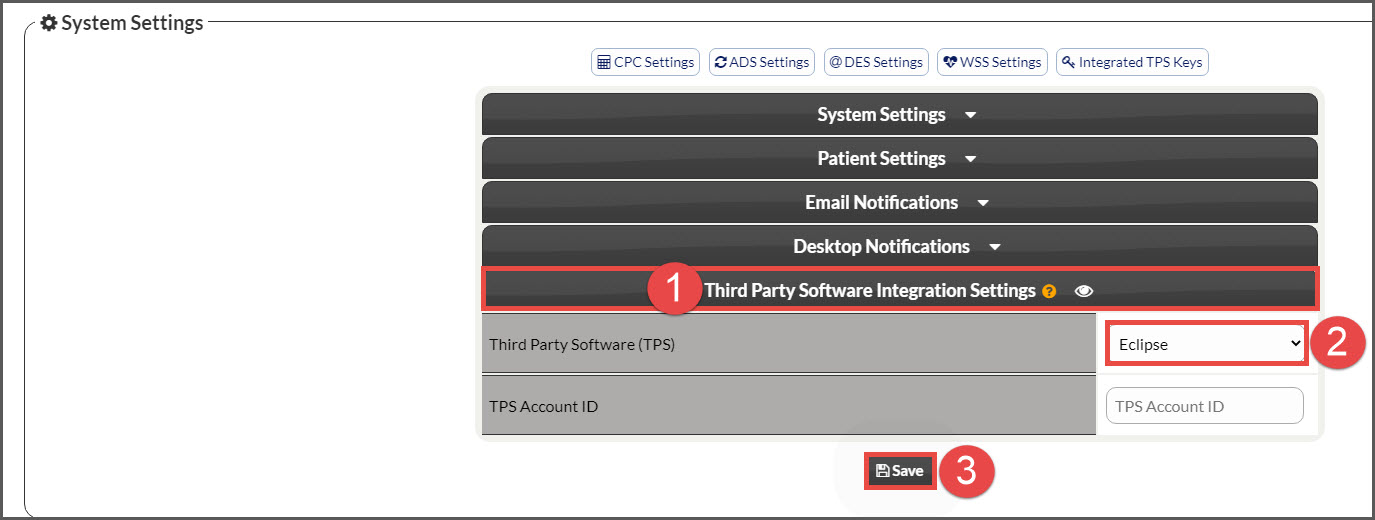
Step 3: From the [System Settings] page, select the [Third Party Software] drop-down section and select [Eclipse [Multiple-Ledger] for your Third-Party Software, and click [Save].
NOTE: For Eclipse users only, it is not required to add a TPS Account ID.
Step 4: Close out of this pop-up window by selecting the red "X" at the top right-hand corner of the page.