

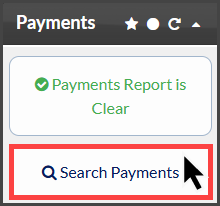
Step 1: From the Dashboard, click the [Search Payments] button on the right, under the "Payments" section.
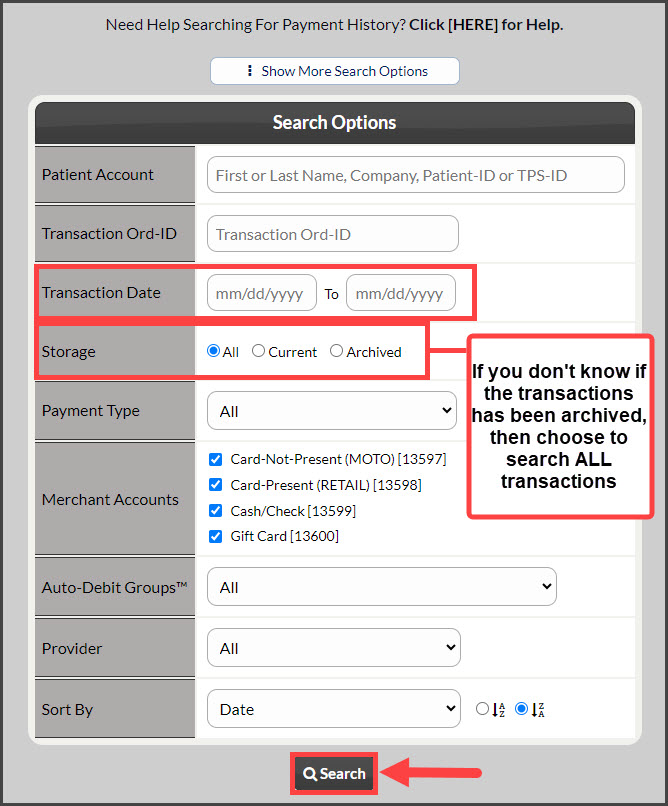
Step 2: Enter your search criteria.
Change the [Storage] field to All - this will show all current and archived transactions.
For additional search criteria, select [Show More Search Options]. Then click [Search].
Step 3: Click the [Refund] button under the "Actions" column on the transaction you'd like to refund.
This will open the refund tool in a new window.

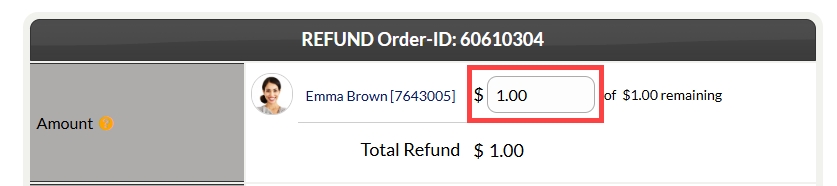
Step 4: Confirm the dollar amount to refund.
Refunds are possible, up to the original transaction amount. To process a partial refund, adjust the [Amount] field accordingly.
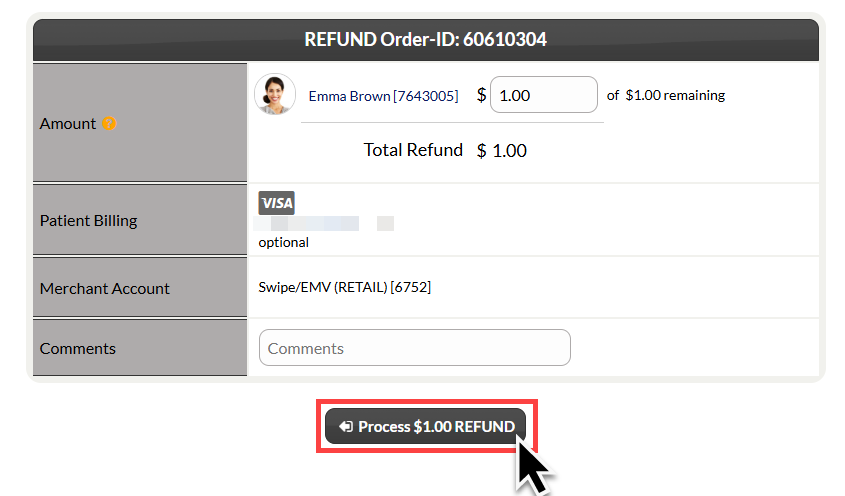
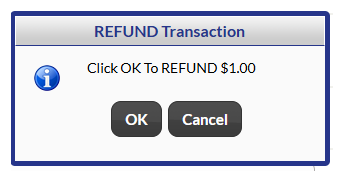
Step 5: Select [Process Refund], then confirm by clicking [OK].
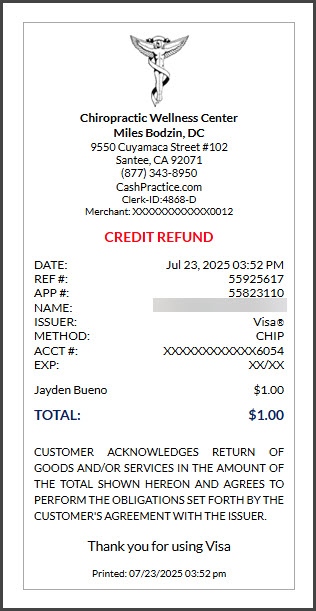
Step 6: The [Posted Payment Report] will display the refund status. If your Patient Management software is not integrated, you will need to manually credit the patient ledger.
