

Step 1: Log into your account as the Admin/Owner.
Step 2: You will click on the [User Profile] menu at the top right corner of your screen. Click on [My Account] → [Change Membership].
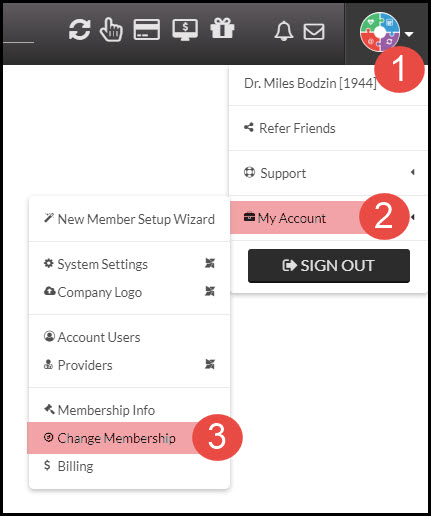
Step 3: Making the change. All modifications will be reflected on the right side of the screen displaying the maximum Patient Loyalty Potential™, cost break down, Membership Bonuses, and the summary of what will be collected today, or any credit being applied:
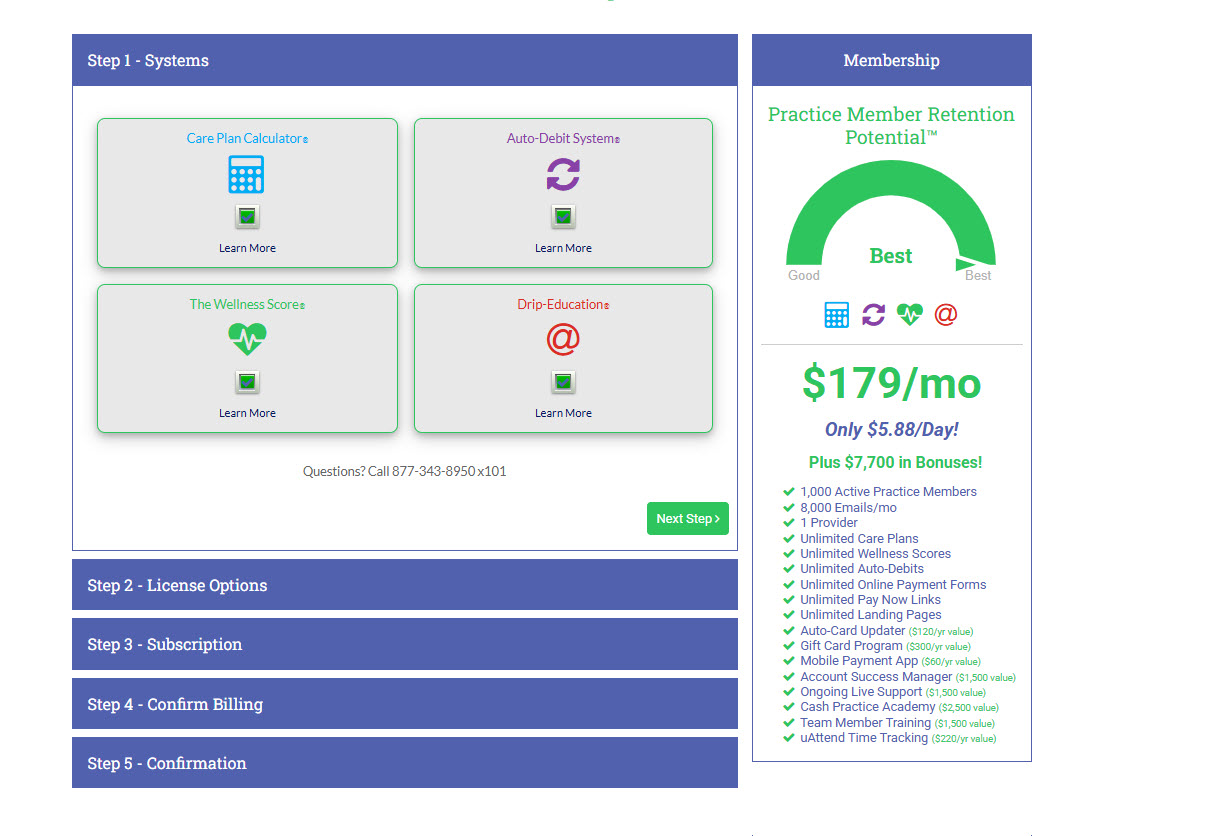
You want to start off by selecting or de-selecting the systems → Click [Next Step]
Choose the patient/provider size that best fits your office as well as change your license type if needed. To see the difference between Standard & Corporate click HERE. Once this has been select, go to the [Next Step]
Select your subscription type
Monthly: Dues are collected monthly
Quarterly: Dues are collected every 3 months
Annual: Dues are collected annually
[Next Step]
Confirm the card we have on file for billing in order to make the change, or update this here
Accept the terms and click [Authorize Payment]
Once the change is made, you will be brought to a confirmation screen as well as you will receive an email confirmation of the change to the Admin/Owner's email address on file.
If you have any questions, please contact our Membership Dept at (877) 343-8950 x101.
For callers outside of the continental US call (619) 569-1639 x101