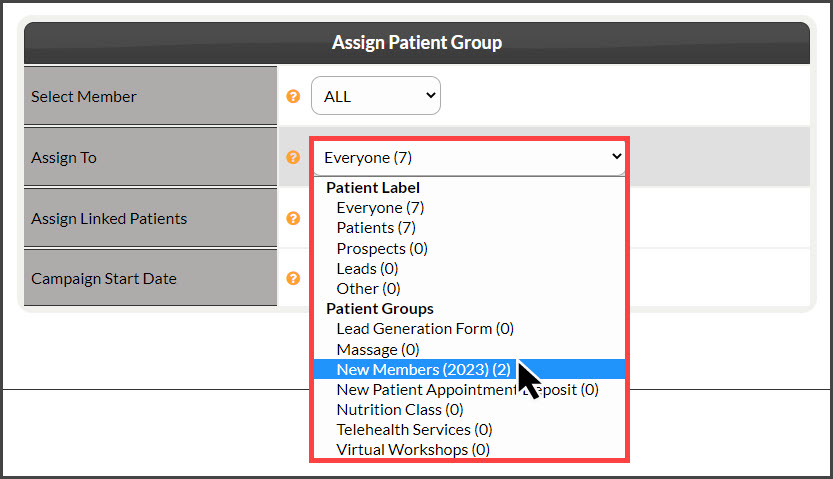
Send your broadcast email to a patient group!
The Drip-Ed Broadcaster™ is used as an "email blast", typically sent to ALL patients. However, you also have the ability to send a broadcast email and also campaign emails to a particular patient group if needed!
Note: If you need to create Patient Groups, click HERE.
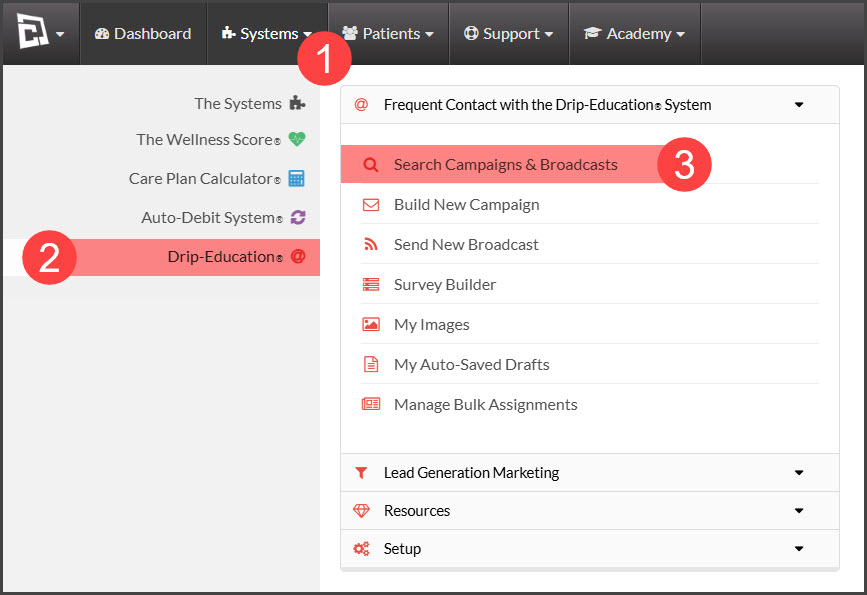
Step 1: Go to [Systems] →[Drip-Education® ] → [Search Campaigns & Broadcasts].
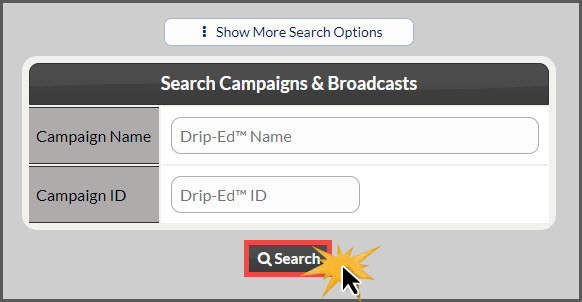
Step 2: Narrow down your search for the broadcast you wish to send and click [Search].
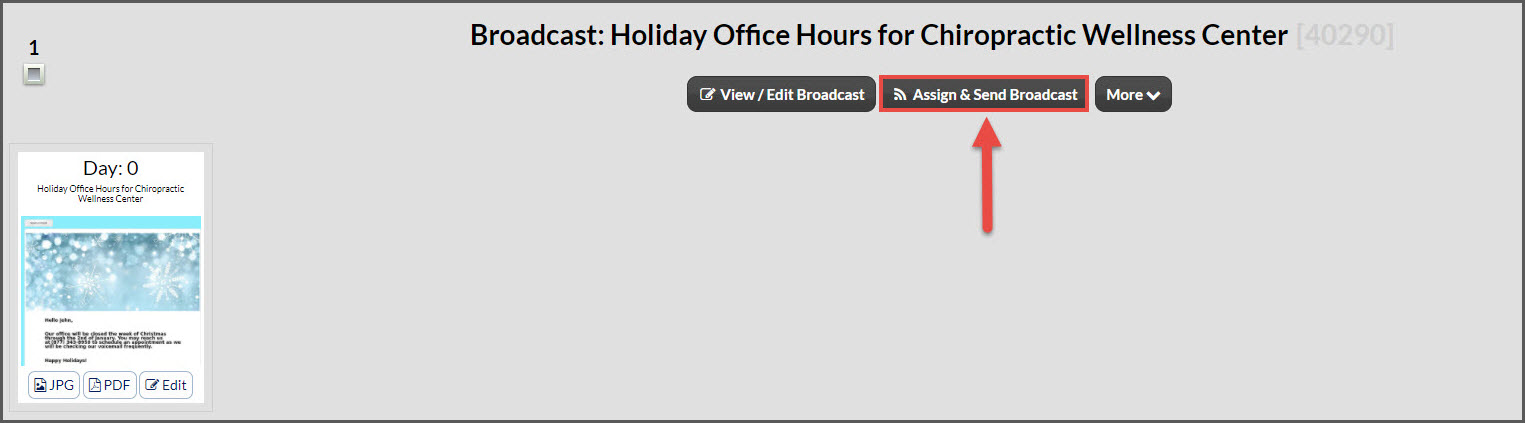
Step 3: Once you have located your saved broadcast, select the [Assign & Send Broadcast] button.
Step 4: Assign Patient Group
Select Member (Available Based on Membership): If your Cash Practice Membership allows for multiple providers, you can choose to send the email to patients assigned to a specific provider or ALL patients in Cash Practice.
Assign To: Choose which list of patients you want to assign the broadcast to, from the drop-down menu.
Assign linked patients: Do you want to assign the camping to any patient linked to patient-defined by the assigning to selection? If so, Select include otherwise skip.
Campaign Start Date: A broadcast date is set for today's date, if you would like this to be different change it here OR select B-day.
Step 5: Click [Send]