

Option 1: For same day transactions
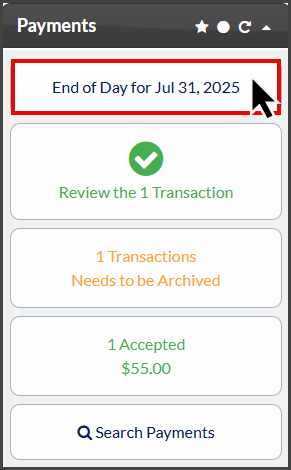
Step 1: Under the "Payments" section, click on the [MM/DD/YYYY] button.
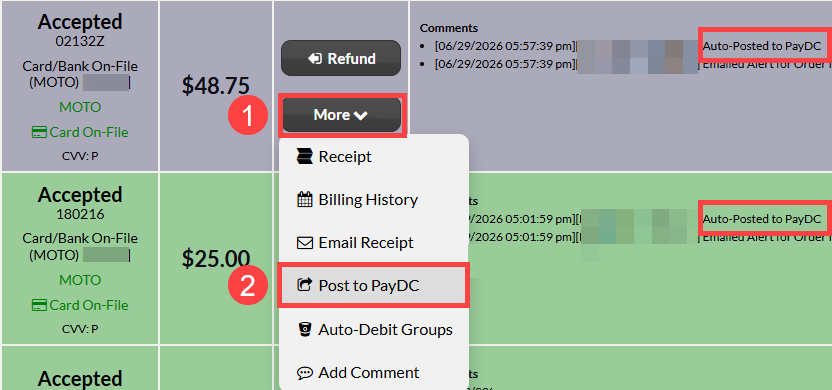
Step 2: Locate the transaction you need to manually sync to PayDC:
NOTE: Cash Practice will apply an automated comment that the payment has been auto-posted to the patient's ledger. If the transaction still does not show in the patient's ledger, proceed with the instructions below.
Click on the [More] drop-down menu.
Select [Post to PayDC].
Option 2: For Past Transactions - using the Posted Payments Report Generator ™
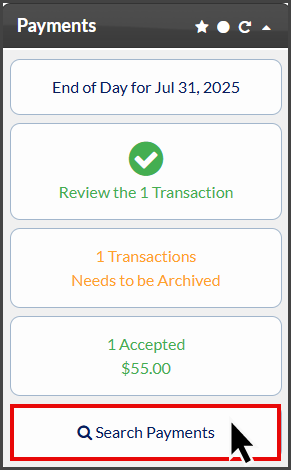
Step 1: Under the "Payments" section, click on the [Search Payments] button.
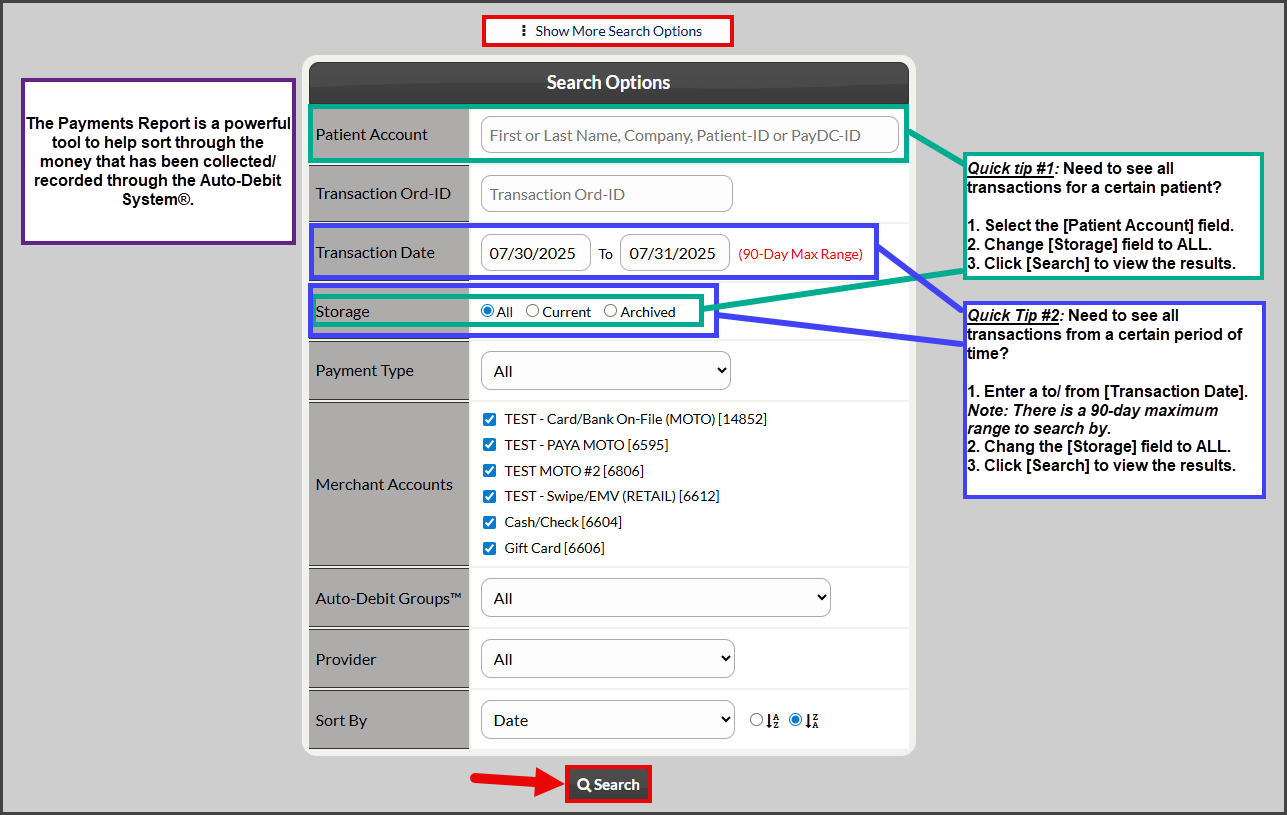
Step 2: Use the search options to define what transactions you are looking for. For more search options, click on the [Show More Search Options] tab at the top.
Step 3: Locate the transaction you need to manually sync to PayDC:
NOTE: Cash Practice will apply an automated comment that the payment has been auto-posted to the patient's ledger. If the transaction still does not show in the patient's ledger, proceed with the instructions below.
Click on the [More] drop-down menu.
Select [Post to PayDC].