
Logo

Cash Practice® Systems Help Center

Search our knowledge base to get answers to your questions, access video training & more!

Managing Assigned Campaigns: How do I stop a Drip-Ed™ campaign email for one patient?

Drip-Education® Email Marketing System (Frequent Contact)

Managing Assigned Campaigns: How do I stop a Drip-Ed™ campaign email for one patient?

Last updated on 13 Sept, 2025

To stop a campaign email, begin by searching for the patient who needs the campaign needs to be stopped.

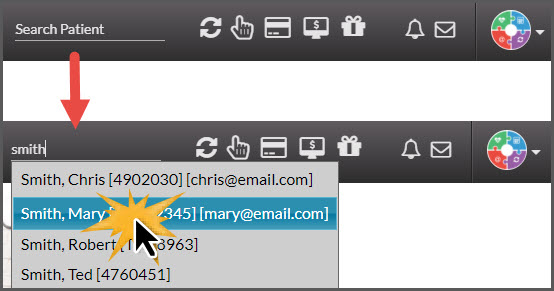
Step 1: Begin typing in your patient's First or Last name in the [Search Patient] bar near the top-right corner of the Dashboard → select the patient record from the drop-down menu.
Image

Step 2: Click on the [Drip-Education® Emails] tab → then select the [Email History] button.

Image

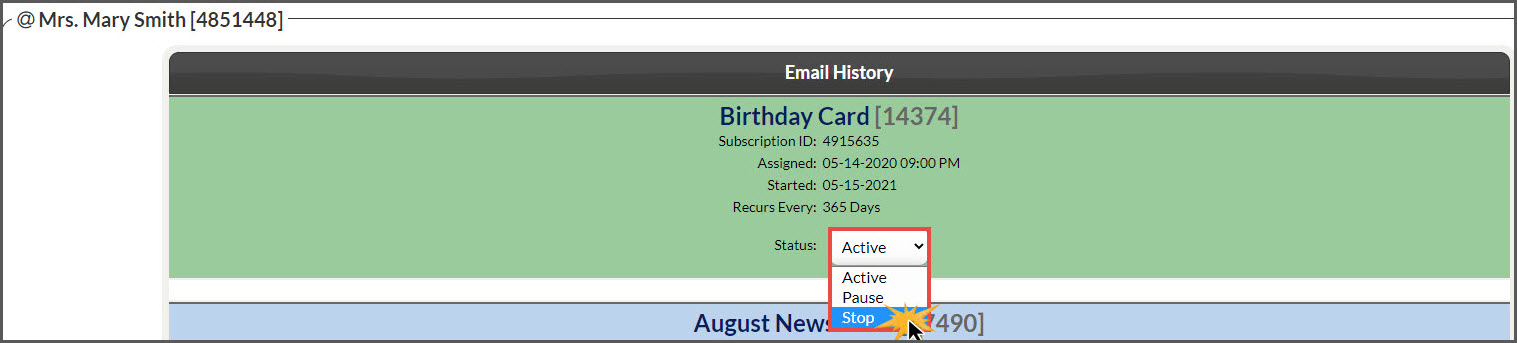
Step 3: All [Active, Paused & Stopped] emails will be listed. To stop an active campaign, select [STOP] from the "Status" drop-down menu. The page will reload and show the campaign as [Stopped].
Image

Did you find this article helpful?
Previous

Drip-Education: [New Campaign Release] 52 Week Patient Education Email Campaign

Next

© 2026 Cash Practice Systems. All rights reserved.