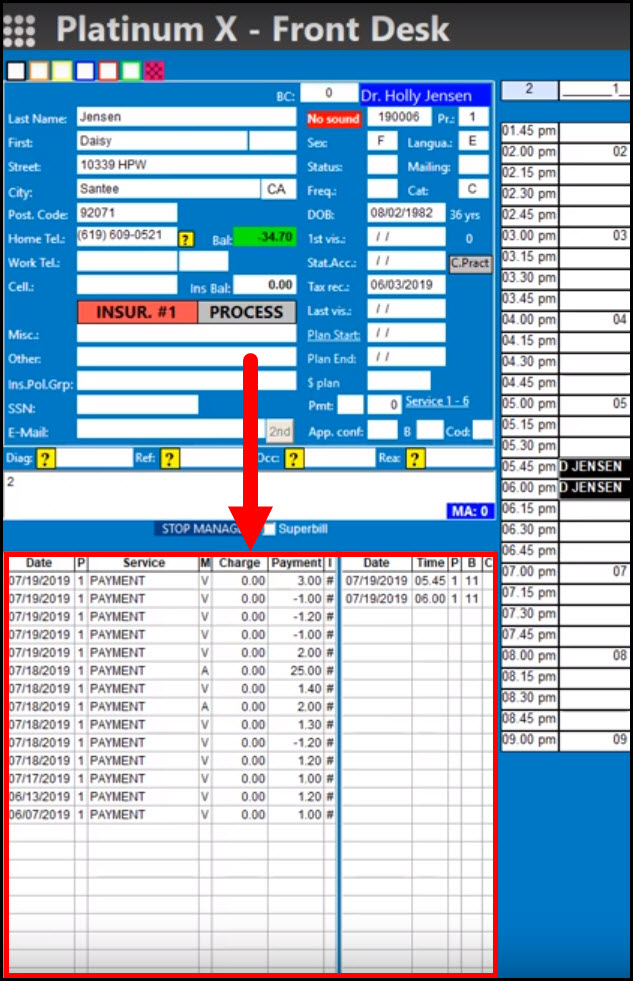
With a click of a button within your Platinum System EHR, you can literally download all transactions processed within Cash Practice. This means NO MANUAL POSTING! (Yes, this is pretty cool!)
For best practices, we recommend that you [Synchronize/Download] transactions at the beginning and the end of each business day.
For more information about best practices for daily procedures, click HERE.
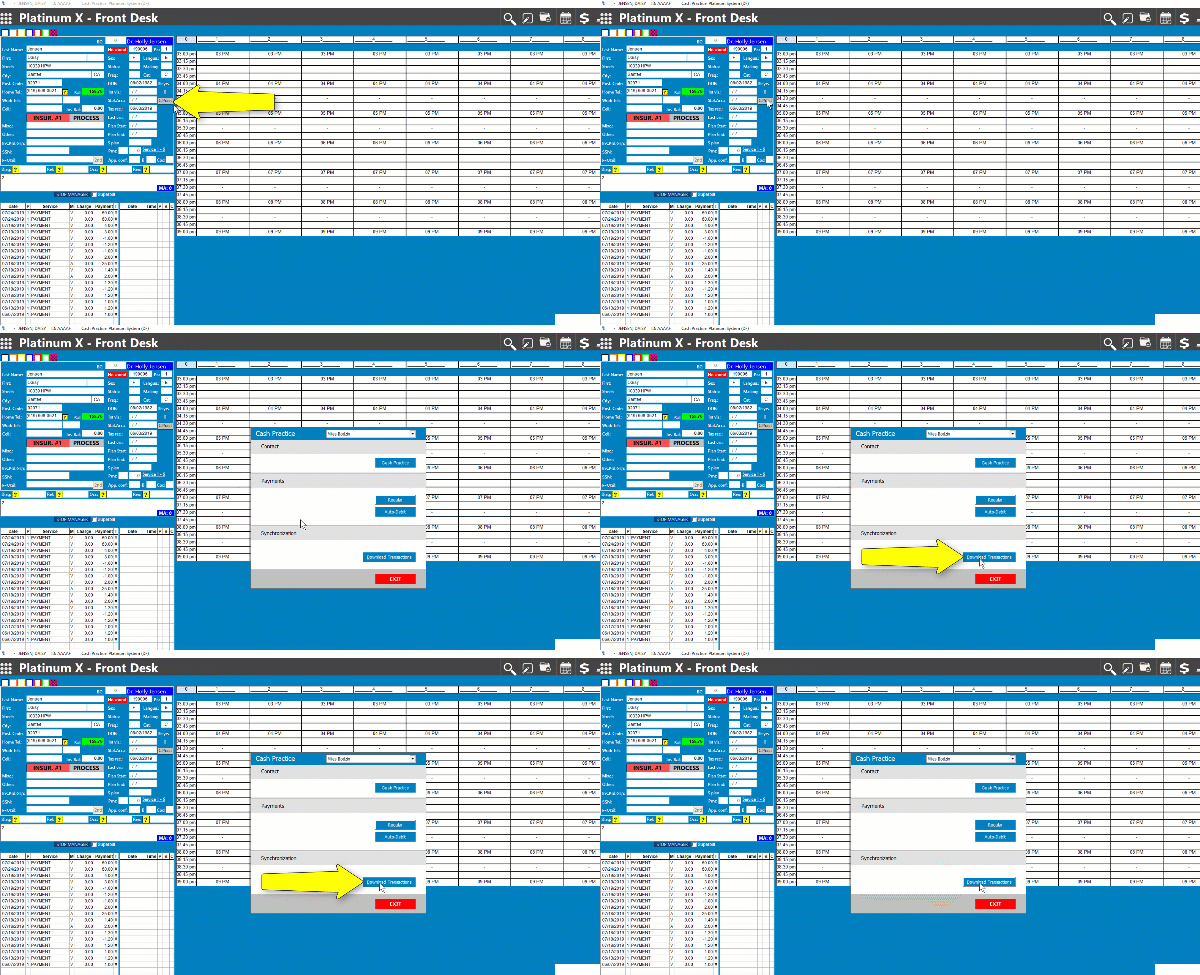
Getting Started:
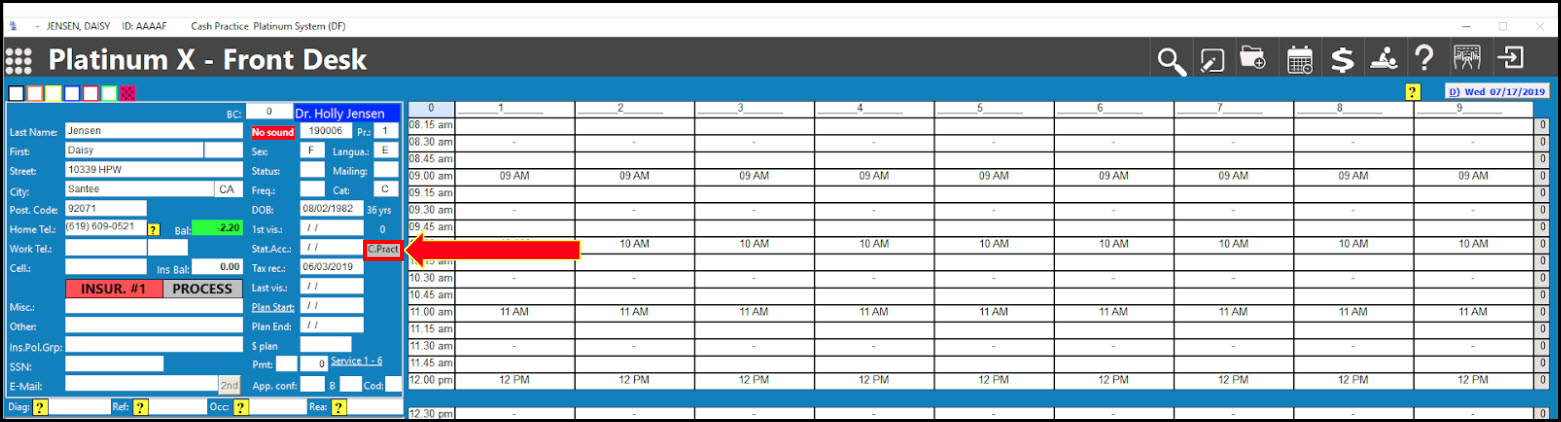
Step 1: From the Front Desk, click on the [C.Pract] button.
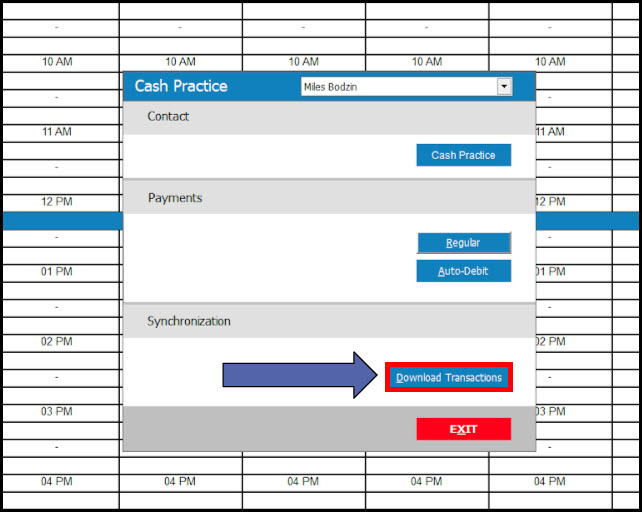
Step 2: This will load the Cash Practice® tools window. Click on the [Download Transactions] button in the Synchronization section.
Step 3: This will load a printable report for your records. Click the printer icon to print if needed. Closeout of the page.
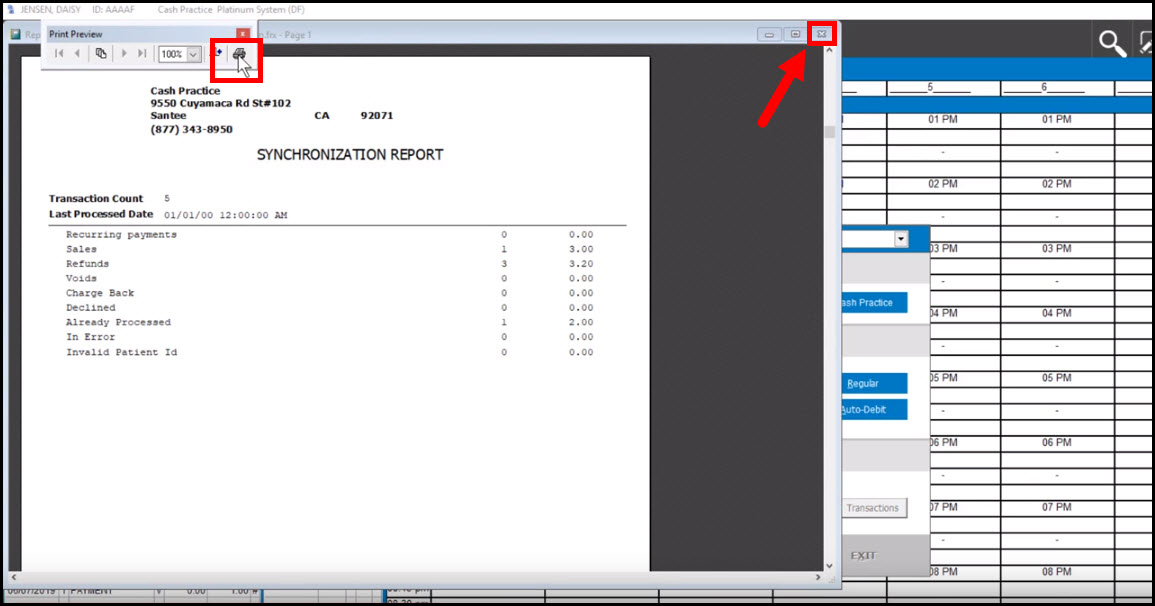
Key:
Recurring Payments: This is the number of recurring payments imported and the total dollar amount.
Sales: This is the number of [ACCEPTED] transactions imported and the total dollar amount.
Refunds: This is the number of [REFUNDED] transactions and the total dollar amount.
Voids: This is the number of [VOIDED] transactions and the total dollar amount.
Charge Back: This is not enabled.
Declined: This is the number of [DECLINED] transactions and the total dollar amount.
Already Processed: This is the total number of transactions already imported and the total dollar amount.
In Error: This is not enabled.
Invalid Patient ID: This is the total number of patient transactions that cannot be imported from the [Posted Payment Report] within Cash Practice due to an invalid or missing Platinum account number. To fix this, you need to add the patient's Platinum account number to their patient record within Cash Practice. See here for details.
Step 4: Select the [EXIT] button in the Cash Practice® app window.
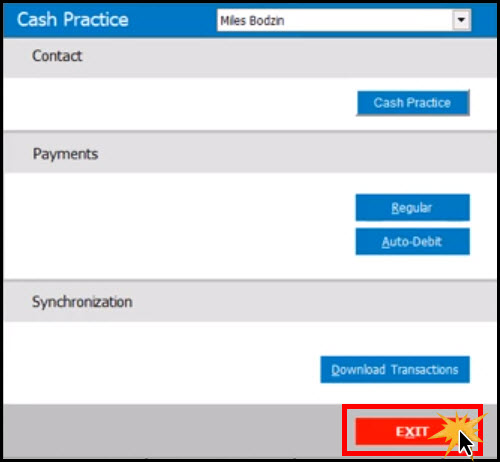
Step 5: This action posts all transactions that have not already been downloaded into Platinum. All transactions will be posted directly to the corresponding patient ledgers. You can easily see the posted transactions within the patient ledger.