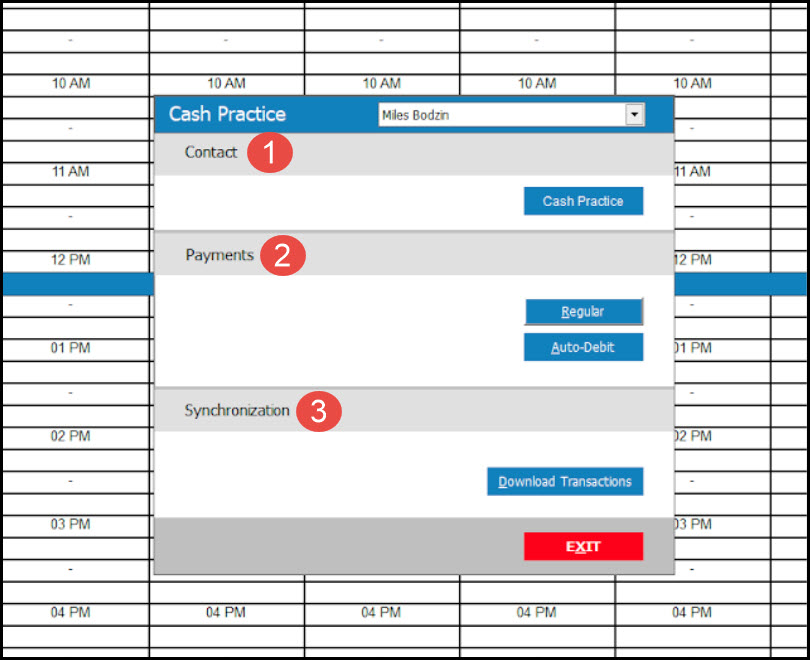
Getting Started:
To use the integration you must contact Platinum System with your Cash Practice integration keys for your account and all users.
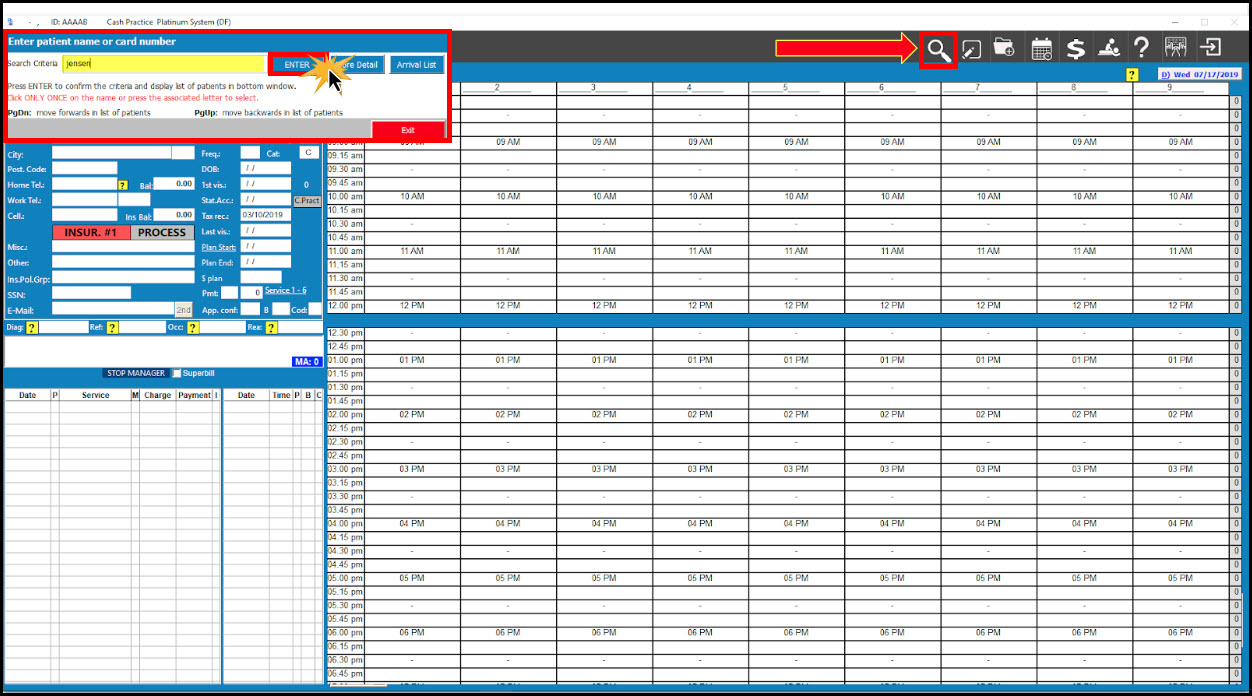
Step 1: Locate the patient account in Platinum by clicking on the magnifying glass icon from the top right side of the page. This will open a search window allowing you to type the "Search Criteria". Click [ENTER].
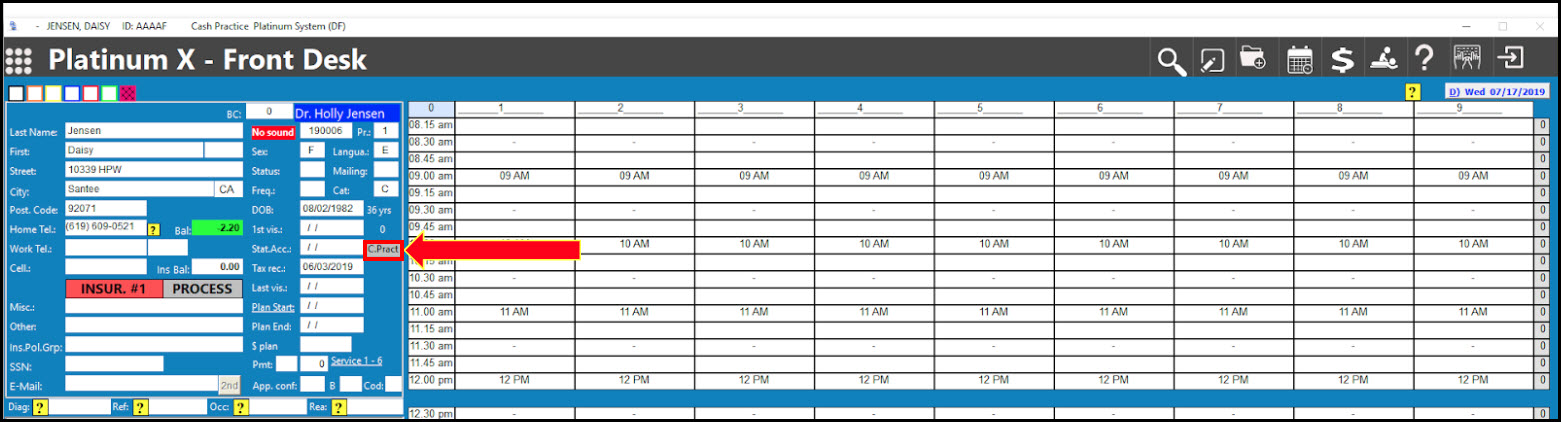
Step 2: Open the Cash Practice® tool by clicking on the [C. Pract] button.
Step 3. This will load the Cash Practice® tools window. From here you have access to the following items:
Contact → [Cash Practice]: This will open the Patient Record within the CashPractice.com website allowing access to the payment tools such as the Auto-Debit Scheduler™, Virtual Terminal, EZ Swiper™, and the entire website. You may also use this contact button to generate a patient account in Cash Practice.
Payments → [Regular] & [Auto-Debit]:
[Regular]: This opens the Virtual Terminal for processing a one-time payment
[Auto-Debit]: This opens the Auto-Debit Scheduler™
Synchronization → [Download Transactions]: Downloading the transactions triggers the Platinum System® to being importing payments from Cash Practice® to your software. Accurately updating patient ledgers with all collected transactions. This is required as transactions do not automatically import or post to Platinum System®.