

Before you're able to process any transactions you must first:
Have an active subscription and merchant accounts turned on in the Auto-Debit System
Ensure all necessary Account Users are added as shown here: How do I add an account user?
Reach out to Platinum System support and provide them with your Cash Practice Integration Keys to enter into your Platinum System software
Once the above items are completed, you must access the Auto-Debit System Setup as shown HERE, to complete the integration. Once you have accessed the setup, you will follow the instructions below:
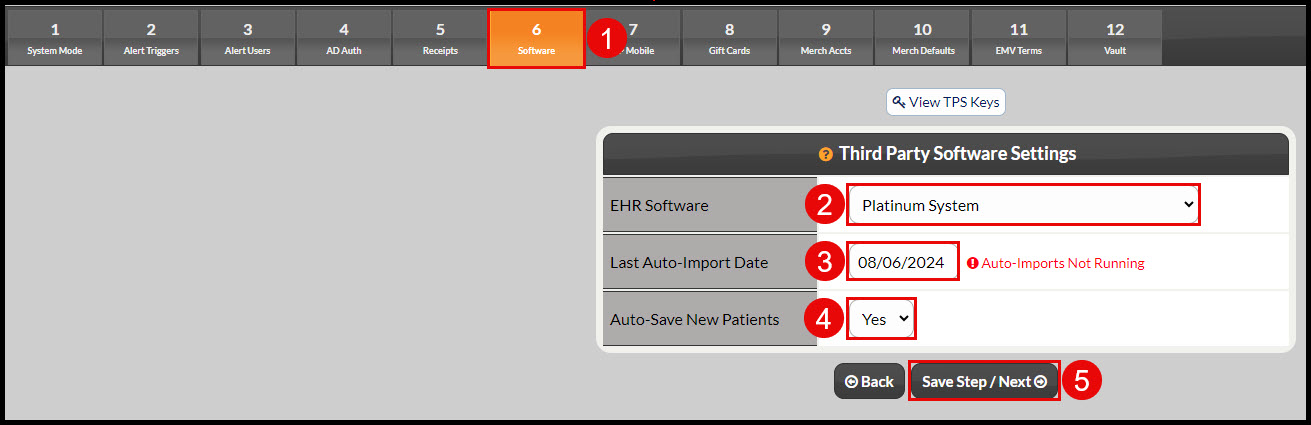
Select Step 6 Software
Choose [Platinum System] as your [EHR Software]
Choose the date to start the automatic imports
"Yes" will be selected for auto-saving new patients
Click the [Save Step/Next] button
Note: If you've already been using your Cash Practice account, you must also enter the patient's account number from Platinum System into the patient account within Cash Practice to prevent duplication. See HERE for details.