

If you have an integrated EHR where you're experiencing TLS Connection Issues, please follow the instructions below to resolve it.
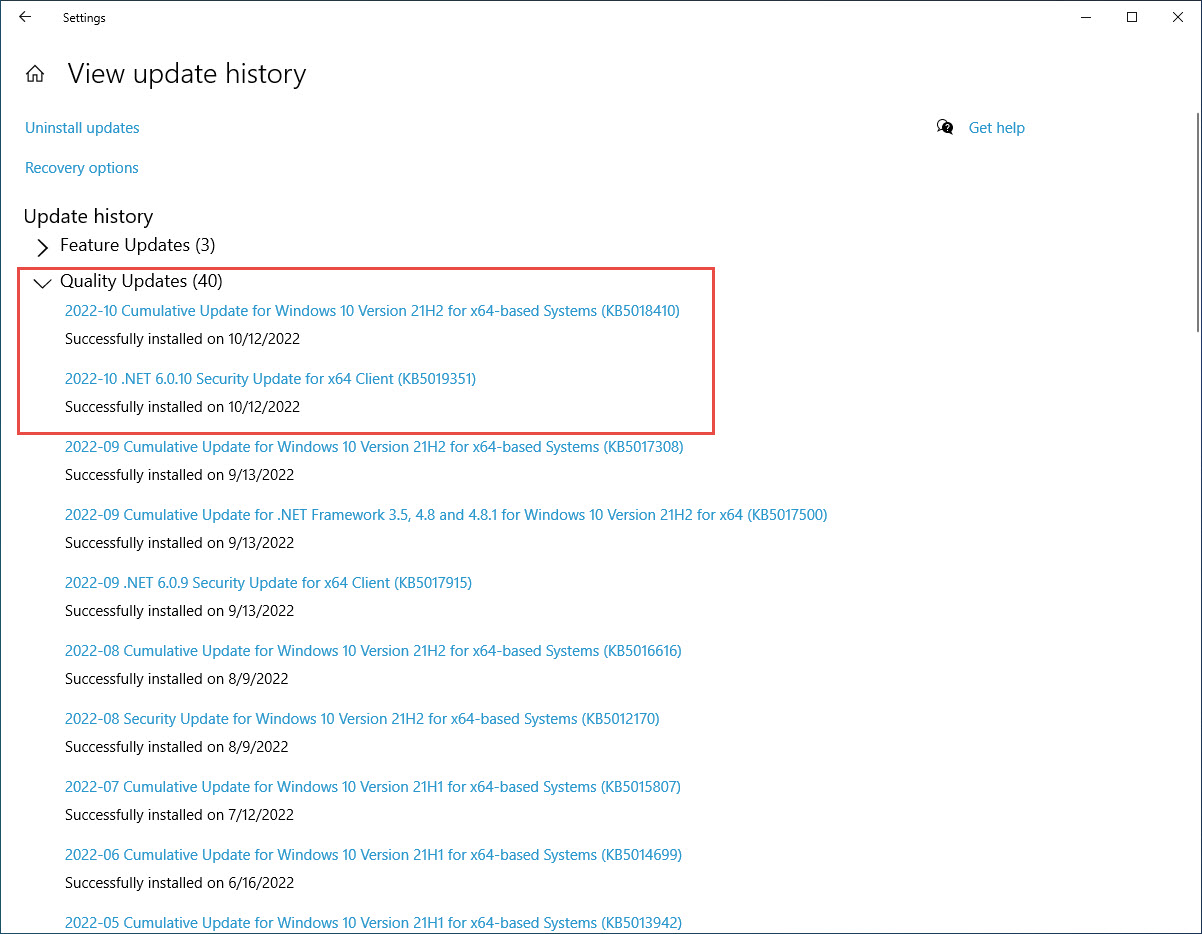
The issue you're experiencing may be a result of recent Microsoft Windows Quality Updates added on 10/12/22. See HERE for details.
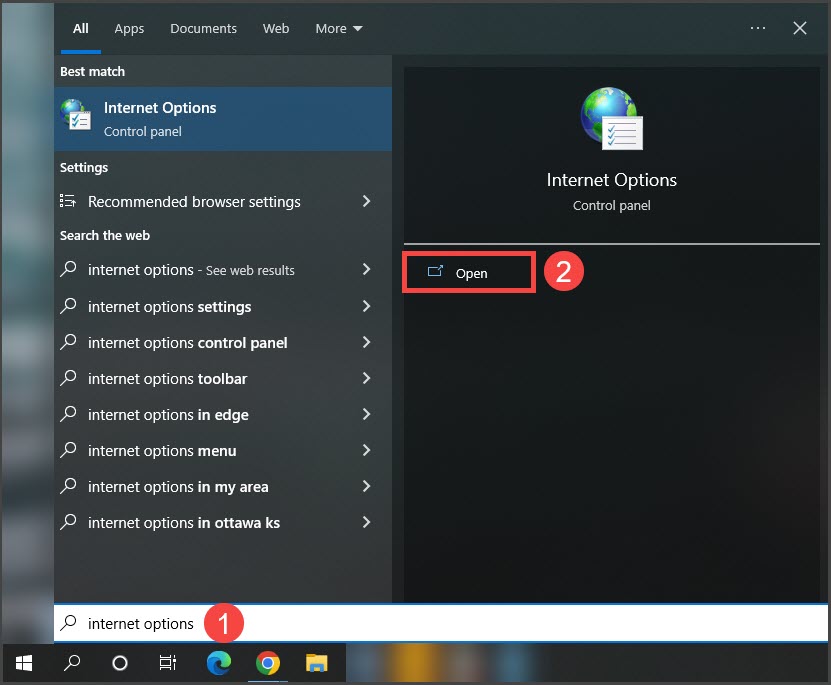
Step 1: To change your computer TLS Settings go to the search bar on your computer and type in: internet options
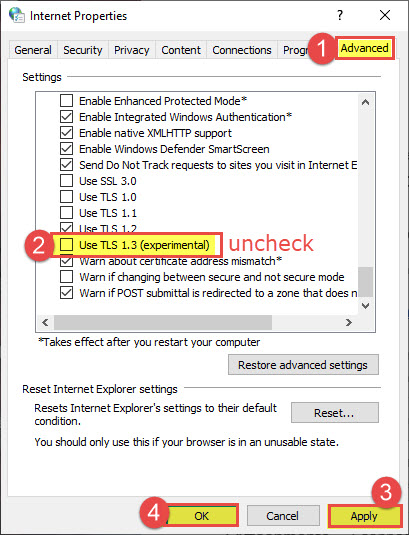
Step 2: From the Internet Properties window, select the [Advanced] tab > scroll down and uncheck TLS 1.3 > APPLY > OK. Make sure that TLS 1.2 IS CHECKED.
Step 3: Go to your EHR and acces the tool again. You should now be able to access the payment tool.
If you want to see if your computer did the update mentioned above that causes this issue, you can follow the instructions below (OPTIONAL).
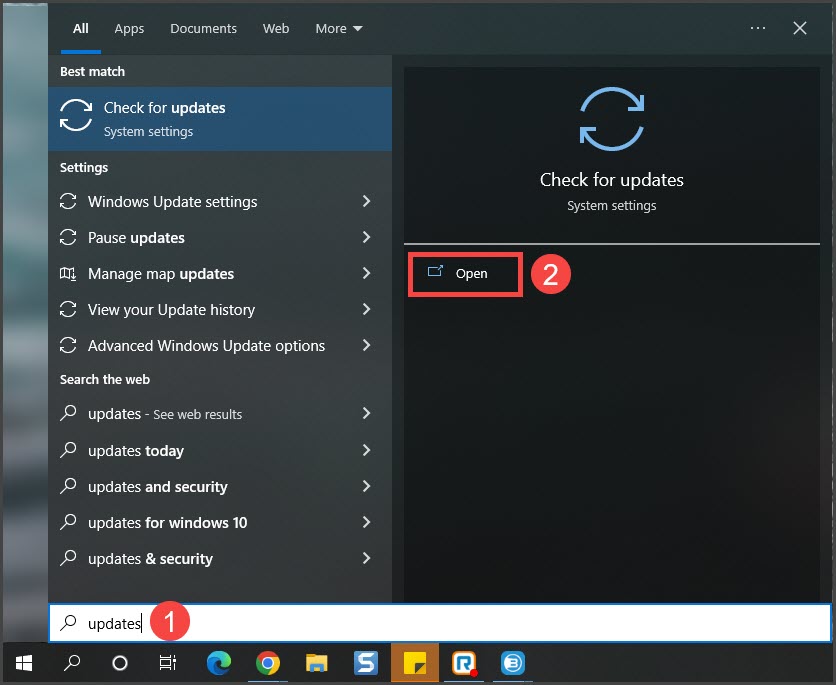
Step 1: To check your computer for Quality Updates go to the search bar on your computer and type in: updates
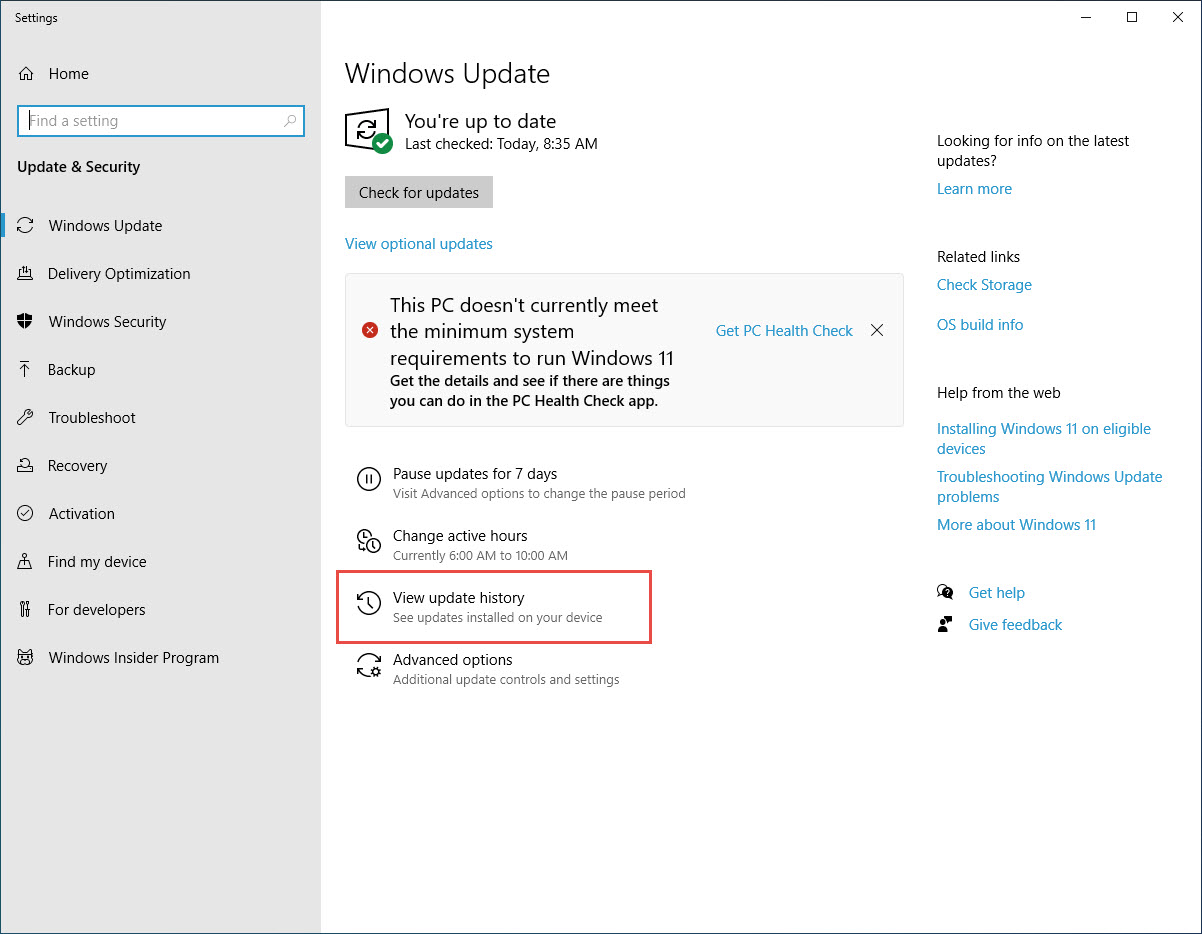
Step 4: Select [View Update History]
Step 5: Under [Quality Updates] check to see if your computer received updates on 10/12/22 as seen in the image below outlined in the red box.
Step 6: Re-try using Cash Practice with your EHR integration. For additional assistance contact Support@CashPractice.com