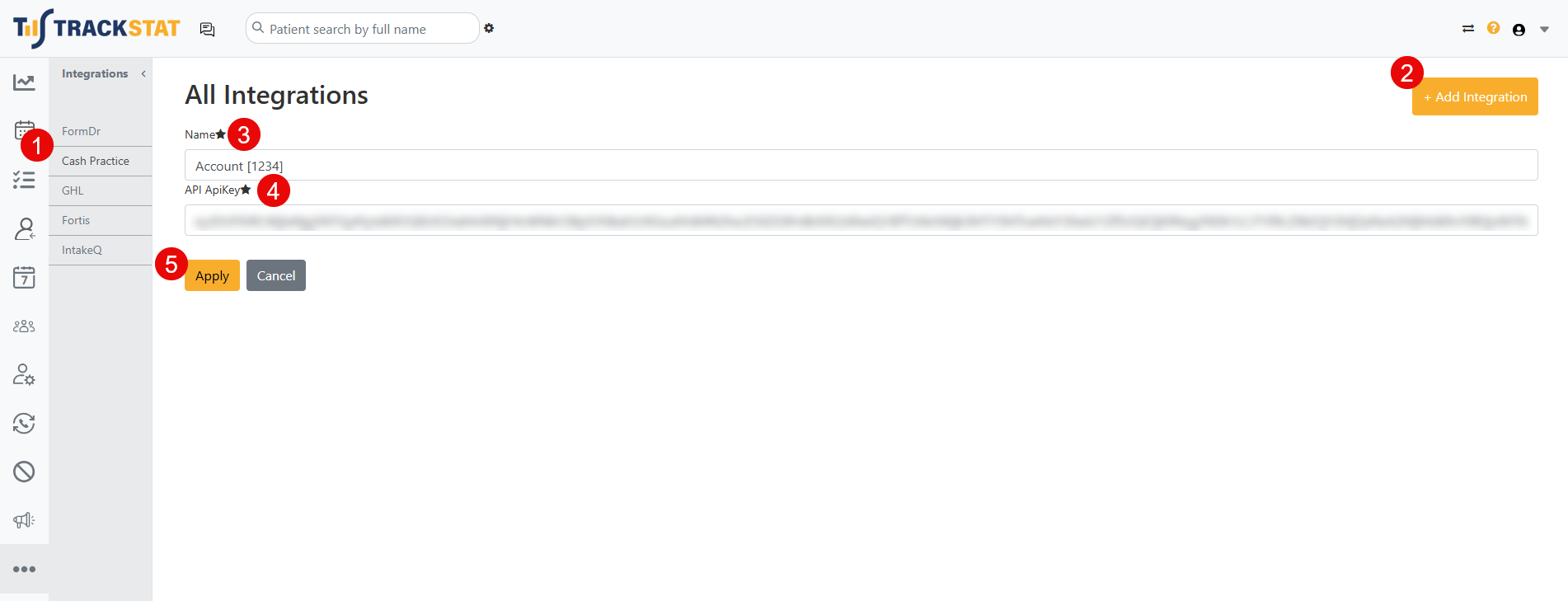

Step 1: While signed in as the Admin/Owner of the account, hover over the user profile icon, and head to [My Account], then select [System Settings].
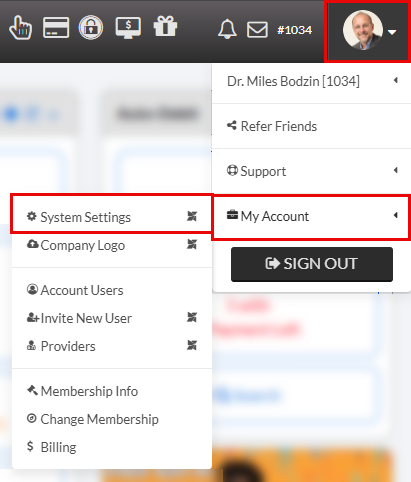
Step 2: At the bottom of the page, click on the [Third Party Software Integration Settings] to expand drop down menu.
Then, select [TrackStat API Key]. This will open a TrackStat API Key window.
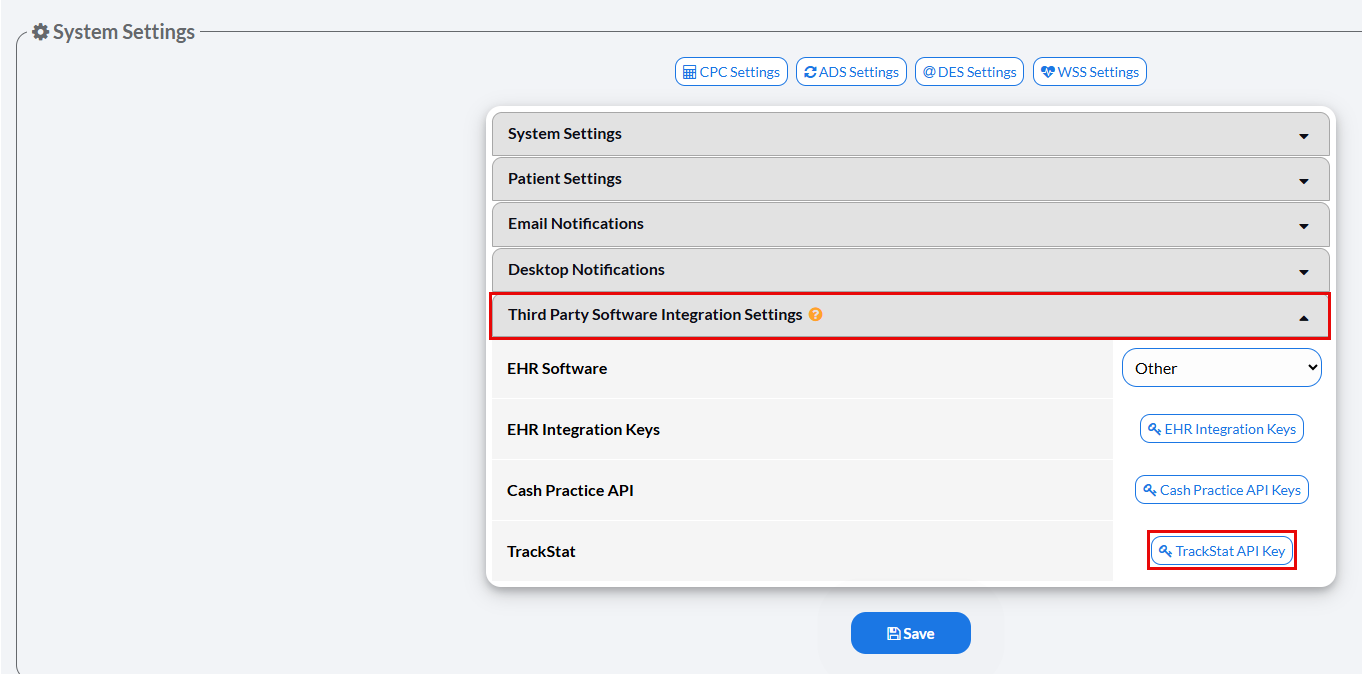
Step 3: From here, click the [More] drop down menu & select [New Key].
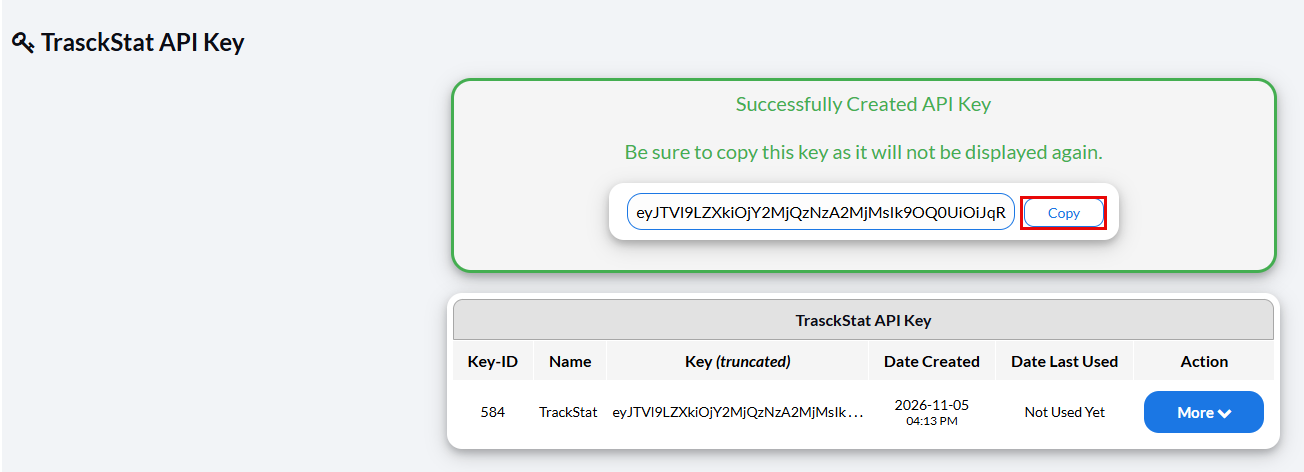
Step 4: Your page will refresh & you will be presented with your TrackStat API Key. Simply click the [Copy] button to copy the code to your clipboard.
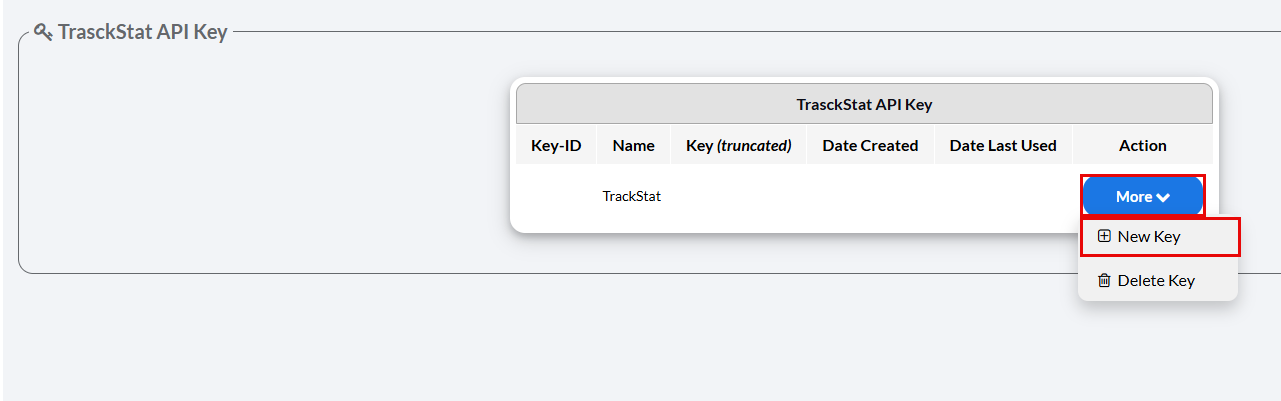
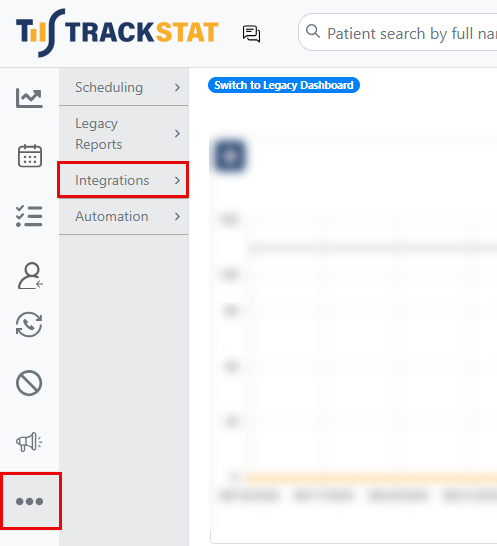
Step 5: Next, open up TrackStat and click the "Extras" icon (it looks like three little dots) in the bottom left corner & select [Integrations].
Step 6: From the integrations page, you will complete the sequence below:
First, Select [Cash Practice]
Then, Click the [Add Integration] button
Next, enter in the name of your account in the "Name" field- we recommend listing your account number, in the case you are tracking multiple accounts.
Paste your API Key in the API (ApiKey) field.
Click [Apply] to complete.