Getting started:
Step 1: You must be able to log into the Admin account OR as an Account User that has been given permission to the [My Account] settings.
If you do not see [My Account] in your [User Profile] you are not logged in as Admin OR you do not have permission to access the TPS information. You must contact your Admin on the account to collect this information.
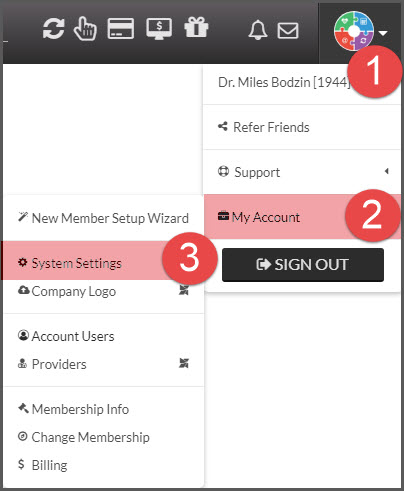
Step 2: Hover over the [User Profile] menu in the top right corner of your screen→ hover over [My Account] → click on [System Settings].
Step 3: Select the [Third Party Software Integration Settings] drop-down section→ confirm OR select the [Third Party Software (TPS)] you use, enter your [TPS Account ID] → and click [Save].
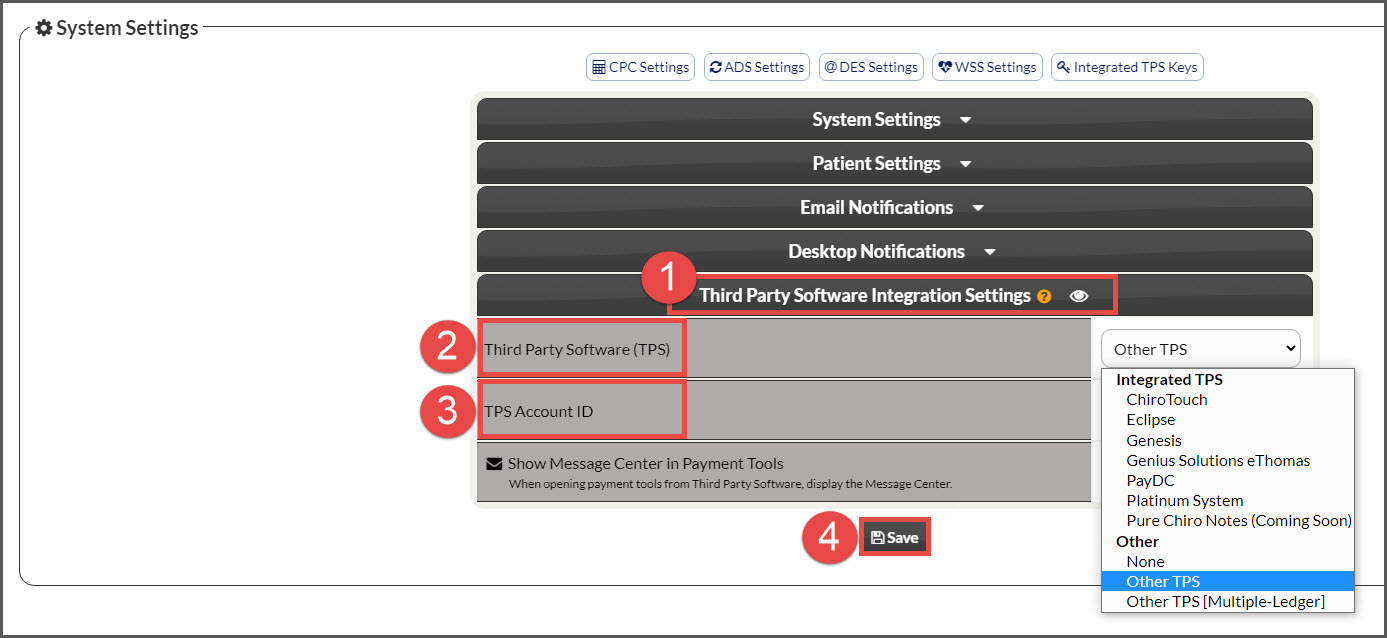
Step 4: Head back to the top of the page and click on the [Integrated TPS Keys] button.

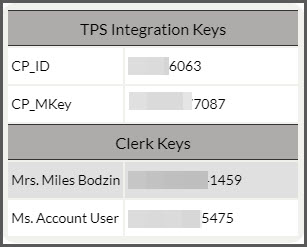
Step 5: Once you click [Integrated TPS Keys], you will see a list of all the integration keys you will need. Leave this screen open, as you will need to come back to it in a moment to enter them in your EHR (Note: The keys listed below are for example only).