

Why would I want to restrict my staff user's access permission?
For additional security, it is recommended that you review and restrict an added permissions given to account users for portions of the website/account that you DO NOT want them to access, like editing/removing patient billing information, processing refunds, times of day they can log in, etc.
Getting started:
Step 1: Log in to your account as the Admin/Owner (or as a user that has already been given permission to create new users).
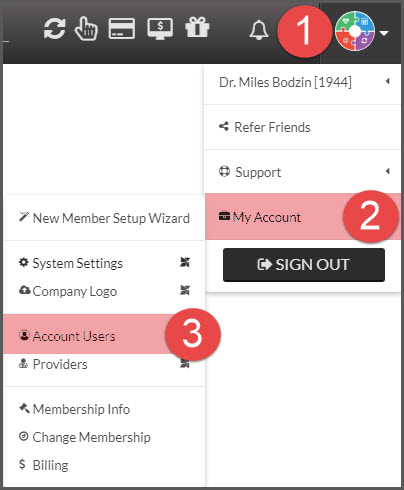
Step 2: Hover over the [User Profile] in the top right corner of your screen → hover over [My Account] → click on [Account Users].
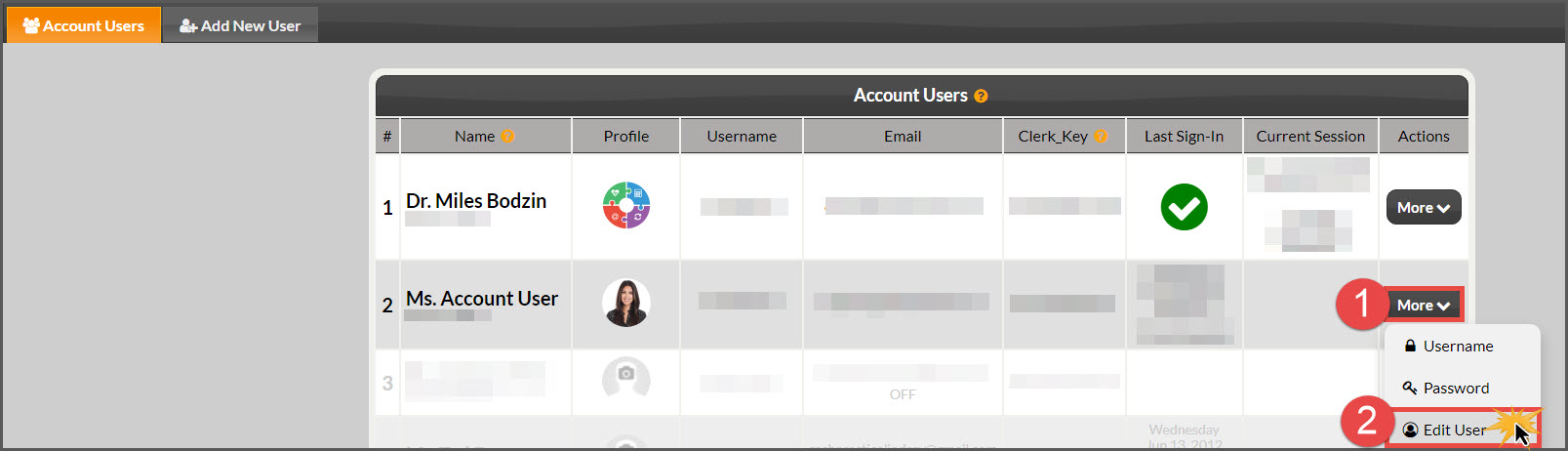
Step 3: Click on the [Actions] button for the account user you wish to edit permissions for → click on [Edit User].
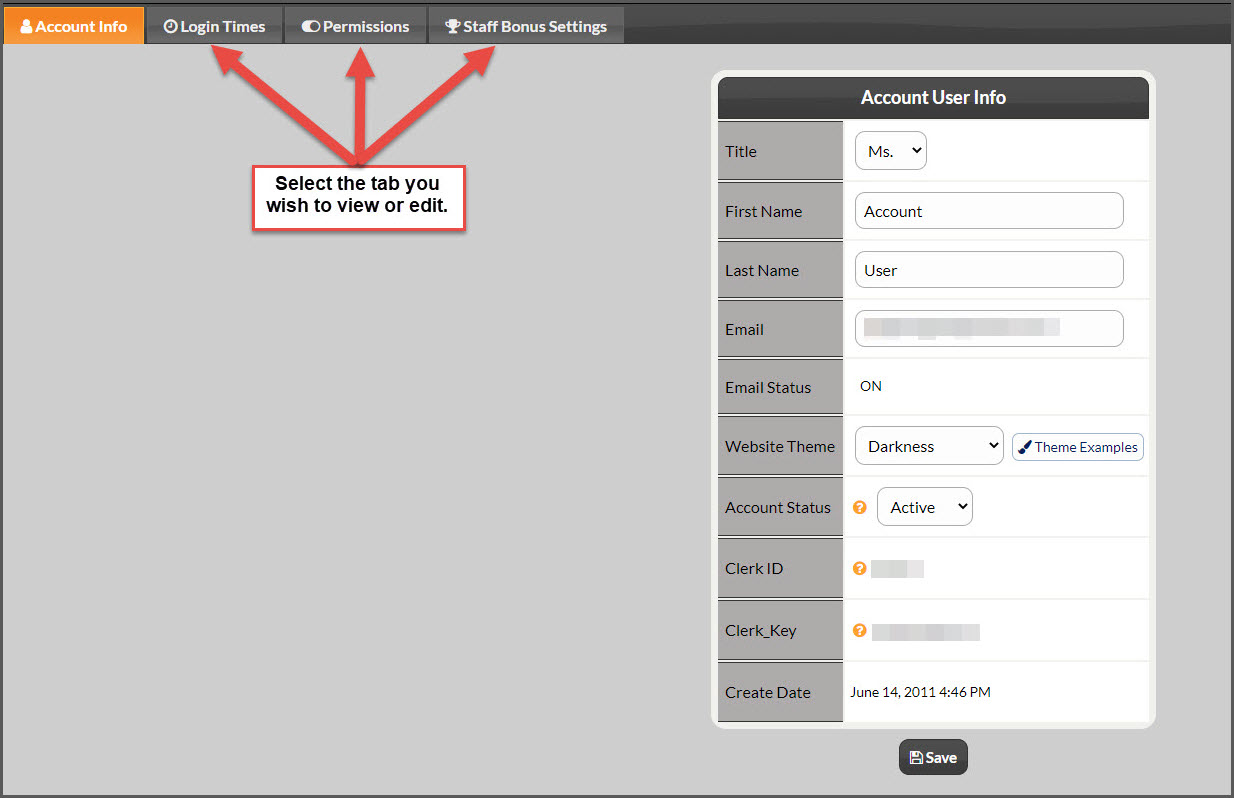
Step 4: To change Permissions click on the [Permissions] tab.
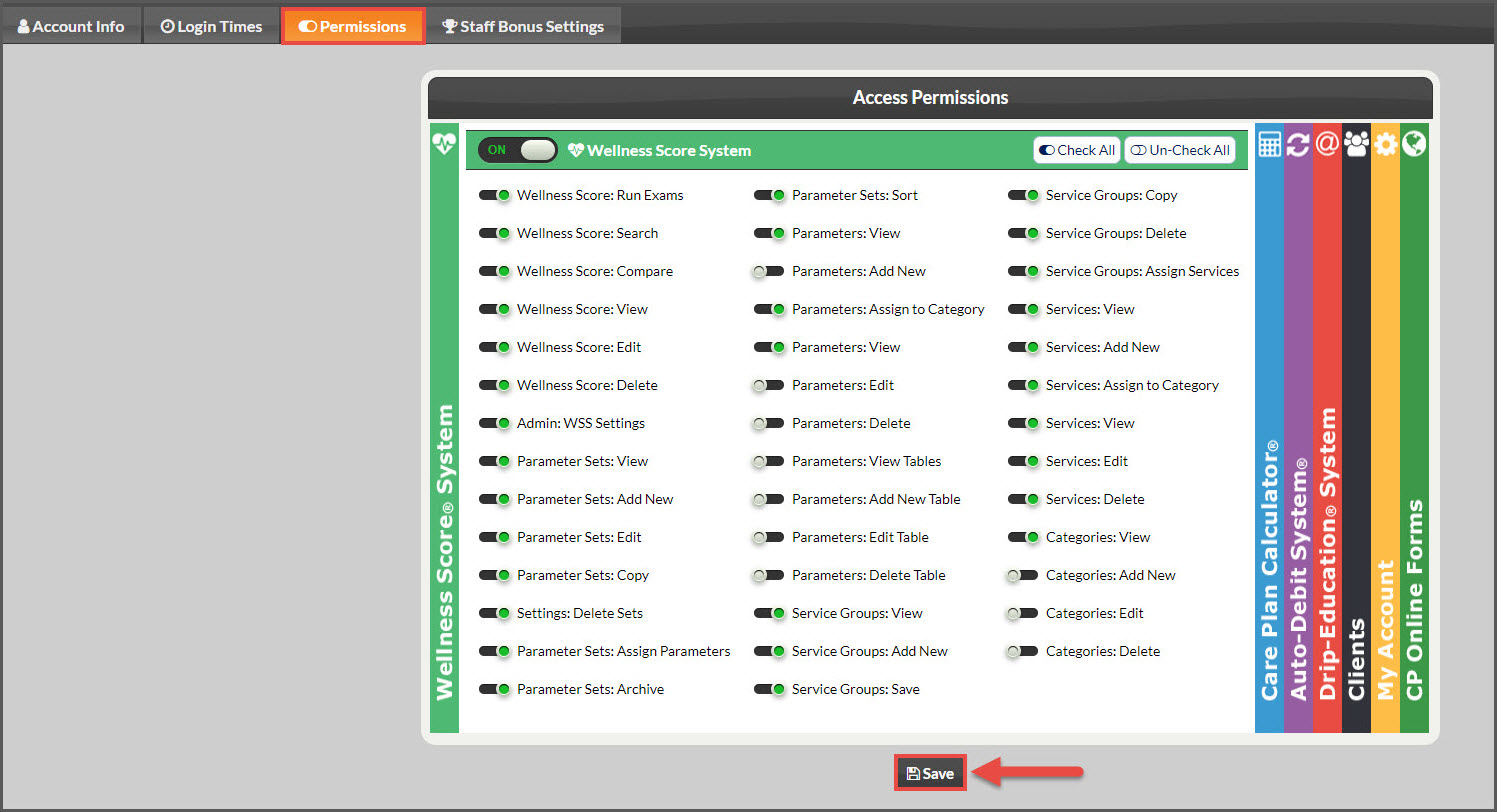
Step 5: Here you can customize your user's permissions for each system. Check the box next to each function you feel they should have permission for. If you change anything here, be sure to [Save] each area before exiting.
If you need to change another feature for your user:
Click the [Login Times] tab to change access days/times.
Click the [Permissions] tab to change what the user has access to.
Click the [Bonus Settings] tab to change bonus amounts.