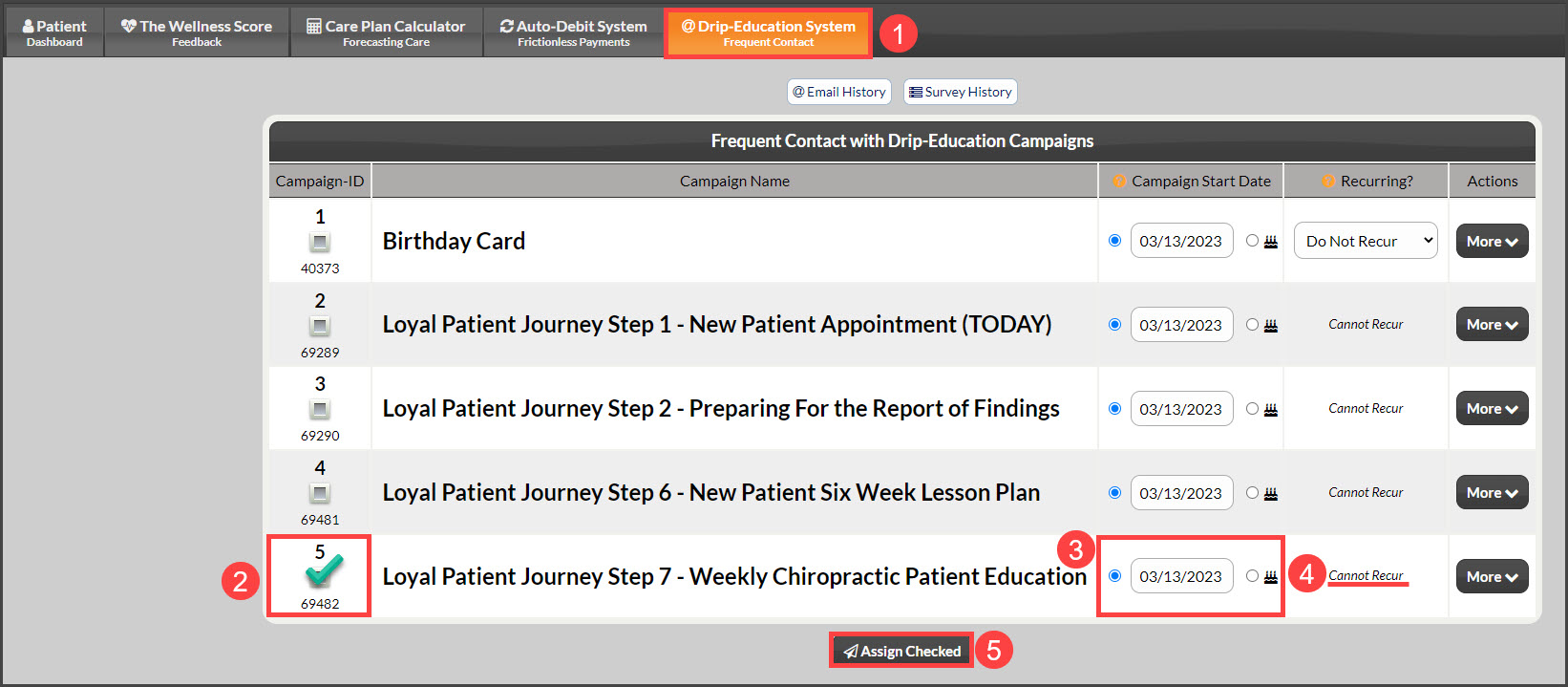
You can set a campaign start date when assigning a campaign. Assigning a start date can be done from a campaign or from the patient section for an individual patient or a patient group. For ease, we also give you the option of assigning a campaign according to birthdates, when assigning the campaign from the patient section and patient account.
Option 1 From My Campaigns:
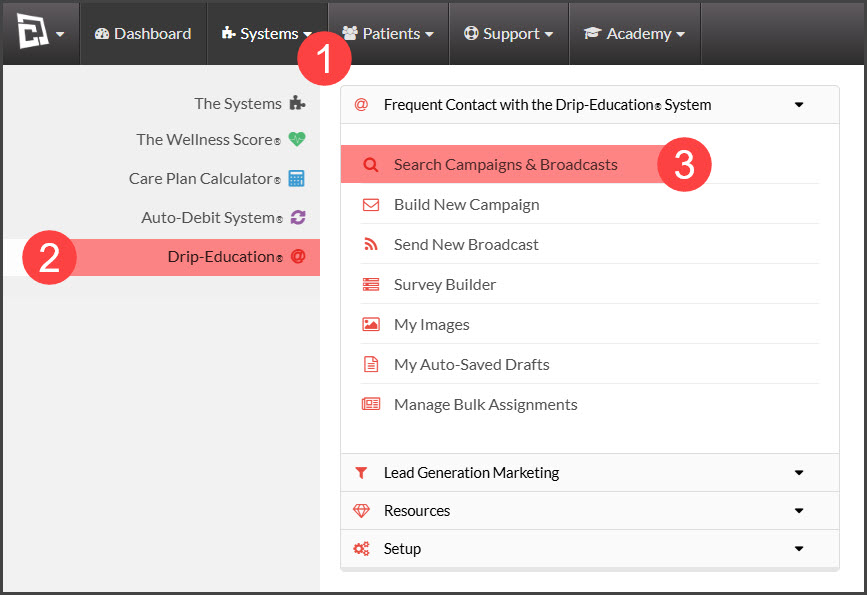
Step 1: Hover over [Systems] → click on [Drip-Education® ] → [Search Campaigns & Broadcasts].
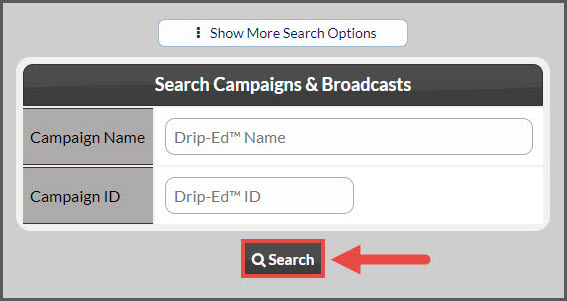
Step 2: Use the search options to locate the campaign you are looking to send → click the [Search] button.
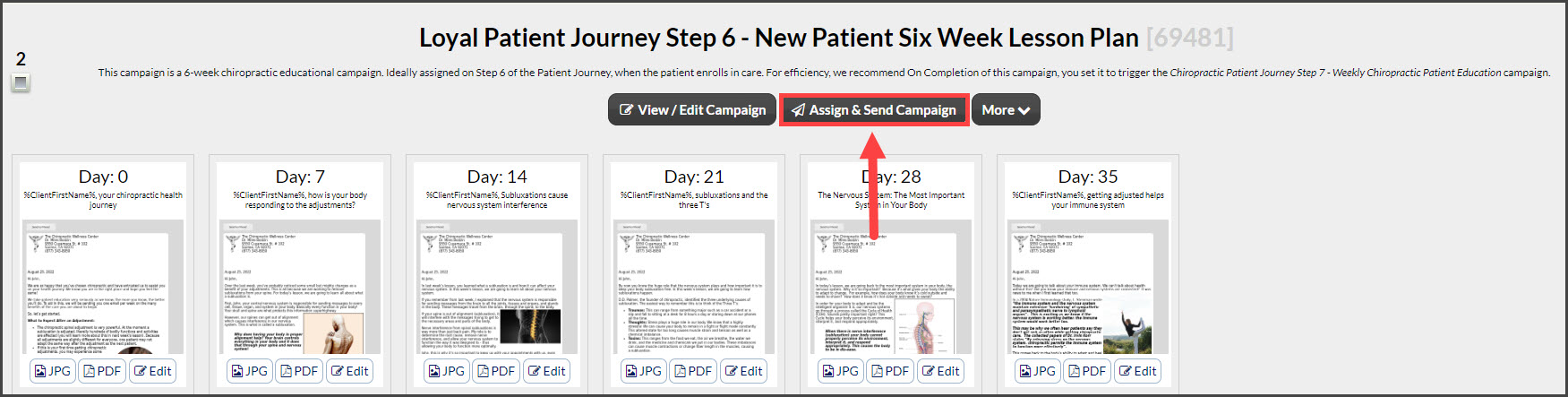
Step 3: Click on the [Assign & Send Campaign] button.
Step 4:
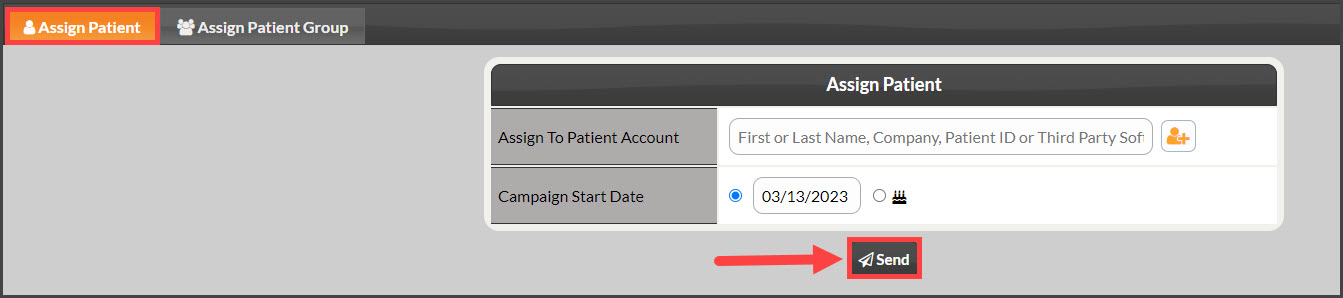
From the [Assign Patient] tab :
Assign To Patient Account: Search for the patient you wish to assign the campaign to or add a new patient.
Assign Linked Patients: Any linked patient will display here, choose to assign the campaign to them as well.
Campaign Start Date: Set the campaign start date OR select B-day.
Recurring?: If the campaign is allowed to reoccur you will have the option to automatically repeat on a chosen interval
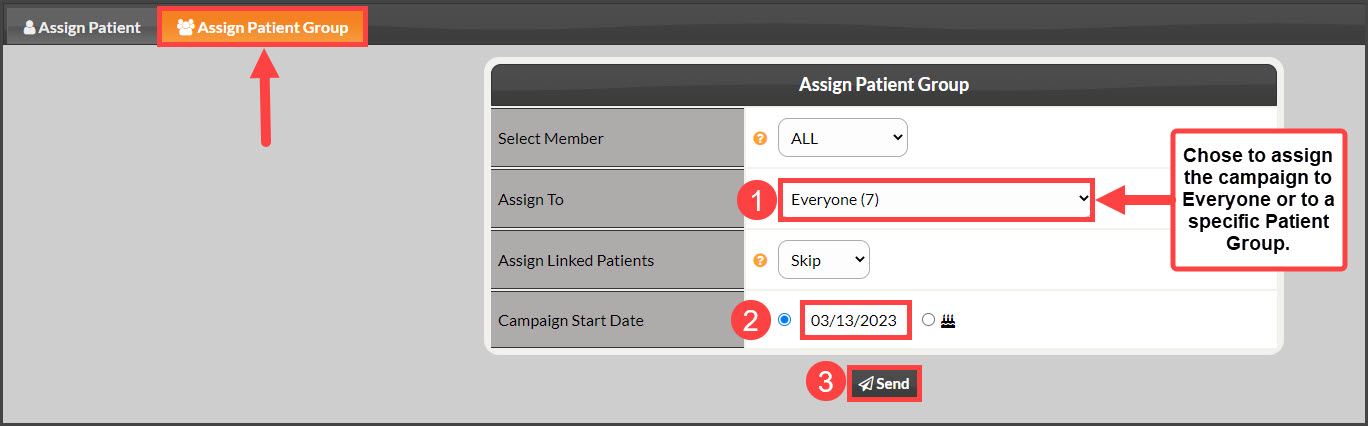
From the [Assign Patient Group] tab :
Option 2 From Patient Search :
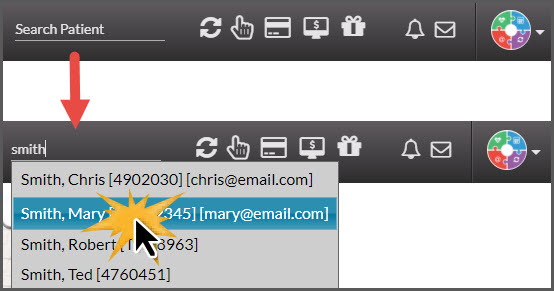
Step 1: Type the first few letters of your patient's first or last name in the [Search Patient] bar and select the patient record in the drop-down menu.
Step 2: Select the [Drip-Education® Emails] tab→ check the box in the "Campaign ID" column for the campaign/s you would like to assign→ choose the start date in the [Campaign Start Date] column OR Select B-day→ If the campaign is allowed to reoccur, you will have the option to automatically repeat on a chosen frequency from the [Recurring?] column→ select [Assign Campaign].