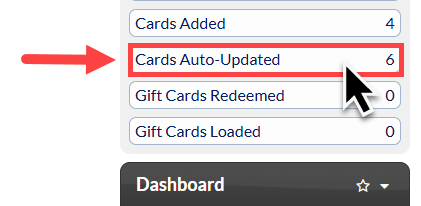
This feature requires use of the Auto-Card Updater, which is an optional add-on feature for your account. CLICK HERE to learn more.
Initial Activation: When the Auto-Card Updater service is activated, please allow 10-14 days for all active cards to be initially checked before they appear on the report.
Weekly Reports: The account administrator will receive a weekly email summary showing the total number of cards checked and updated.
To see a list of cards in your Cash Practice account that have been updated using the Auto-Card Updater feature, follow the instructions below:
Option 1: From the Billing Vault
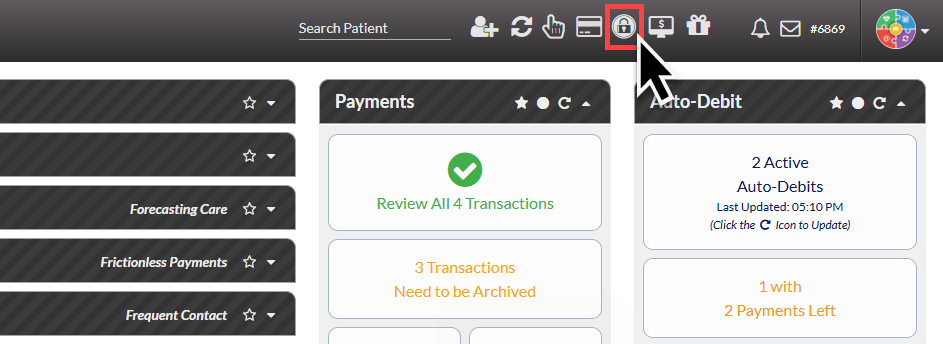
Step 1: Access the Billing Vault.
From the top right side of your Cash Practice account, click on the [Billing Vault] shortcut icon.
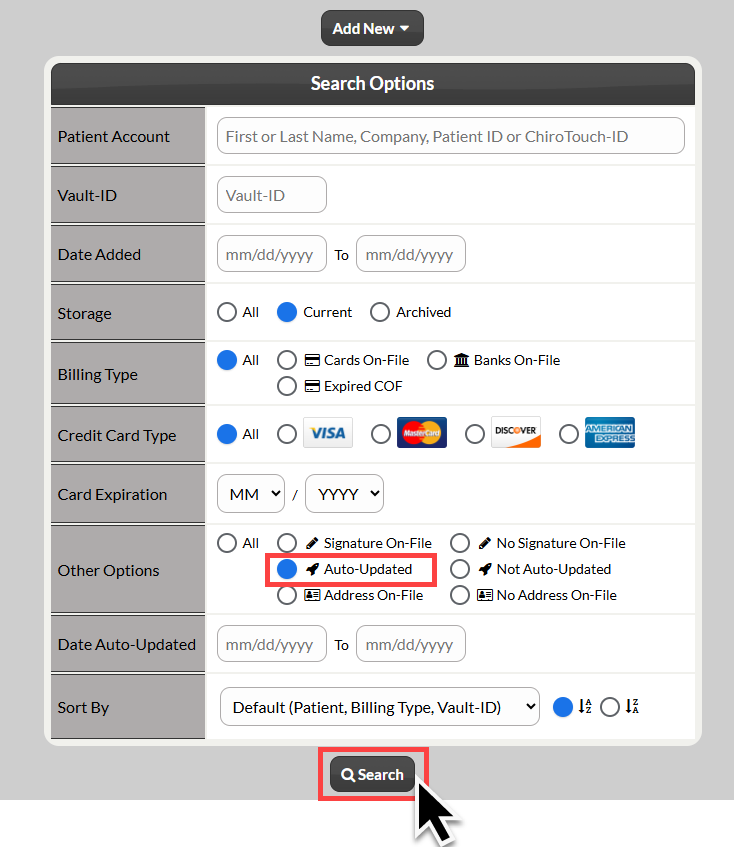
Step 2: In the "Other Options" section, select, "Auto-Updated".
You can also narrow down your search with a date range.
Click "Search" to pull a list of your updated cards.
Option 2: From the Activity Report
Step 1: Select the Activity Report on the right hand side of your Dashboard.
You can change the time frame of this report by clicking on the number of days on the left hand side of the [Activity Section]. In the example below, it shows [15D] for 15 days.
You can choose 1 day, 15 days, 30 days, 60 days, 90 days.
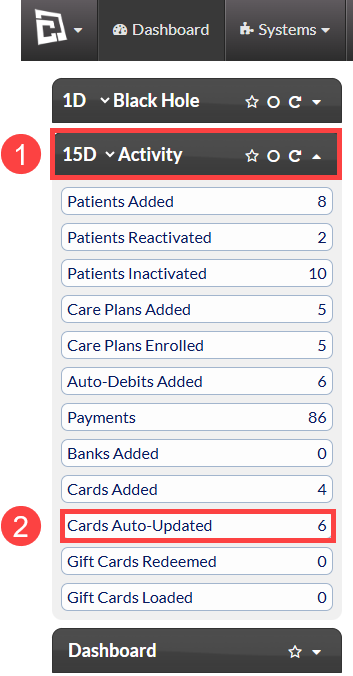
Step 2: Click on [Cards Auto-Updated] button.
This will generate a list of cards that have been updated by the Auto-Card Updater in the timeframe indicated on your activity report.