Click the Self Help button to use the Cash Practice® walkthrough when logged into your account.

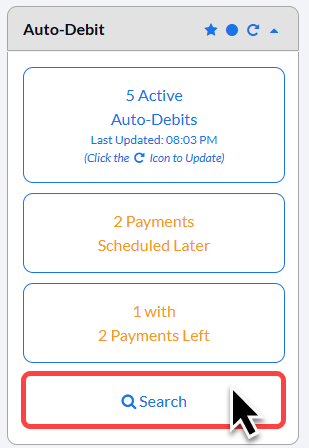
Step 1: From the right side of the Dashboard, click on the [Search Auto-Debits] button.
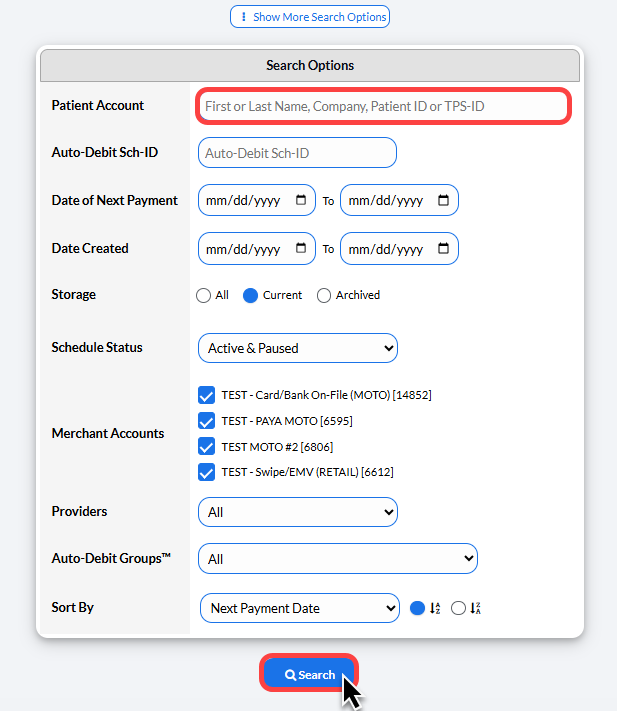
Step 2: Enter your search criteria (patient name). Then click [Search].
Step 3: Click on the [Edit Auto-Debit] button.

Step 4: If you need to edit the dollar amount, the payment date, or both, make the changes now.
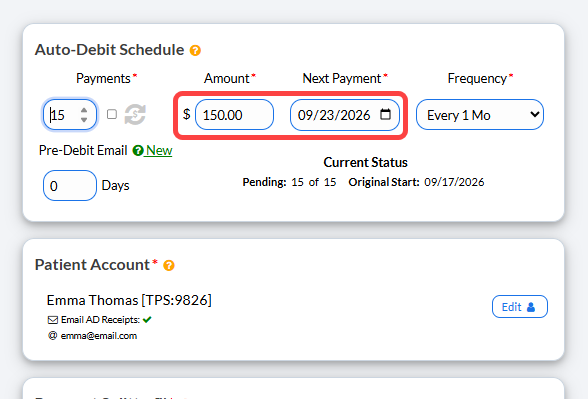
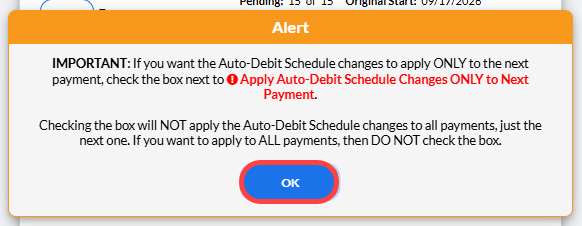
ALERT: If you edit the dollar amount, payment date, or both, a pop-up alert will appear informing you that a checkbox is available. You will check this box only if you want your changes to apply exclusively to the next payment. Then, click [OK] on the alert.
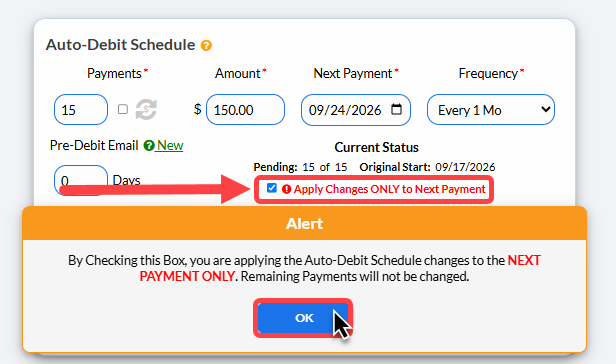
Step 5: Select the box to Apply Changes ONLY to Next Payment.
Note: Use this when a patient needs to move a single upcoming payment date without changing their recurring monthly schedule. Do not select this option to skip or pause a payment, as pushing the date to the following month will result in a double charge.
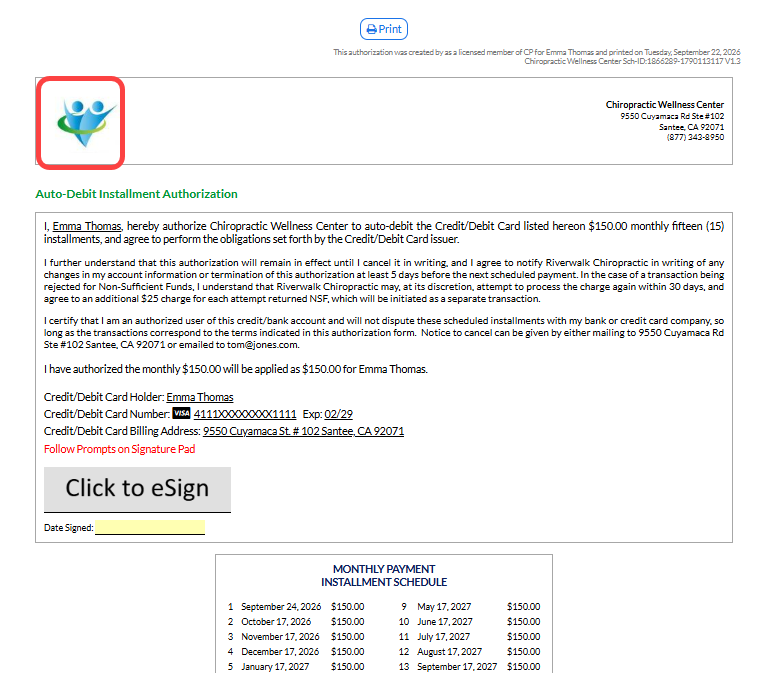
Step 6: Click on the [Update Auto-Debit] button. A new Payment Installment Authorization and Payment Schedule will be produced. Click on the logo at the top, to print the one-page document.

Step : Print the Auto-Debit Installment Authorization form by clicking on the [Logo] or clicking [Print] button.
Your may also capture the [e-signature] from the patient directly on this page.
Note: Anytime you [Edit] the auto-debit, you need to have the patient sign the authorization form acknowledging the changes.