

*Please note: Account users must have permission to edit patient accounts to manage this report.
Getting Started:
Step 1: Hover over [Systems] → click on [Auto-Debit System®] → [Reports] →[Expired Default Credit Cards Report].
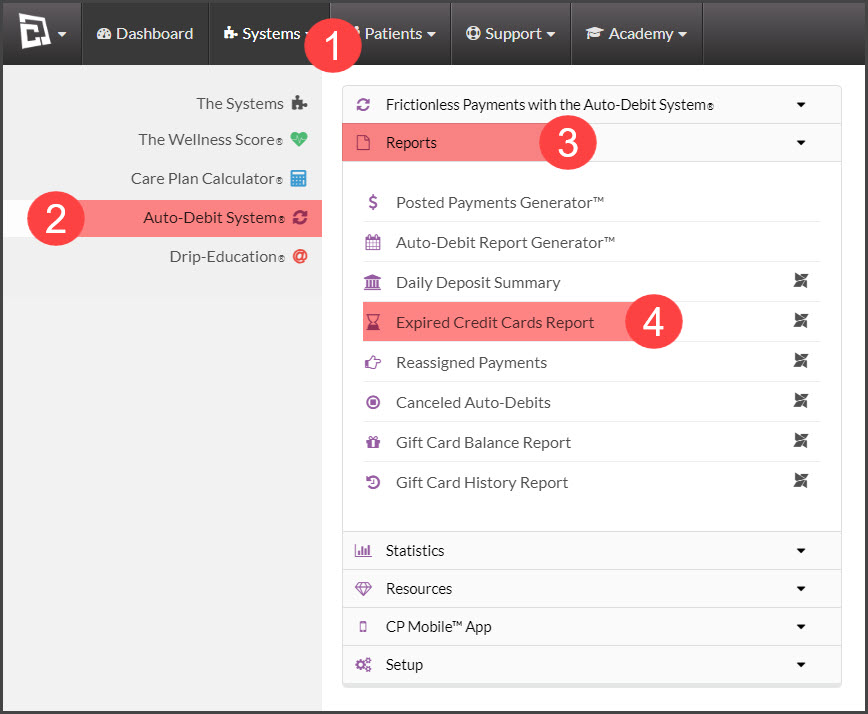
Step 2: The report will display. From here you will have the ability to do the following:
A. Edit a patient's card:
Click on the [Edit] button for the card to need to make to changes to.

B. Archive or delete a patient's card:
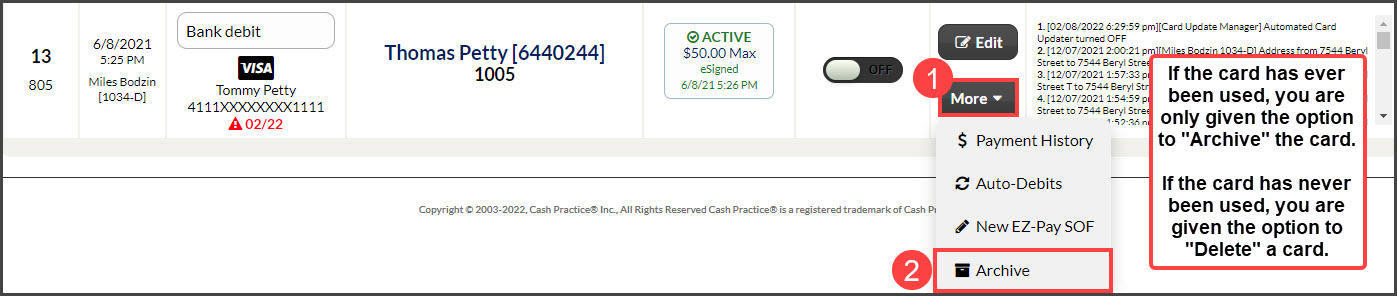
Click on the [More] drop-down and select either [Archive] or [Delete].
If it says [Archive], that means the card has been used at least once, within your Cash Practice account. If you archive a card, you have the option to [Un-Archive] a card at any later time.
If it says [Delete], that means the card has never been used within your Cash Practice account, which qualifies it to be permanently deleted.
C. Turn on the "Card Updater" (additional cost)
The Auto-Card Updater is a feature that will automatically update your credit cards that have expired or been reported lost or stolen. This is a great way to reduce declined payments. For more information on this add-on feature, CLICK HERE.
Once you have the Auto-Card Updater, you will have the opportunity to turn the feature on/off for individual cards.
