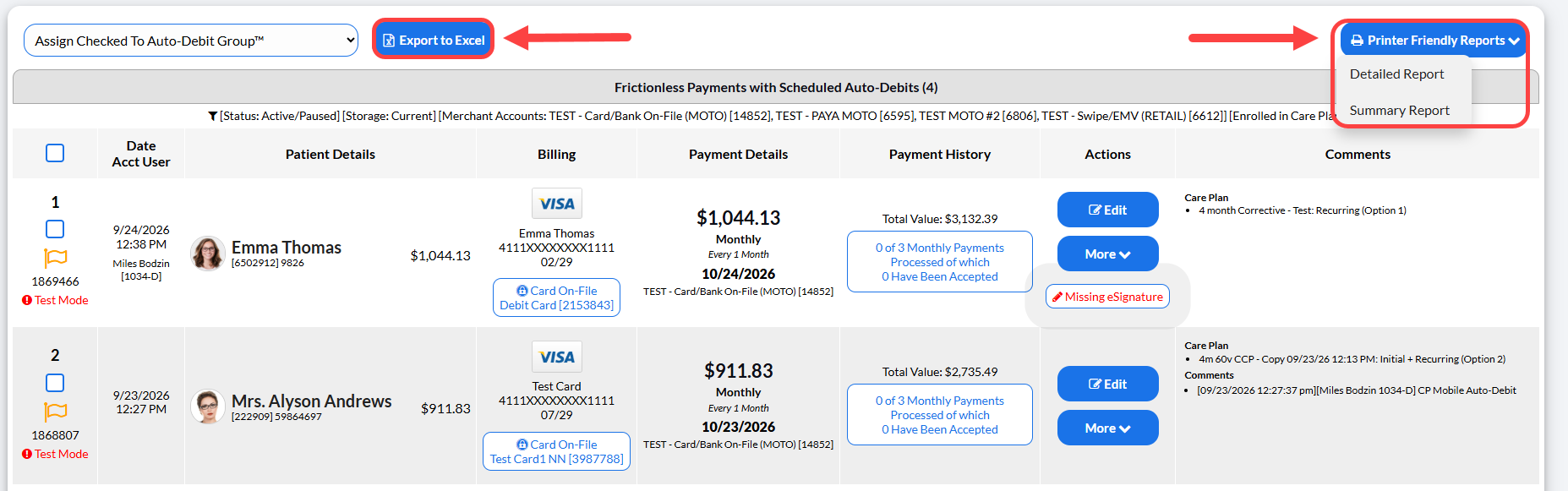
This report will only display payments that were scheduled from a care plan. If a patient chooses to prepay for their care plan, their payment will be on the Payments Report located by following the instructions HERE.
Getting started:
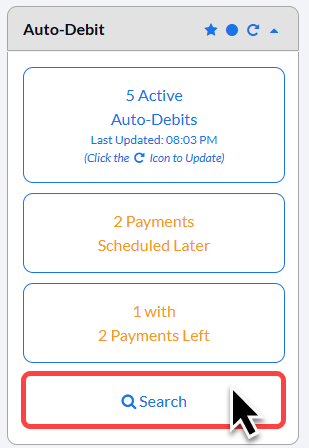
Step 1: From the right side of the Dashboard, click on the [Search] button in the Auto-Debit section..
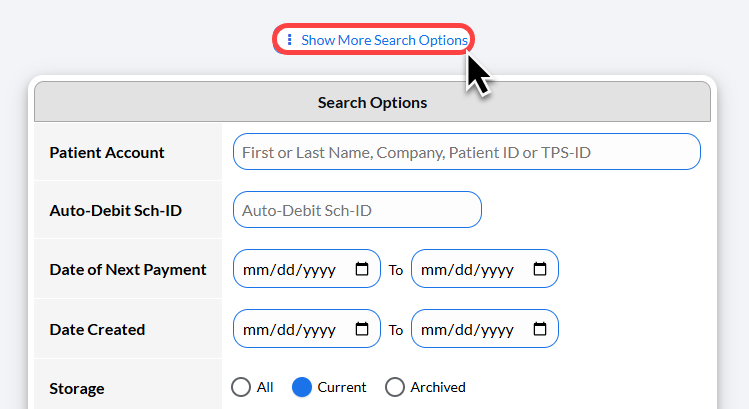
Step 2: Click the [Show More Search Options] button at the top of the screen.
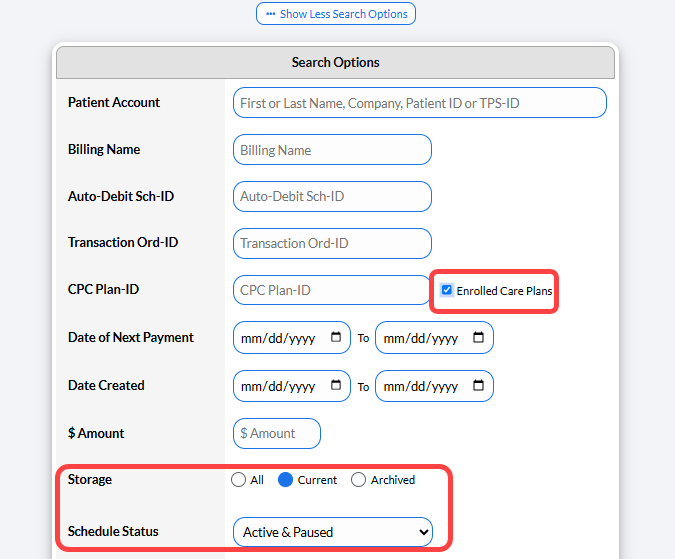
Step 3: Check the [Enrolled Care Plans] box.
Then review any other settings that may be beneficial to your search such as the [Storage] or [Schedule Status].
Then click the [Search] button at the bottom of the screen.
Step 4: The page will load all auto-debits from enrolled care plans.
Review the generated list and access the [Export to Excel] option or [Printer Friendly Reports] if needed.