Option 1: Adding a new card or bank account to a patient record that already exists
Note: Scroll further down to Option 2 to see instructions on how to add a card or bank account to a patient record that does not yet exist.
Step 1: From the Dashboard, click on the [Billing Vault] icon in the top-right corner.

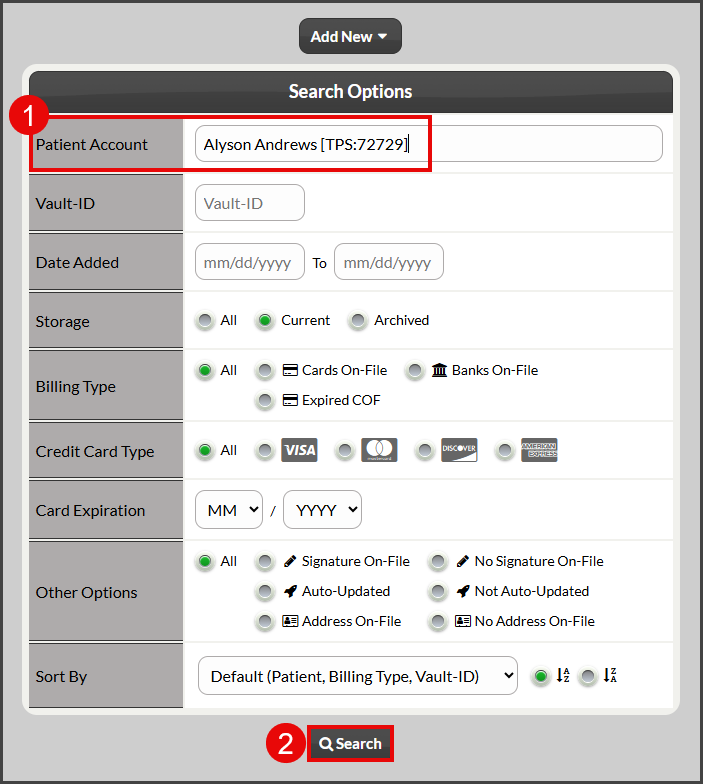
Step 2: Type the patient's first or last name in the "Patient Account" field and select the correct patient from the drop-down menu → click [Search].
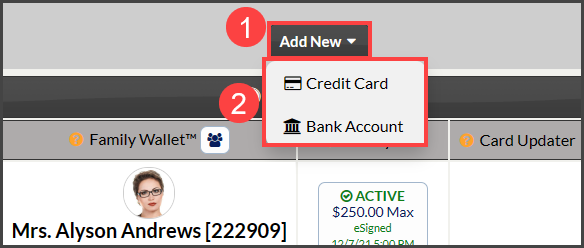
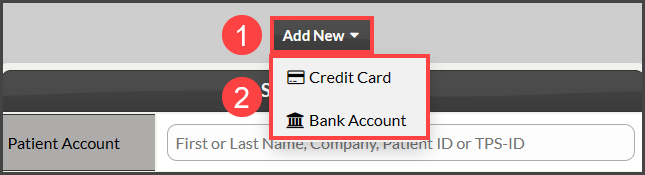
Step 3: Click on the [Add New] drop-down menu, then choose [Credit Card] or [Bank Account].
Step 4:
Credit Card
With a USB Swiper & the Patient's Physical Card Present:
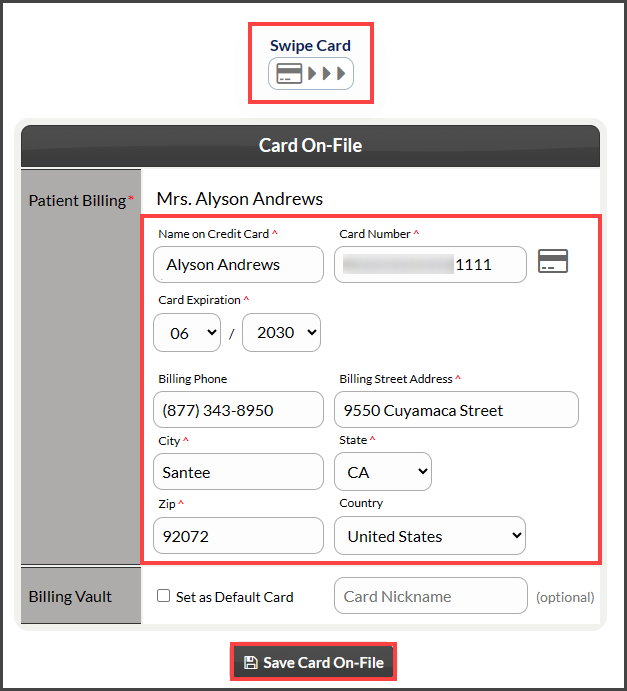
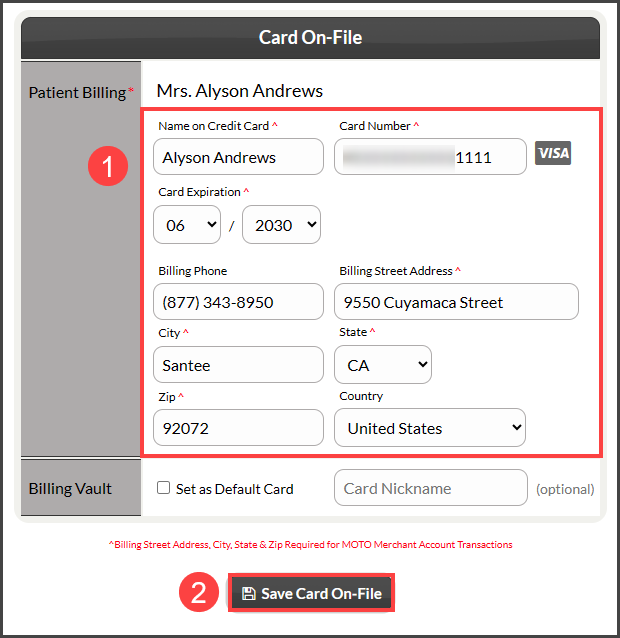
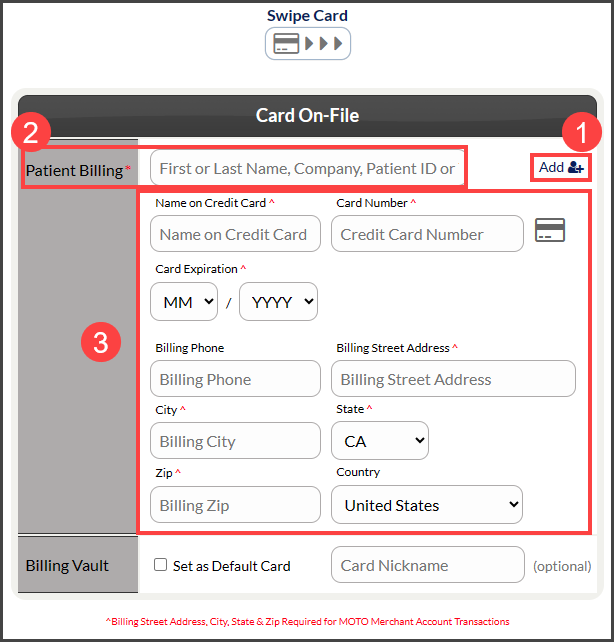
If you have a USB Swiper and the patient's physical card available for you to swipe, swipe the card as the "Swipe Card" icon at the top is expecting to collect the information. It will capture the "Name on Credit Card", "Card Number", & "Card Expiration" fields. Continue filling out the rest of the required fields and click [Save Card On-File] when done.
Without a USB Swiper:
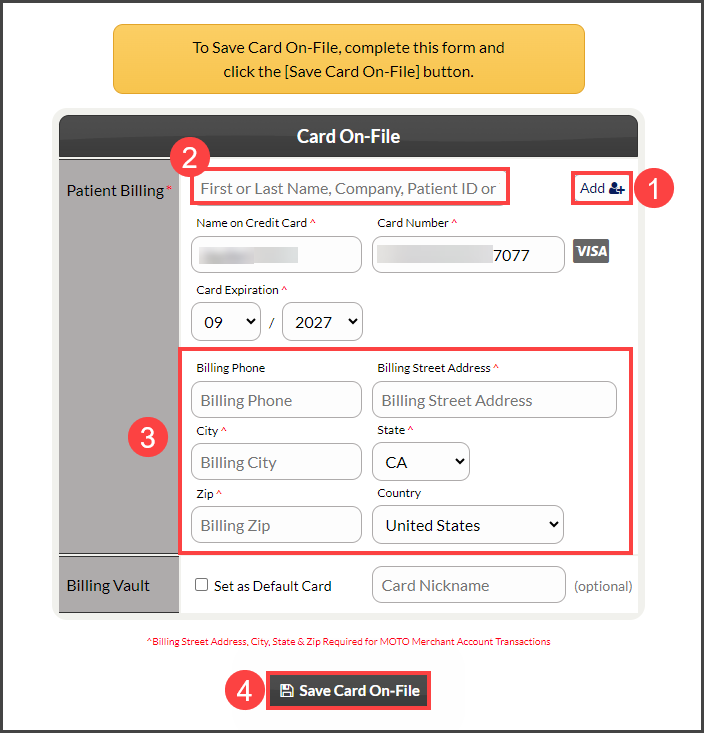
If you do not have a USB Swiper, fill in the required criteria and select [Save Card On-File].
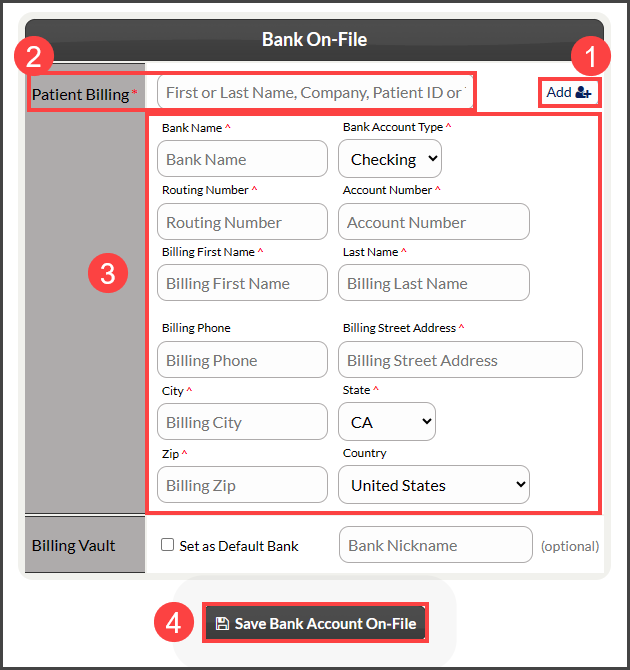
Bank Account
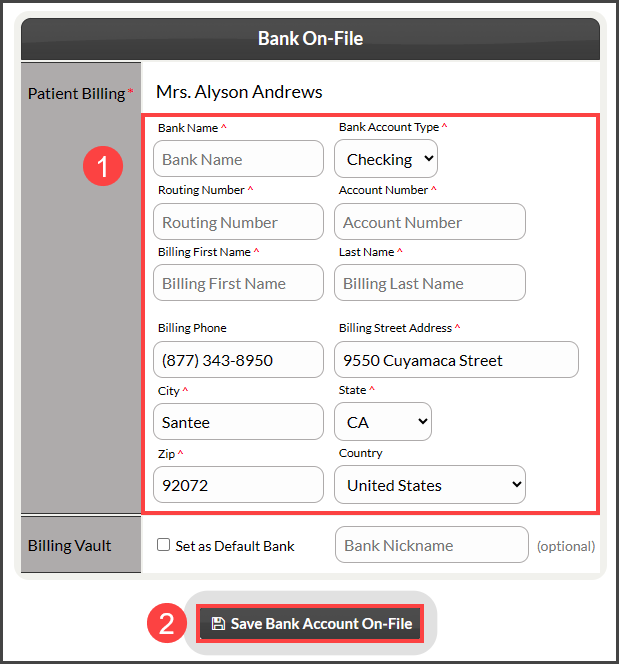
Fill in the required criteria and select [Save Bank Account On-File].
Option 2: Adding a new card or bank account for a patient record that does not yet exist
Step 1: From the Dashboard, click on the [Billing Vault] icon in the top-right corner.

Step 2: Click on the [Add New] drop-down menu, then choose [Credit card] or [Bank Account].
Step 3:
Credit Card
With a USB Swiper & the Patient's Physical Card Present:
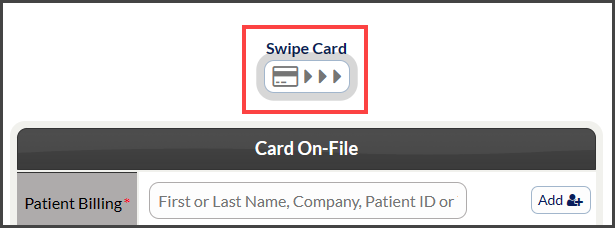
If you have a USB Swiper and the patient's physical card available for you to swipe, swipe the card as the "Swipe Card" icon at the top is expecting to collect the information.
The card reader will read the data and fill in the "Name on Credit Card", "Card Number", & "Card Expiration".
You then must click on the [Add] button, add the patient to Cash Practice within the module window, and click [Save] at the bottom. Once the patient has been successfully added, close out of the module window in the top-right corner.
Next, type the patient's first or last name who you just added, in the "Patient Billing" field, and select the patient from the drop-down menu. Continue filling out the rest of the required fields and click [Save Card On-File] when done.
Without a USB Swiper:
If you do not have a USB Swiper, click on the [Add] button, add the patient to Cash Practice within the module window, and click [Save] at the bottom. Once the patient has been successfully added, close out of the module window in the top-right corner.
Type the patient's first or last name who you just added, in the "Patient Billing" field, and select the patient from the drop-down menu. Continue filling out the rest of the required fields and click [Save Card On-File] when done.
Bank Account
Click on the [Add] button, add the patient to Cash Practice within the module window, and click [Save] at the bottom. Once the patient has been successfully added, close out of the module window in the top-right corner.
Fill in the required criteria and select [Save Bank Account On-File].