

The billing vault allows you to easily manage all of your bank accounts and cards on file. Everything you manage for an individual patient's billing vault, you do from here for all of your patients. You will be able to manage EZ-Pay Signatures on File, nickname cards and accounts, share billing using the Family Wallet, and archive cards. You will also be able to turn on or off the Auto-Card Updater on individual cards as well as run a report to see which cards have been updated.
Option 1: Access your main Billing Vault from your Dashboard
Step 1: Click on the Billing Vault Icon on the top right side of your Dashboard.

Step 2: You can narrow down your search through the [Search Options], or you can click [Search] to see ALL billing on file.
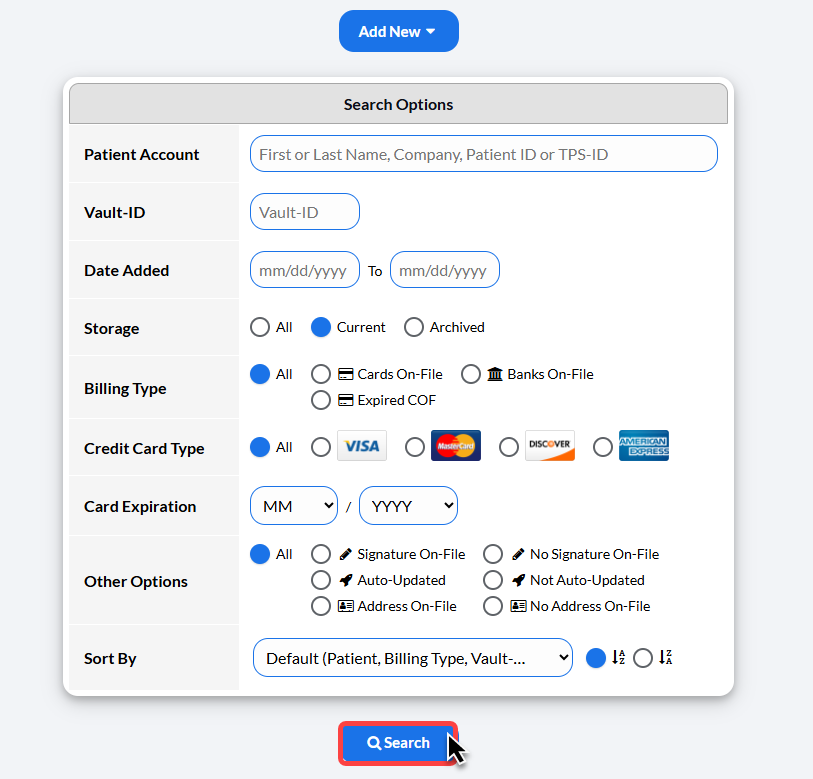
Step 3: From there, you will see all of your cards and bank accounts stored in the Billing Vault and be able to perform your desired action. See the information below to learn more about the features in the Billing Vault.
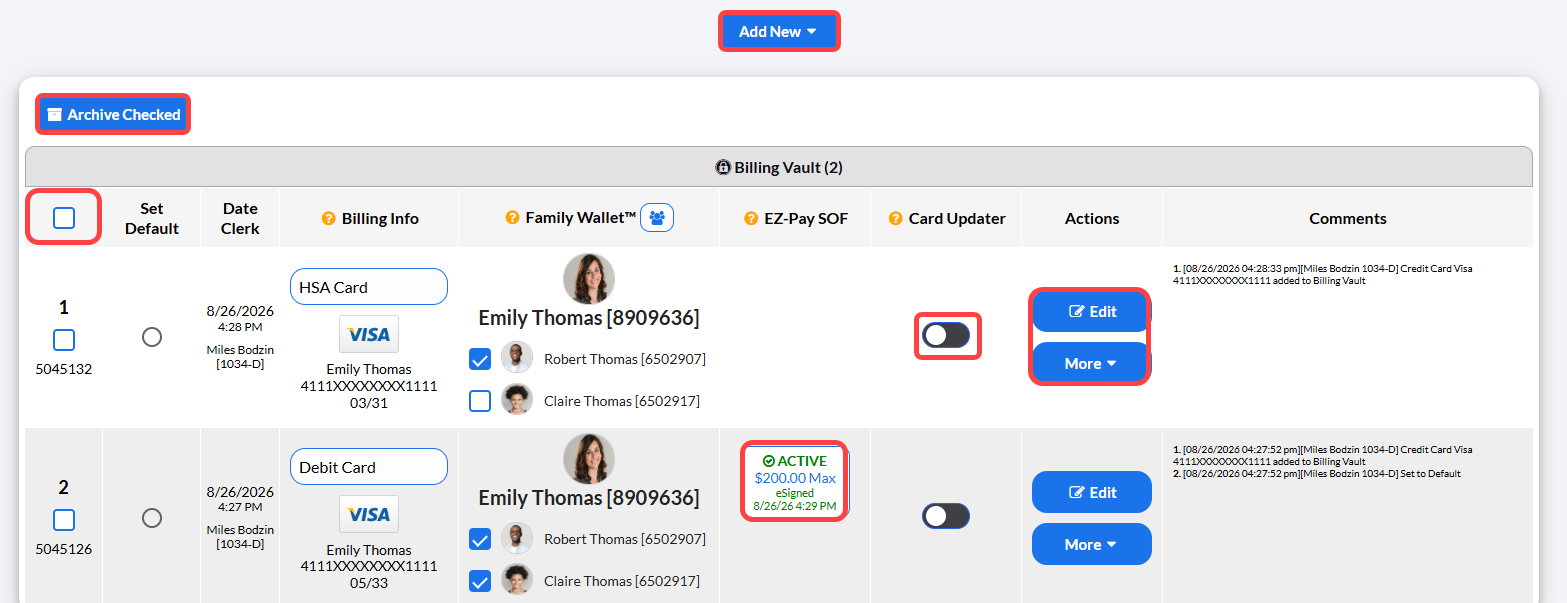
Add New | Click this button to add a new card to the billing vault. |
Archive Checked | To archive cards in bulk, Click to top check mark box to select all card on the list. Then click the [Archive Checked] button. (The Auto-Card Updater will not check archived cards.) |
Billing Info | Add or update the nickname for the cards stored in the Billing Vault. |
Family Wallet | Select or deselect linked patients to share the card on file with their patient account. |
EZ Pay SOF | To view the EZ Pay SOF form, click on the [Active] button in the [EZ Pay SOF] column to open the existing active SOF authorization form. |
Card Updater | If you're subscribed to the Auto-Card Updater, you can turn the card on/off from being checked for updates in the [Card Updater] column. |
Actions | From the [Actions] column, you can use the [Edit] or [More] buttons to edit billing, view payment history and auto-debits, generate EZ Pay Signature On-File, or delete billing. |
[More] | Payment History: View all transactions associated with this billing information |
Auto-Debits: View any associated scheduled recurring auto-debits with this billing information | |
New EZ-Pay SOF: Generate a new signature on file form. More information HERE | |
Delete/Archive: If this information has not yet been used, you will have the ability to delete the information. If it has been used, you have the capability to Archive it. This removes this as an option for payment from all payment tools unless un-archived | |
Comments | See a list of past changes to this particular billing information and who made these updates |
Additional Options for Accessing the Billing Vault:
Option 2: Access your Billing Vault from the Systems Menu:
Step 1: Click on the Systems Menu.
Step 2: Select [Auto-Debit System].
Step 3. Click [Billing Vault].
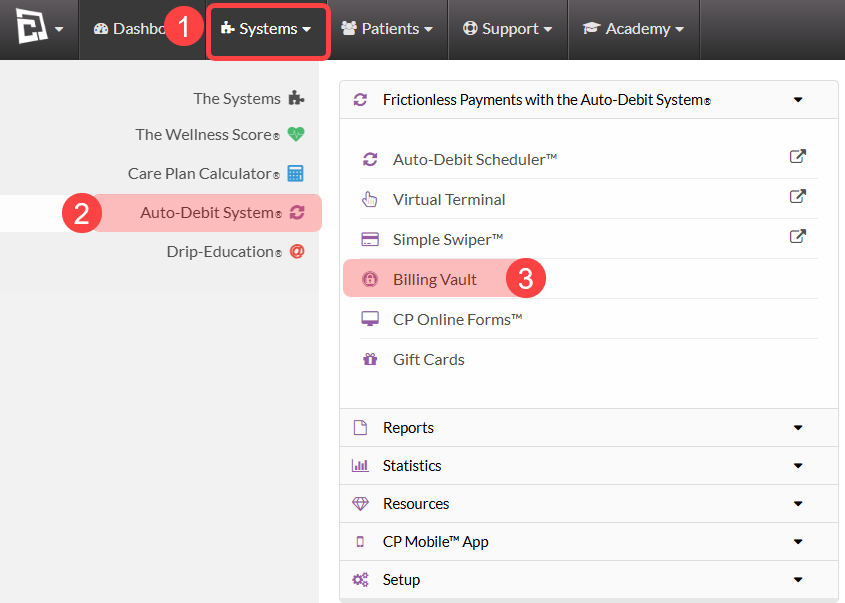
This will then bring you to the "Search Options" page (see Step 3 in Option 1).
Option 3: Access a Patient's individual Vault
Step 1: Search for them by name from the top-right side of your account. Select their name from the drop-down menu.

Step 2: Click on the Billing Vault button (padlock icon)
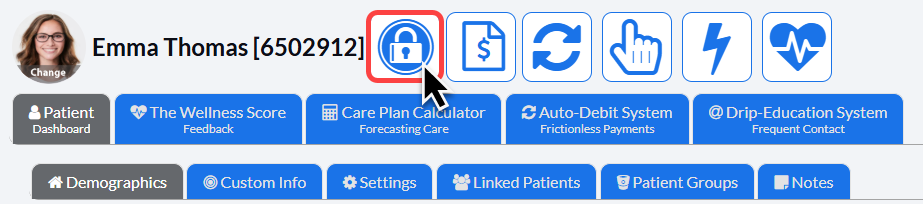
This will then bring you to the "Search Options" page (see Step 3 in Option 1).