

Auto-Debit Payment Reminders notify you when a patient's monthly payment is due but not set to run automatically in Cash Practice.
Important:
Reminders do not collect payment: They act strictly as a notification, not an automatic transaction.
Action required: When a reminder appears as a pending payment on your Posted Payments Report, you must process the payment manually.
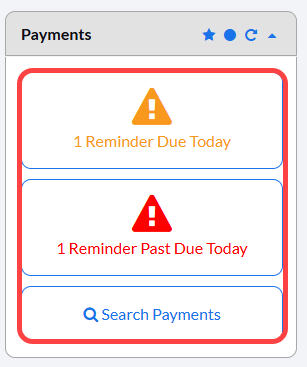
Step 1: From the "Payments" section, click on the [X Reminders Due Today] button OR access your Posted Payments Report Generator™ to take action on reminders.
Click HERE for instructions on how to access your Posted Payments Report Generator™ to search for past transactions.
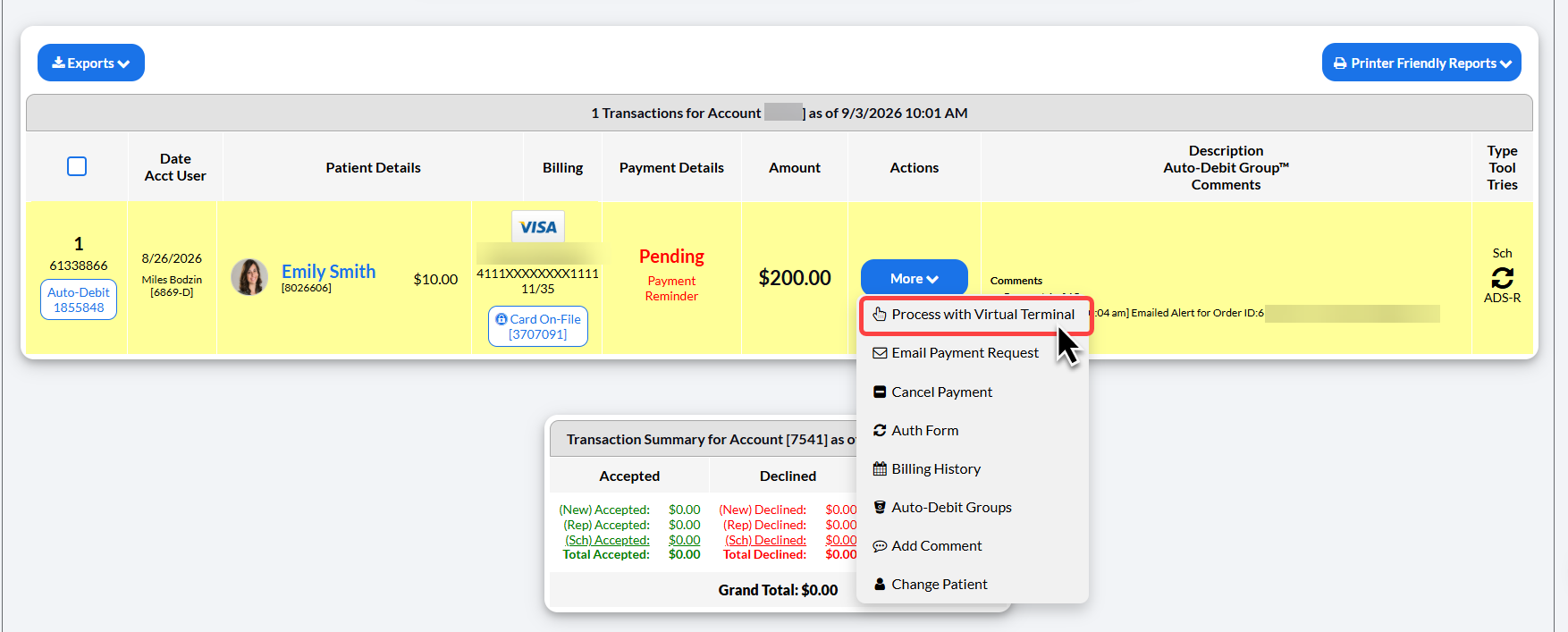
Step 2: Click on the [More] drop-down menu, then select the [Process with Virtual Terminal] button. The Virtual Terminal™ window will automatically pre-populate the correct patient name for the Scheduled Auto-Debit Payment Reminder.
Step 3: Proceed to complete the transaction in the Virtual Terminal.
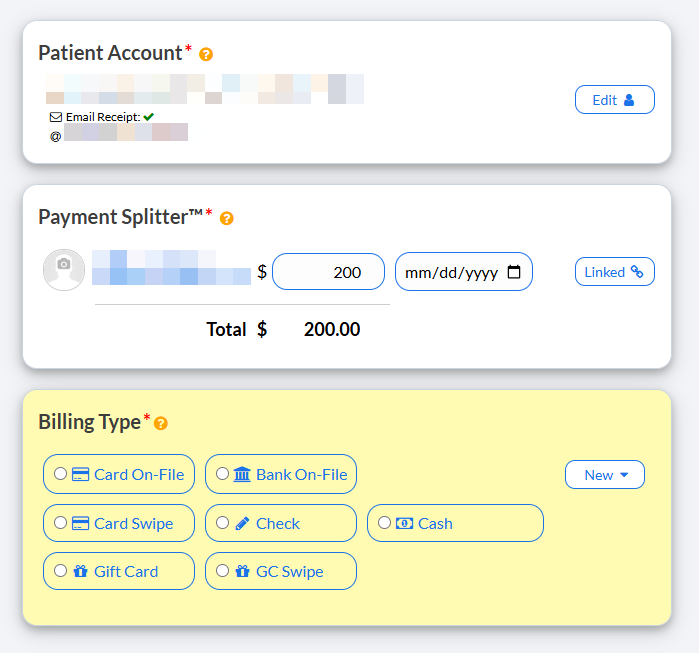
Payment Splitter | This is the dollar amount for the trransaction |
Billing Type: | |
New | This allows you to type in a new credit card number or bank account. |
Card On-File | This allows you to key enter the credit card information, OR pull stored credit card information that has been previously saved on file in the Patient account. |
Bank On-File | This lets you use the patient's routing and account number off of a check. |
Card Swipe | This lets you use the Cash Practice® USB Card Swiper to swipe the patient's card and charge the amount due. |
Check | This allows you to mark the Reminder as collected with a check, with a space to add the check #. It's very important that you have strong procedures in place as to how your office collects, records, and tracks checks. |
Cash | This allows you to mark the Reminder as collected with Cash. It's very important that you have strong procedures in place as to how your office collects, records, and tracks cash. |
Card EMV | Available only if you have purchased and are using our integrated EMV chip terminal. Click HERE for more information. |
Gift Card | If the patient wants to pay for their Reminder with a gift card, purchased at your office with Cash Practice's Gift Card Program, select this option to manually key-enter/ type the card number. |
Gift Card Swipe | Again, if the patient wants to pay for their Reminder with a gift card, purchased at your office with Cash Practice's Gift Card Program, select this option if you have the physical gift card and want to swipe it. |
Merchant Account | The defaulted merchant account will be displayed, but if using multiple merchant accounts with us, make the correct selection here. For more information, contact our Merchant Services Department by phone at (877) 343-8950 x102) or email MerchantAccounts@CashPractice.com |
Comments (optional) | Add a comment for your team's eyes only. This will be displayed on the Posted Payments Report when reviewing the transaction details in the future |
Show Options (optional) | By clicking the drop-down, you have the capability to assign auto-debit groups, Drip-Education campaigns for frequent contact, and Patient Groups to better organize your patient lists |
Step 4: Click the [Process] button at the bottom of the screen.
Step 6: Print the receipt by clicking on the [Logo] or the [Print Receipt] button at the top of the page.
(OPTIONAL) On this page you may also capture the [e-signature] from the patient.