
Logo

Cash Practice® Systems Help Center

Search our knowledge base to get answers to your questions, access video training & more!

Campaigns: How to assign campaigns/broadcasts to a Drip-Education Category

Drip-Education® Email Marketing System (Frequent Contact)

Campaigns: How to assign campaigns/broadcasts to a Drip-Education Category

Assigning campaigns and broadcasts to a Drip-Education category is a great way to organize your types of emails.

Last updated on 13 Sept, 2025

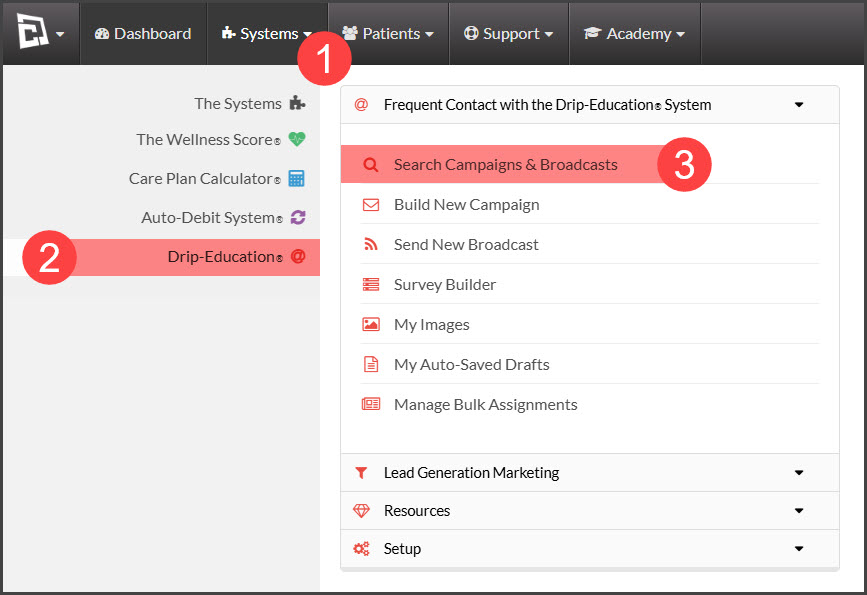
Step 1: Hover over the [Systems] menu→ click on [Drip-Education®] → and select [Search Campaigns & Broadcasts]. 
Image

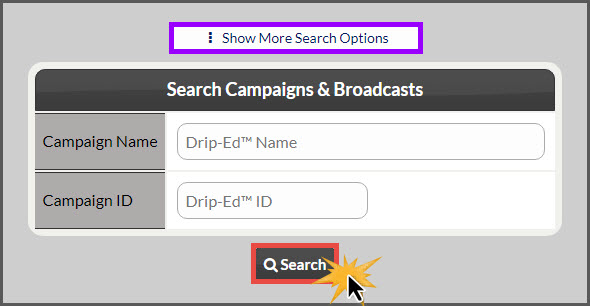
Step 2: Narrow down your search criteria for your campaign/broadcast. Click [Search].
Image

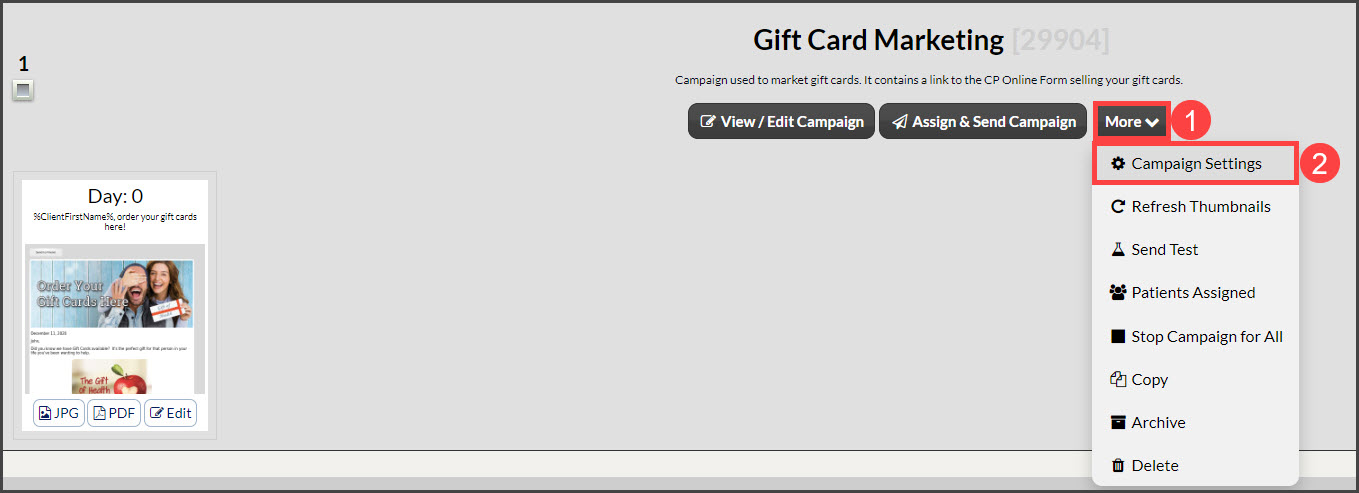
Step 3: Once you've located the campaign/broadcast, click on the [More] drop-down menu → and select [Campaign Settings].
Image

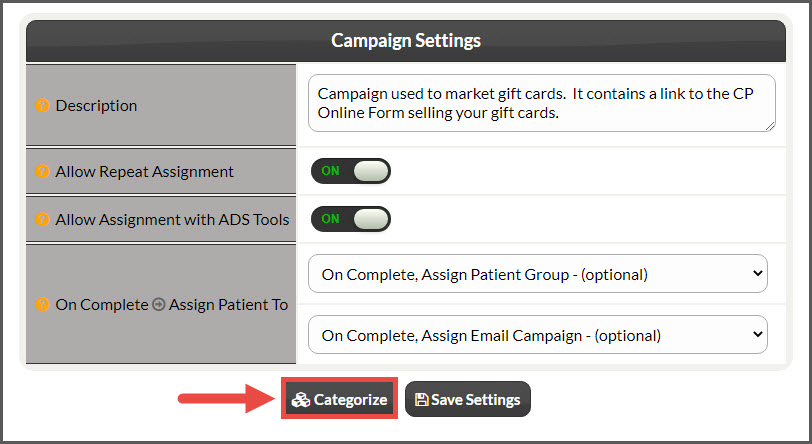
Step 4: Click the [Categorize] button.
Image

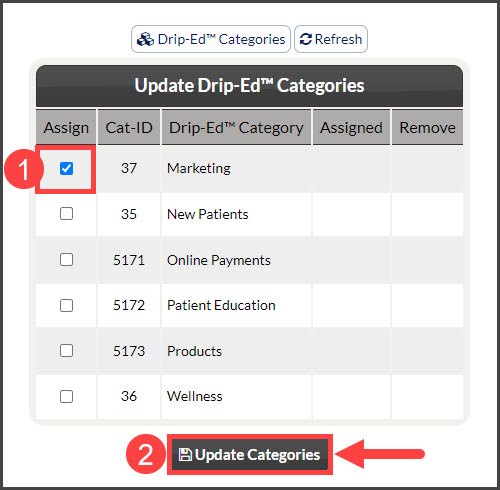
Step 5: Check the box under the "Assign" column to assign the campaign/broadcast to that category → Click [Update Categories]. 
Image

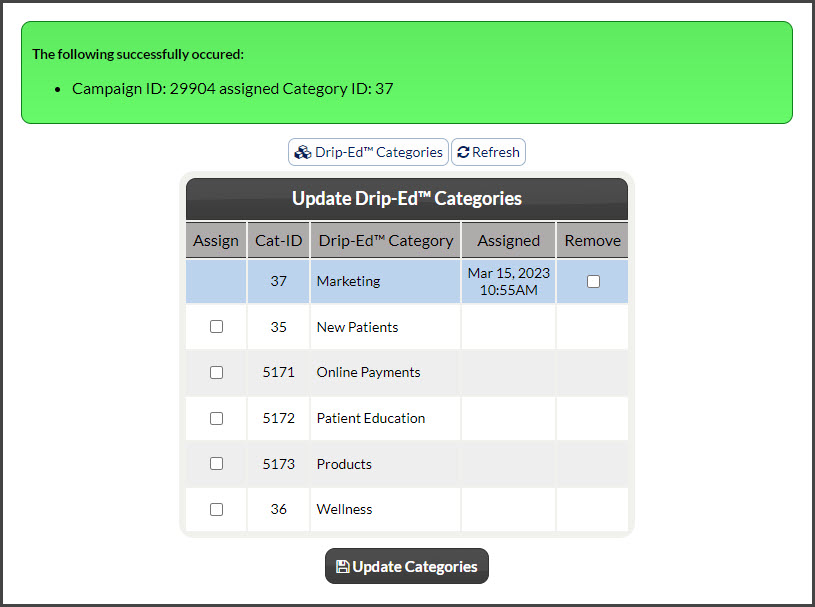
Like the image below, you will then be notified when the campaign/broadcast has successfully been assigned to the Category/Categories. 
Image

Did you find this article helpful?
Previous

Campaigns: How to search campaigns/broadcasts by Drip-Education Categories

Next

© 2026 Cash Practice Systems. All rights reserved.