

Commit your patients to care and continue education simultaneously!
Care plans allow your office to forecast care, which is the foundation for cultivating patient loyalty. They are a great way to get your patients to commit to the care they need, and recurring Drip-Ed™ emails are OF COURSE an EXCELLENT way to frequently contact and educate your patients about chiropractic care when they're not even in the office! If you are subscribed to the Care Plan Calculator® System and The Auto-Debit System®, along with The Drip-Education® System, you can assign your patient to a Drip-Ed™ Campaign while enrolling your patient into one of your care plans!
*NOTE - You MUST also be subscribed to the Care Plan Calculator® System and the Auto-Debit System® to do this.
Getting started:
Step 1: After selecting the plan you would like to auto-debit and email from, click the [Auto-Debit] button or [Enroll Plan] option and enter all criteria necessary for enrolling the patient into the care plan. For more instructions on this, click HERE.
Step 2: Select the "Show Additional Option" section. Choose the Drip-Ed™ Campaign that you wish to assign to the patient from the drop-down, and select the start date.
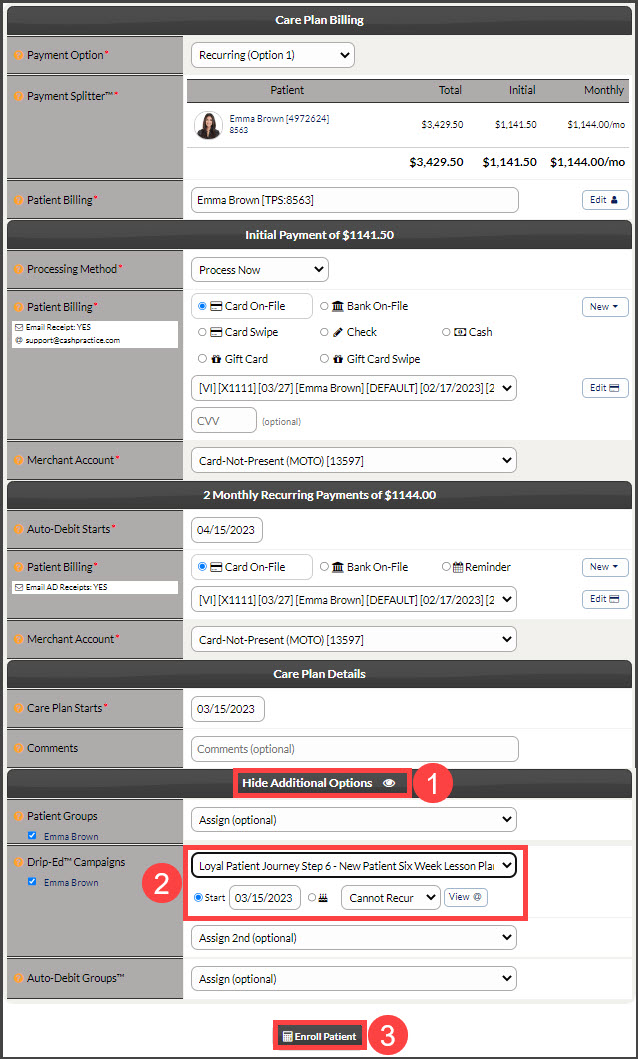
Step 3: Click the [Enroll Patient] button to schedule the payments from the care plan. Once the payments have been scheduled, the patient will automatically be assigned to the campaign.