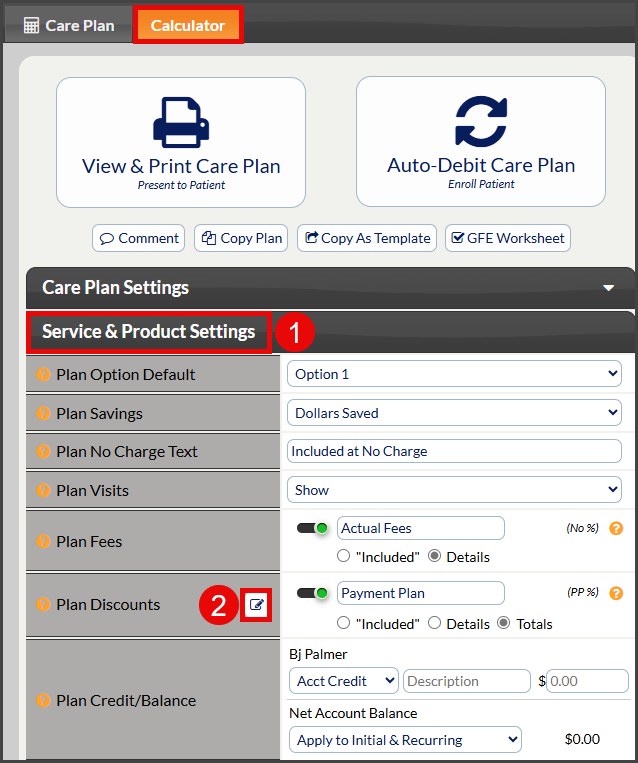
Step 1: From the [Calculator] tab, follow the sequence below:
Click on the [Service & Product Settings] drop-down menu
Select the "Template Discounts" editor icon
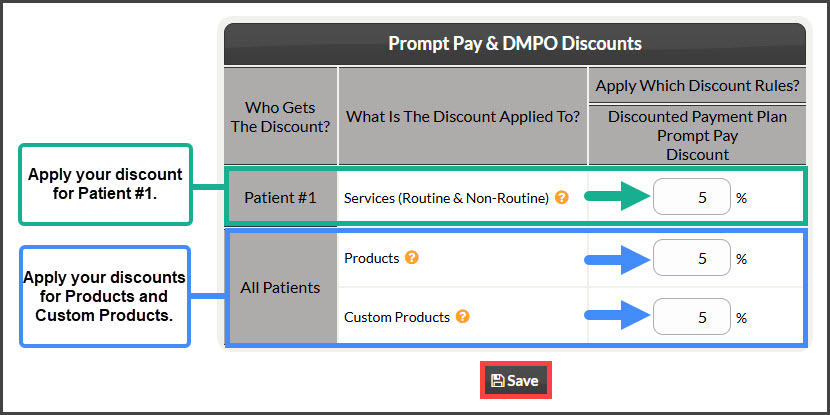
Step 2: In this window, you can set the individual discount percentages for Services for each patient included in the care plan, as shown under the column [Who Gets The Discount?]. Click [Save] to save any changes.
Example 1:
Payment Plan Discounts:
Prompt Pay Discounts: You can edit prompt payment discounts in the "[Discounted Payment Plan Prompt Pay Discount]" column. These discounts are applied in addition to any discounts from Payment Option 2 and Payment Option 3.
Additional Discounts: (Optional) If the plan includes services or products with these discounts selected, you may change the Products and Custom Products discounts.
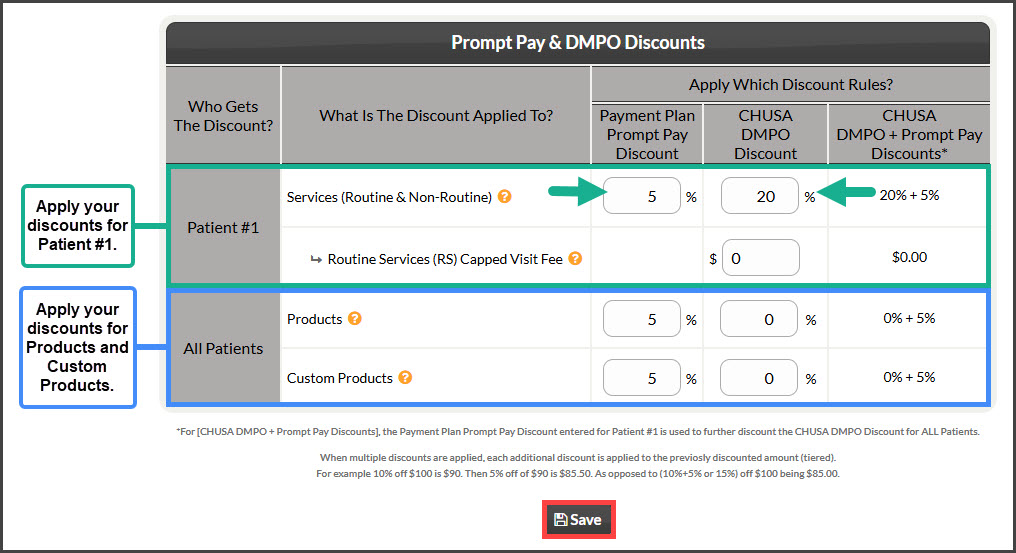
Example 2: For those using a Discount Medical Plan Organization (like ChiroHealthUSA)
Payment Plan Discounts:
Prompt Pay Discounts: You can edit prompt pay discounts in the "[Payment Plan Prompt Pay Discount]" column. These discounts are applied in addition to any discounts from Payment Option 2 and Payment Option 3.
ChiroHealthUSA (CHUSA) and Discount Medical Plan Organization (DMPO) Discounts: Modify discounts for patients enrolled in CHUSA or another DMPO, within the "[CHUSA DMPO Discount]" column.
Total Discounts: The "[CHUSA DMPO + Prompt Pay Discounts]" column shows the total discount applied to a patient if this option was selected
Additional Discounts: (Optional) If the plan includes services or products with these discounts selected, you may change the Products and Custom Products discounts.
Step 3:
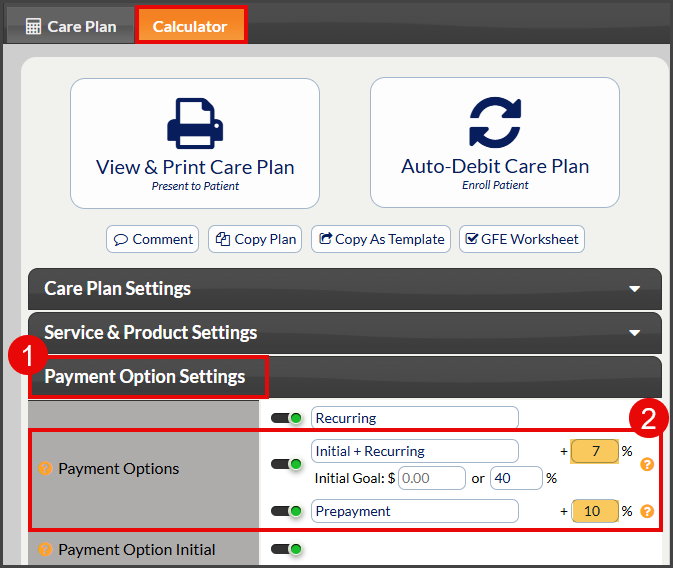
Click on the [Payment Option Settings] drop-down menu.
Here, you can edit the discounts applied for Payment Options 2 & 3.
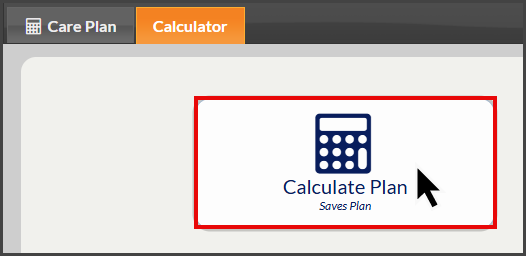
Step 4: If changes were made in Step 3, click on the flashing [Calculate Care Plan] button to save your changes.