
How do I access the Care Plan Presenter?
You can access the Care Plan Presenter right from your CP Mobile™ App on your phone or tablet! But first you will need to set up the following access permissions directly in your Cash Practice account. Follow the steps below to begin your setup:
[Start Here] Granting Mobile Permissions
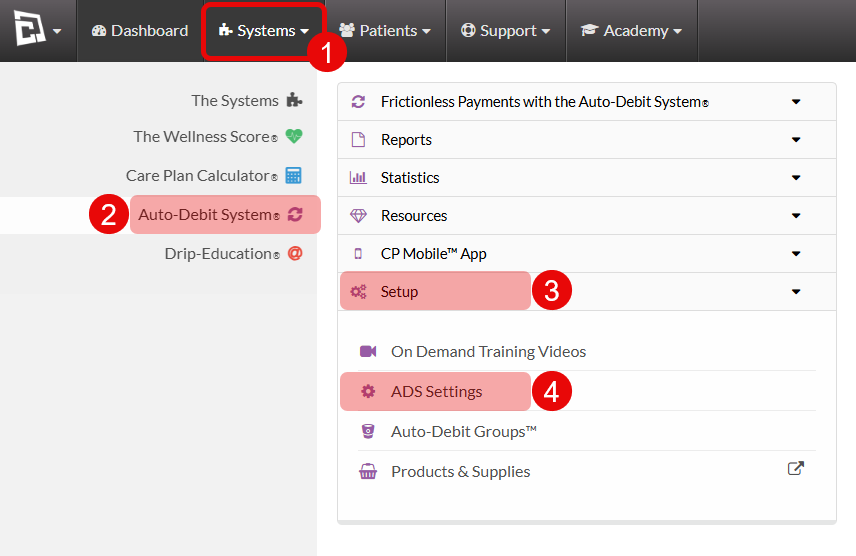
Step 1: Sign in as the account administrator and access your ADS Settings:
Select the [Systems] menu
Then, click on [Auto-Debit System®]
Select [Setup]
Click [ADS Settings].
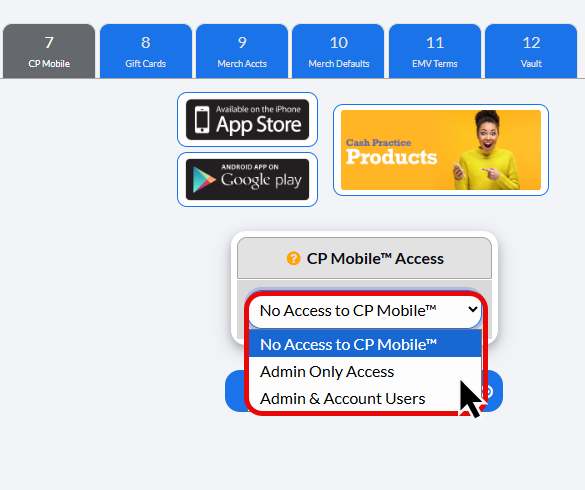
Step 2: Click on [Step 7: CP Mobile™]

Step 3: Click on the drop down menu under CP Mobile™ Access to update the access permissions.
Select Admin Only to only allow the account administrator to access the CP Mobile™ app.
Or Select Admin & Account Users to allow both Account Users & Account Administrator access to the CP Mobile™ app.
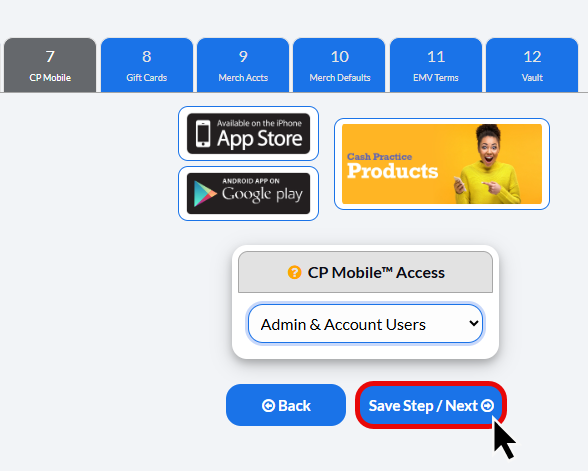
Step 4: Click [Save Step/Next] to save your changes.
Next, Verify your User Account Permissions
Step 1: Access your list of account users from the [My Account] menu:
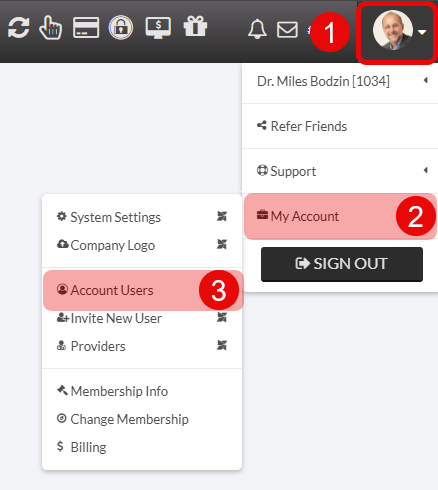
Click on the [User Profile] menu in the top right corner of your Cash Practice Account.
Select [My Account]
Click [Account Users] to access your list of account users. You need to access this list to update permissions.
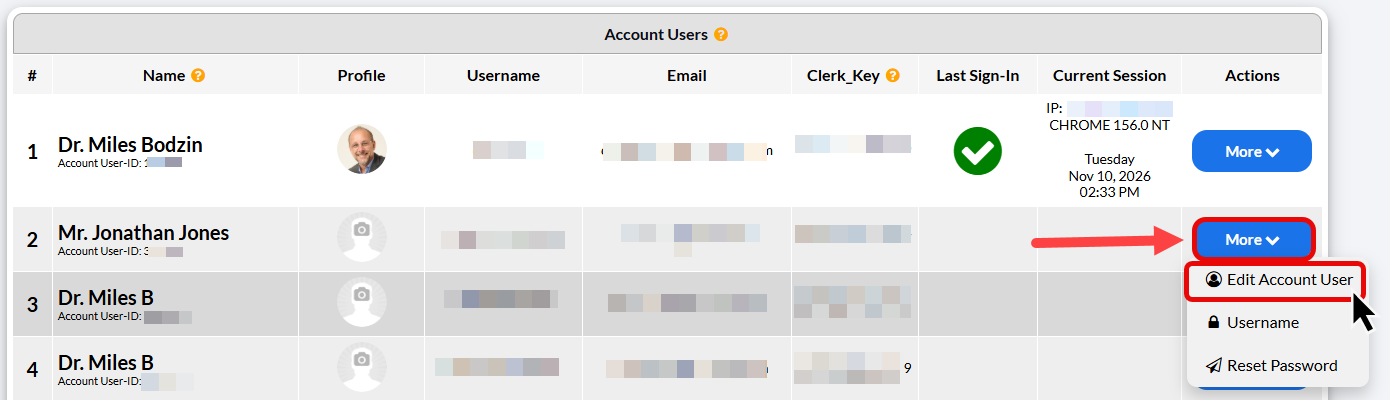
Step 2: Next to your account users, select the [More] button, then click on [Edit Account User].
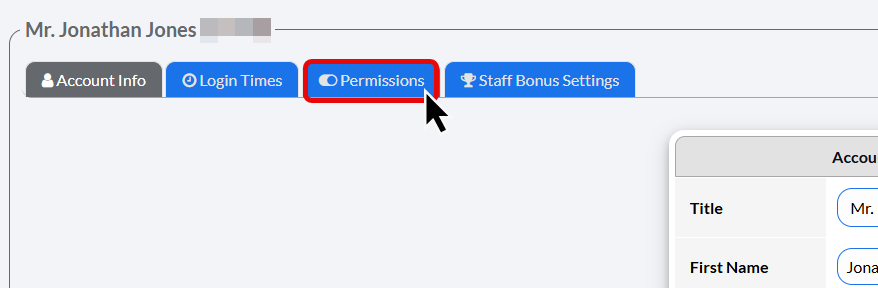
Step 3: Select the [Permissions] tab.
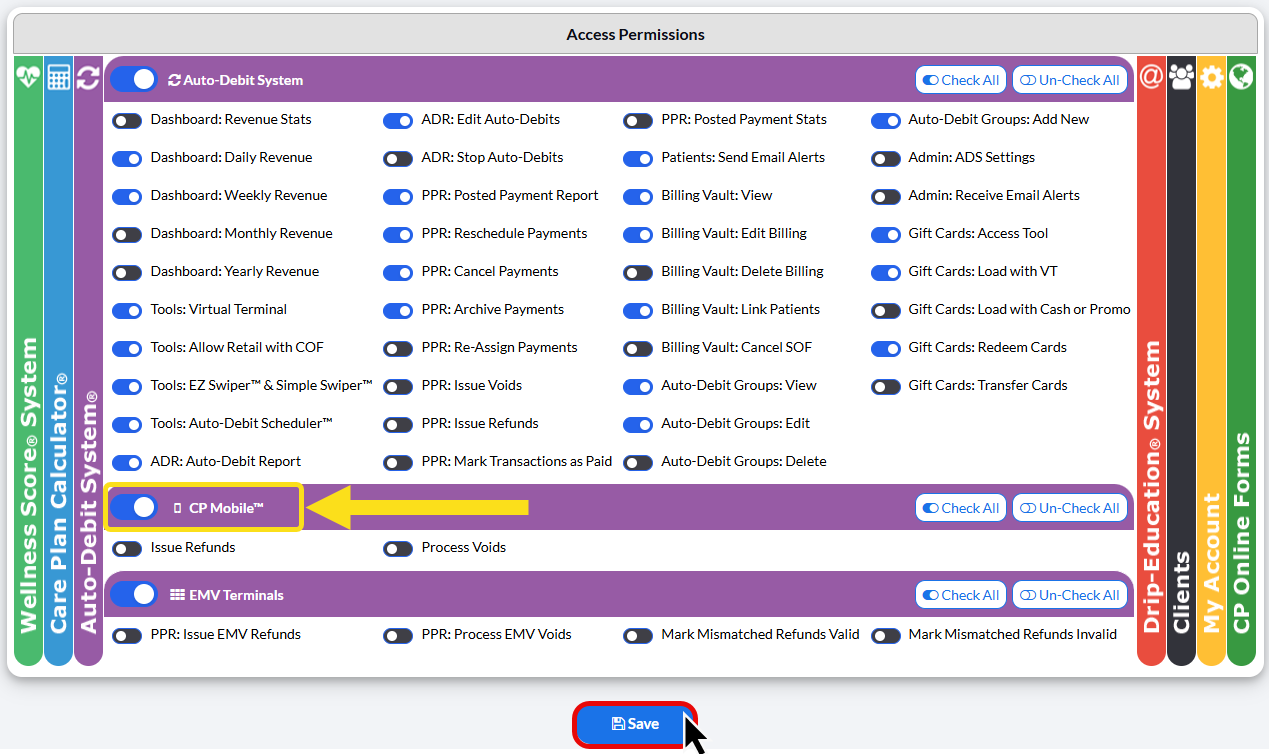
Step 4: From the purple Auto-Debit System® section:
Toggle ON (blue) CP Mobile™ to turn on access for this account user. You may also toggle on the permission to issue refunds and process voids.
Click [Save]. Then repeat this process for your additional account users.
Get Started using the Care Plan Presenter in the CP Mobile™ App. Follow these steps to access the app:
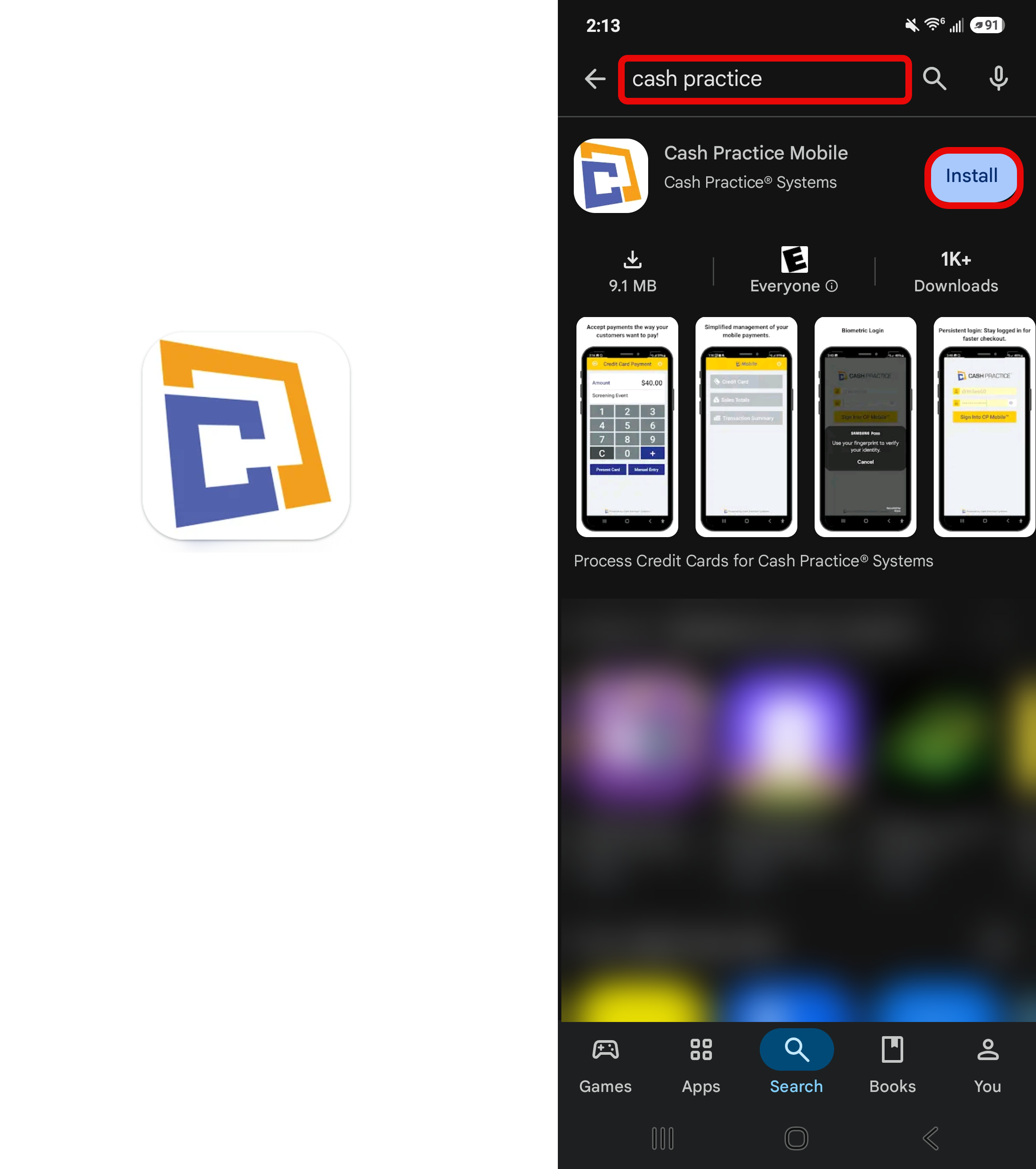
Step 1: Download the CP Mobile™ App from the Google Play or App Store. Search for "Cash Practice" and the app icon will appear as shown:
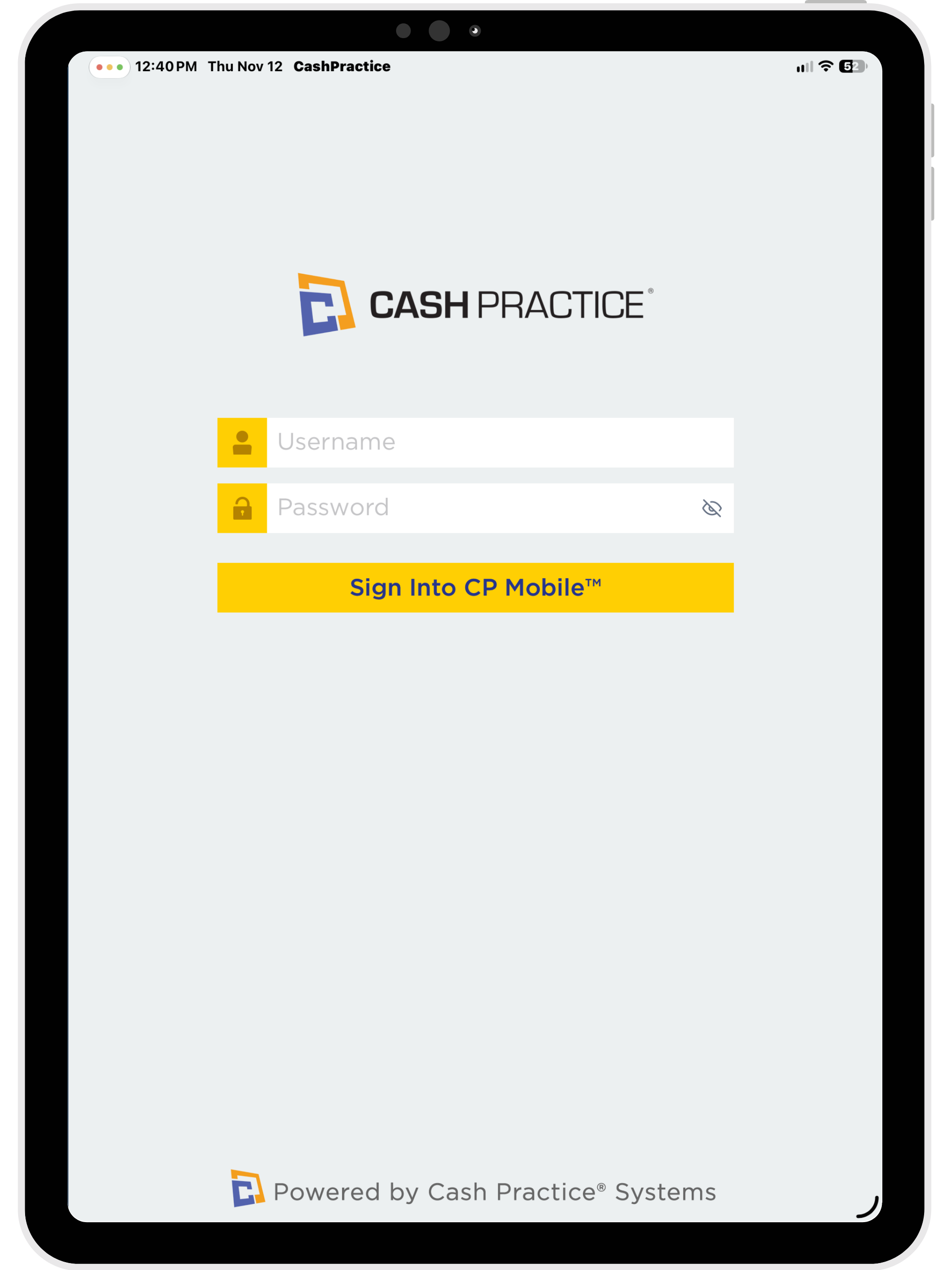
Step 2: Log into your CP Mobile™ App by entering your username and password.
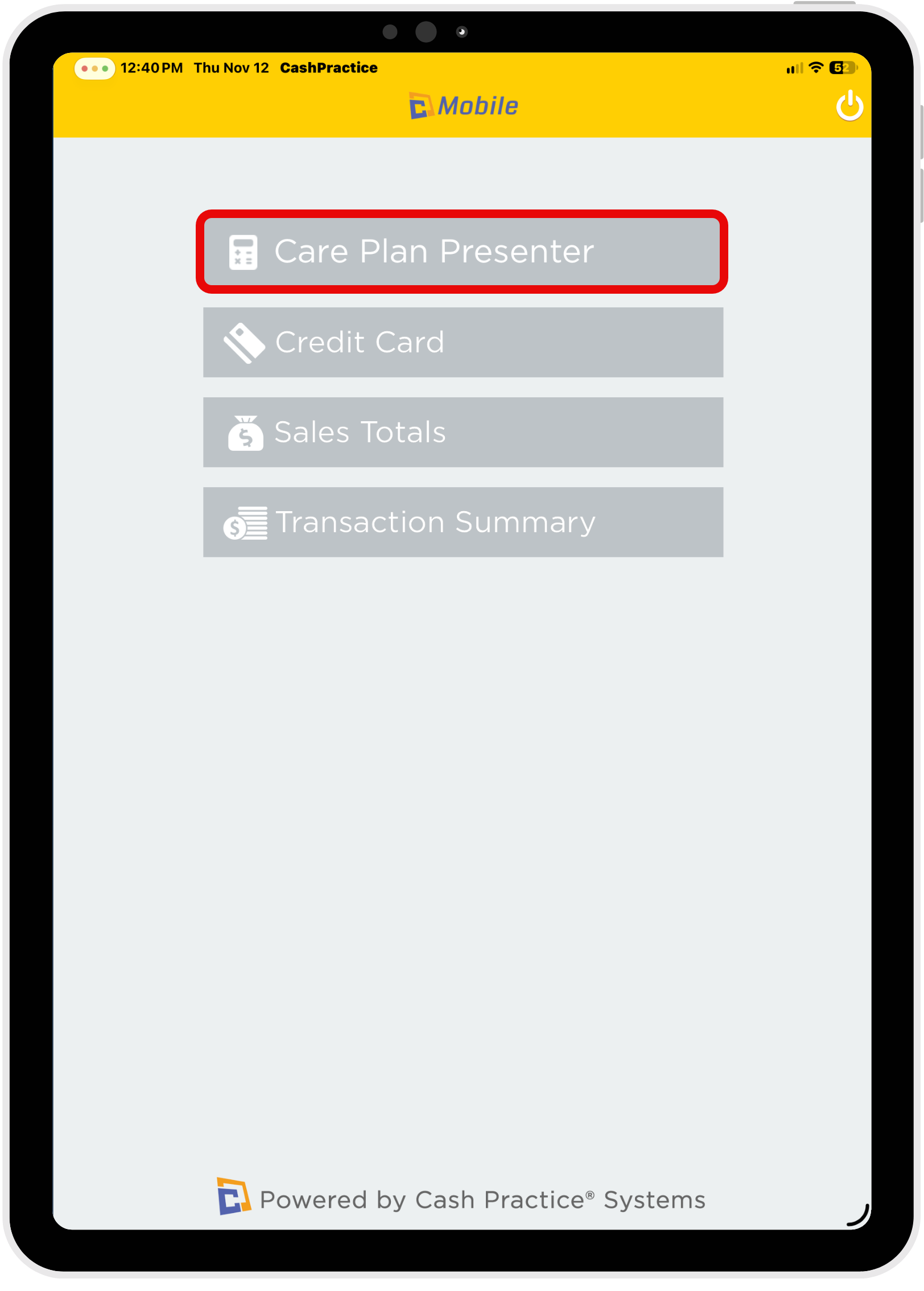
Step 3: Select the Care Plan Presenter to begin.
⚠️ If you have already installed the CP Mobile™ app and do not see the Care Plan Presenter option, please update the app from your device's app store.
IMPORTANT: You MUST first create the Care Plan within your Cash Practice Account to access it in the CP Mobile App. The Care Plan Presenter will only display and enroll Care Plans that have already been created directly in Cash Practice.
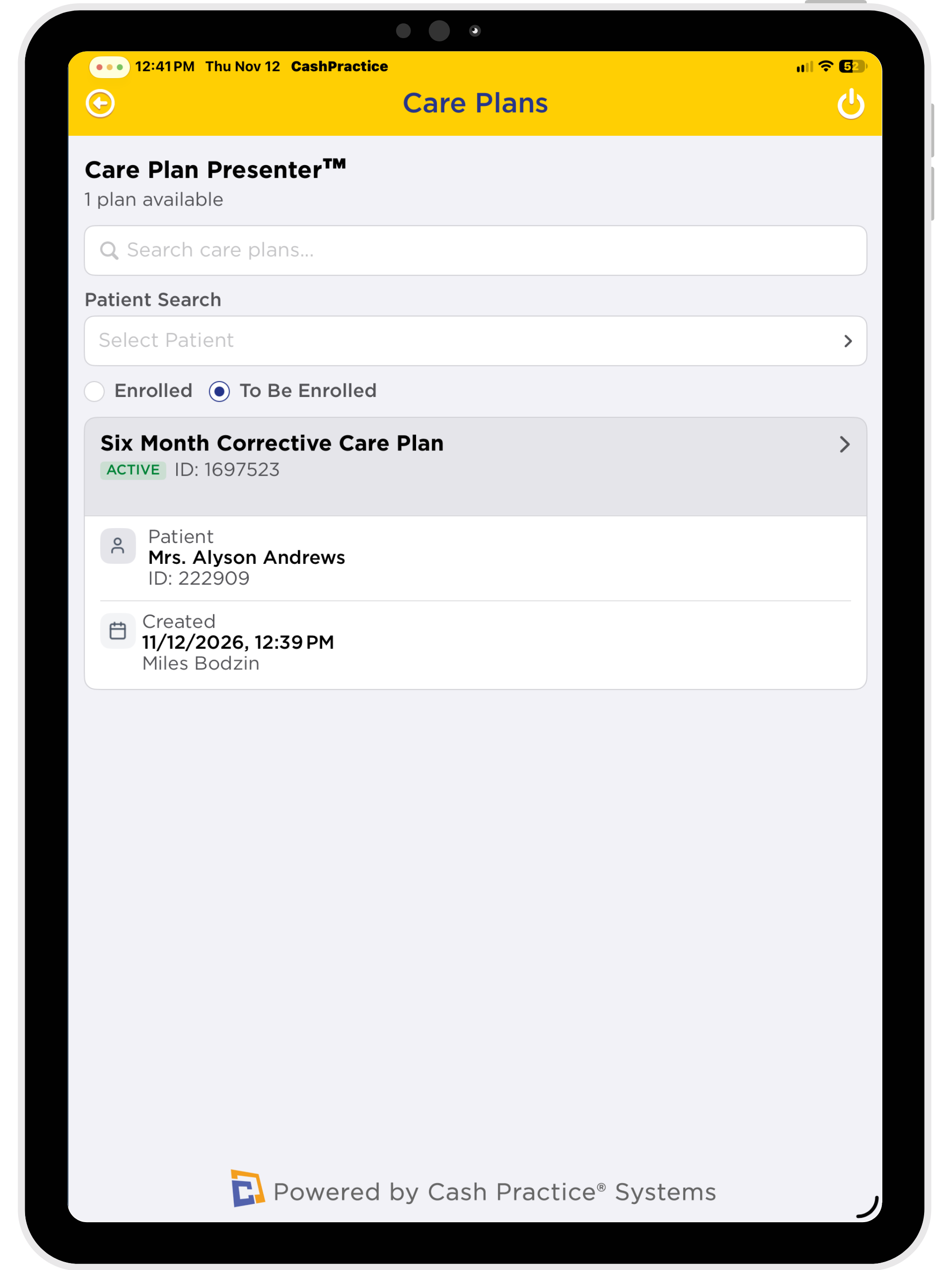
Step 4: Use the Search Options to find your desired Care Plan - search by Care Plan name or by Patient. Select your desired Care Plan to present and/or enroll.
Tip: Select the To Be Enrolled Option to search for Care Plans that have not yet been enrolled.