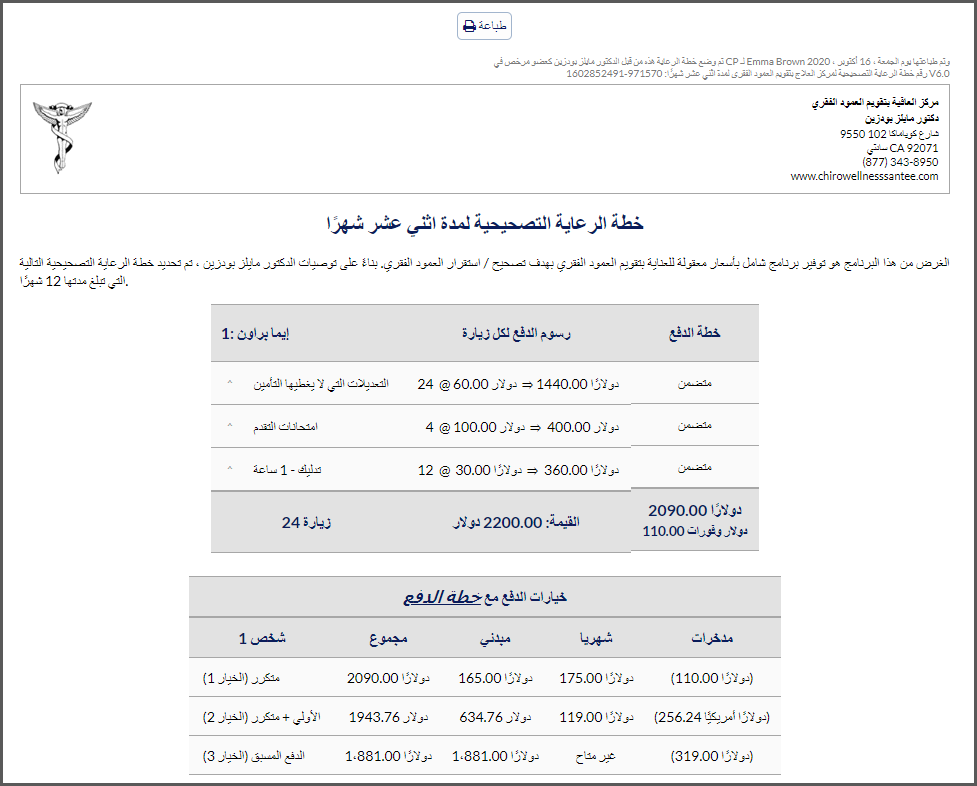
Why would I need to translate my pages? We find this to be incredibly helpful when displaying your various Wellness Scores, Care Plans, & Auto-Debits to any patients you have that speak a foreign language!
System Settings:
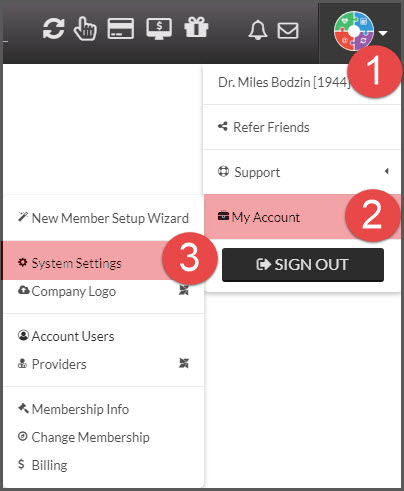
Step 1: When logged into Cash Practice as the Administrator, hover your mouse over the [User Profile] menu → [My Account] → [System Settings].
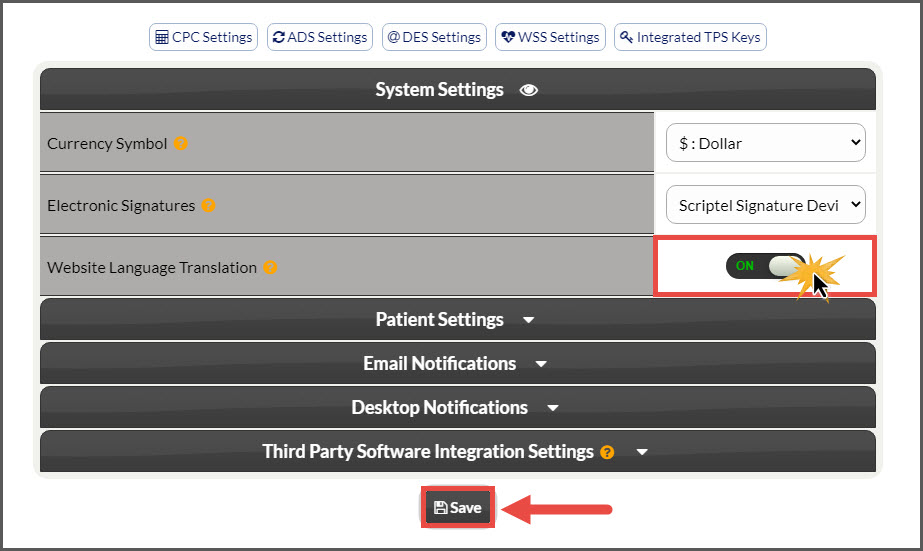
Step 2: From the System Settings, click on the gray slider for Website Language Translation from "OFF" to "ON". Once finished click on the [Save] button at the bottom of the screen.
For Chrome:
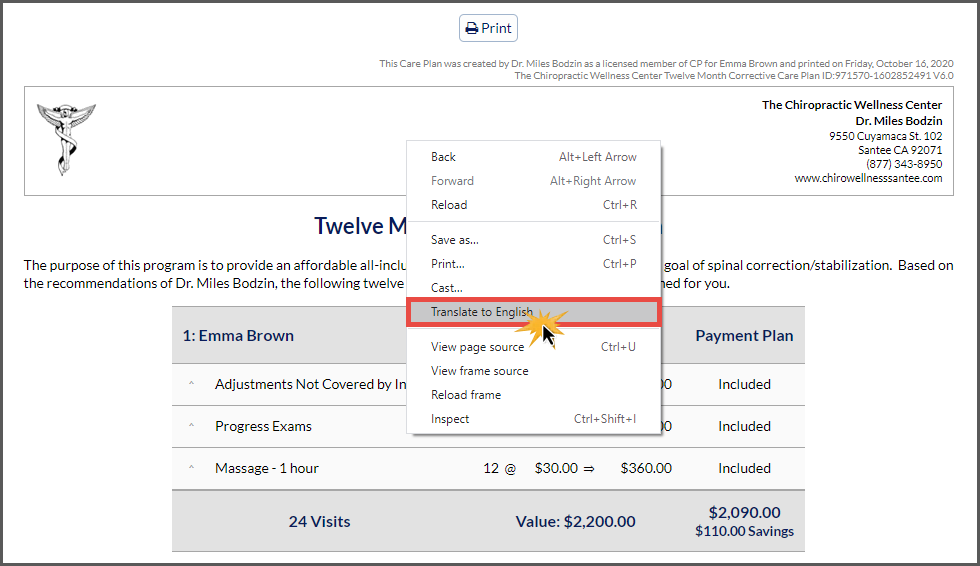
Step 1: Locate the care plan, auto-debit, or wellness exam that you wish to translate.
Step 2: Right-click on the form that you would like to translate and select "Translate to ______."
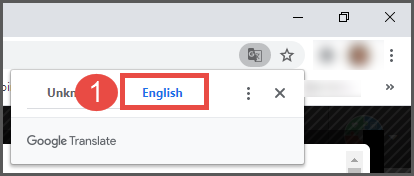
Step 3: The Translation box will load near the top right of the screen.
Click on the current language displayed
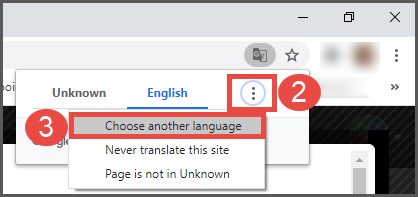
Select the icon with the 3 dots in a vertical line
Choose another language
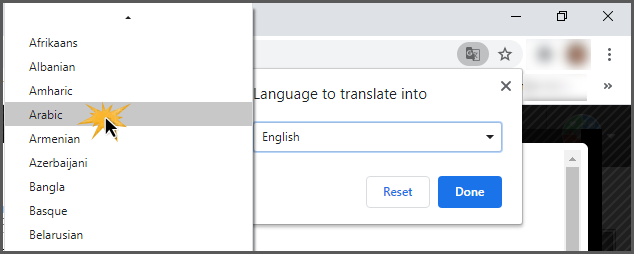
Step 4: Select the drop-down menu and choose which language you would like the page to be translated to.
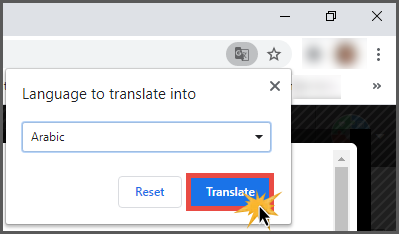
Step 5: Click on the [Translate] button to complete the translation process.
Step 6: The page will refresh with your newly translated report.