

NOTICE: UPDATE AT YOUR OWN RISK OR INVOLVE A PROFESSIONAL.
ChiroTouch Users- Read HERE

In order for your computer to run properly, it is recommended that your computer remains up to date. This will enhance and improve the performance of many actions including the way that CashPractice.com, the USB Card Swiper, and other programs operate on your computer.
To check for updates:
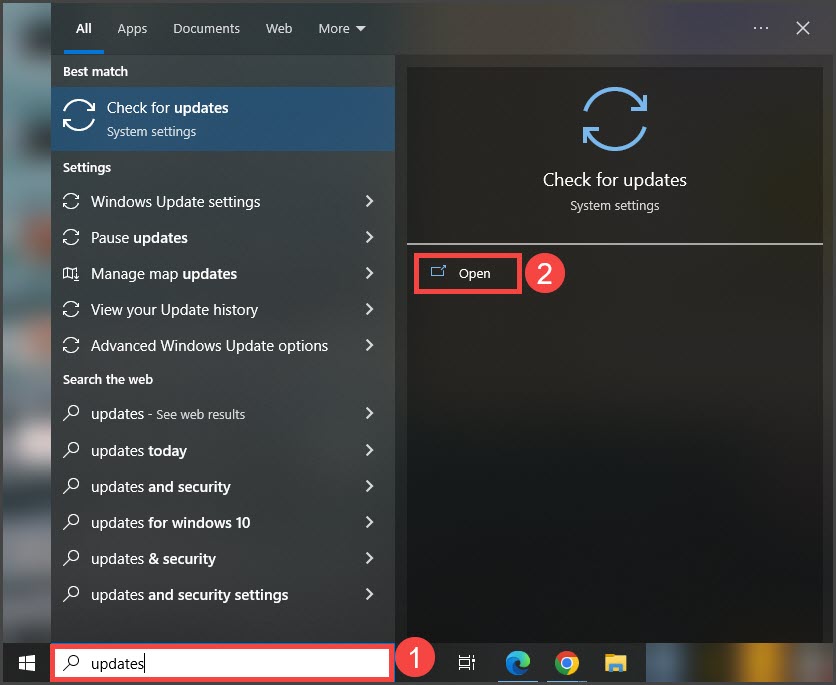
Step 1: Go to the [Search] section on your computer → type [updates] → select [Open].
Step 2: The screen will load checking for any updates. If the computer is up to date, this will be displayed on the screen. You can also select the [Check for Updates] button to be sure all updates are in fact complete.
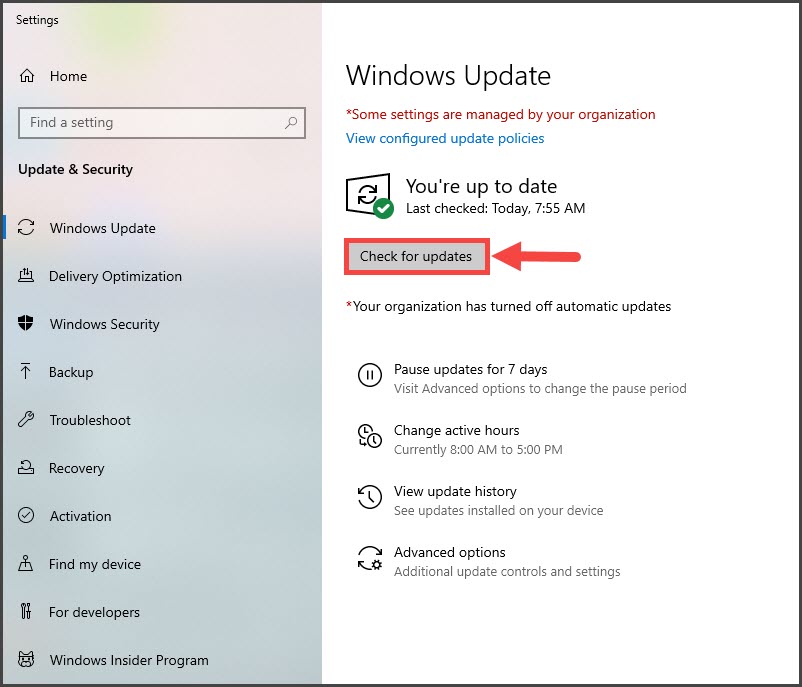
Step 3: Your system will automatically install the updates and may prompt you to restart your computer. You need to restart your computer in order for the updates to finish installing.