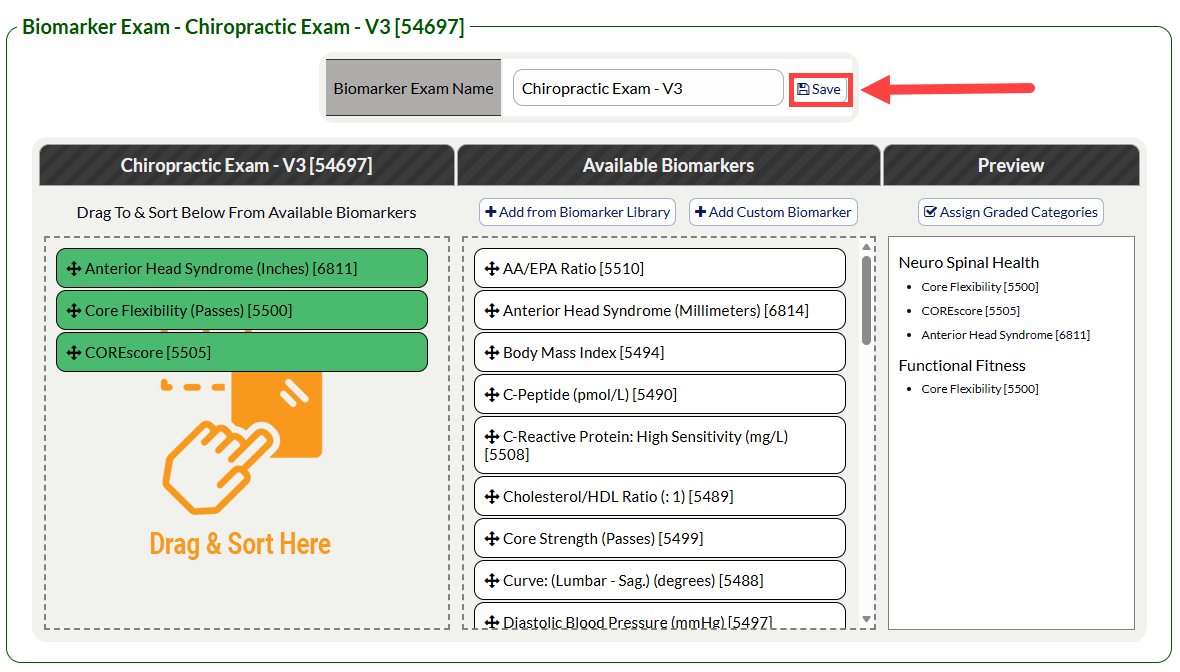
Step 1: Follow the sequence below to access your WS Settings:
Hover over the [Systems] menu
Click on [The Wellness Score®]
Select [Setup]
Click on [WS Settings].
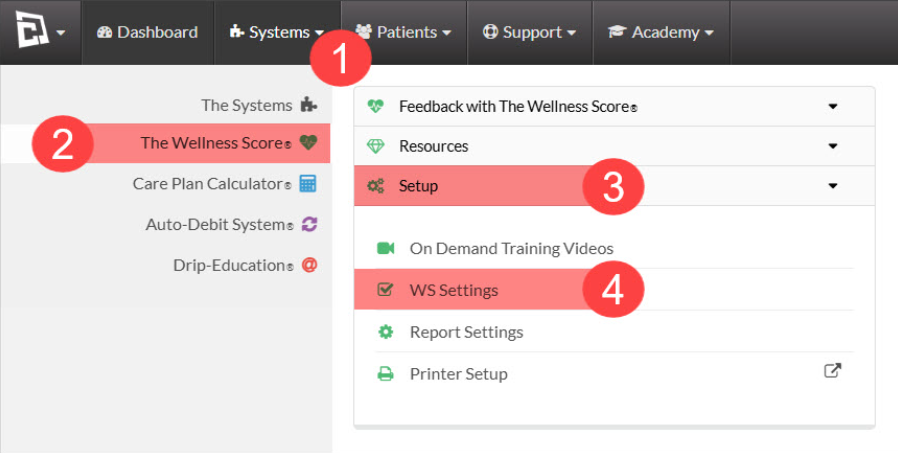
Step 2: From the [Biomarker Exams] tab, click on the [View/Edit] button next to the exam for which you'd like to assign or remove Biomarkers.
You may only assign or remove Biomarkers on Biomarker Exams that do not have any Wellness Score Reports attached. If you would like to assign/remove Biomarkers for a exam that already has Wellness Scores ran, you will need to make a copy of the exam first.
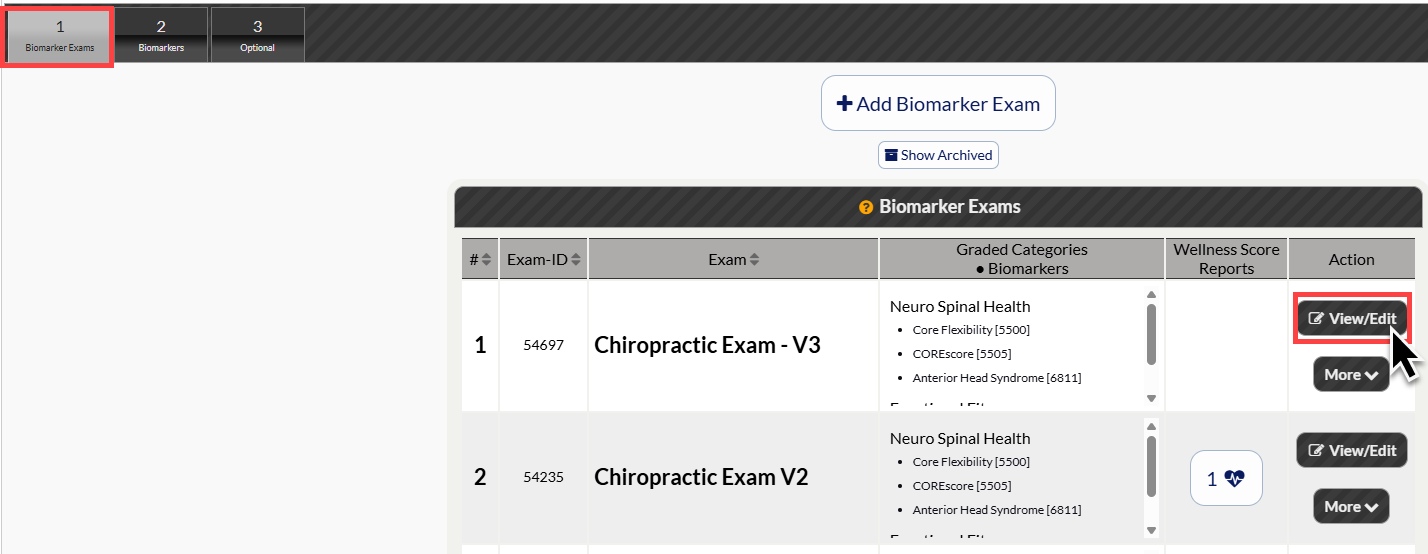
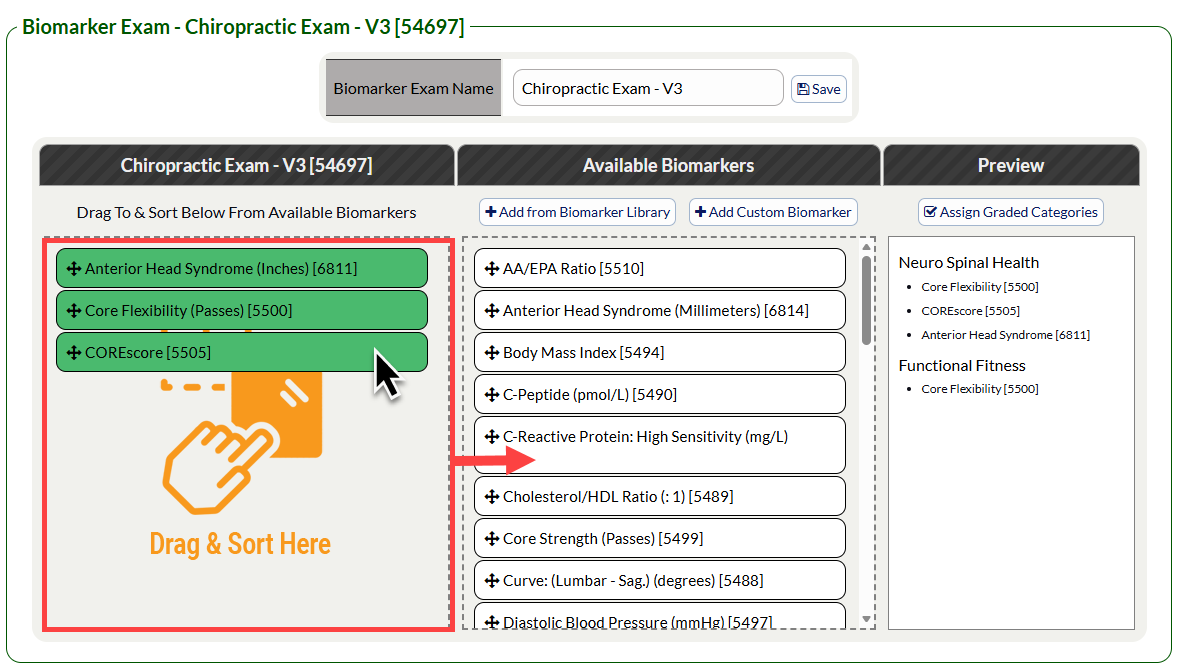
Step 3: Click and drag the biomarkers from the [Available Biomarkers] column (middle) to the Exam column on the left to add them to your exam.
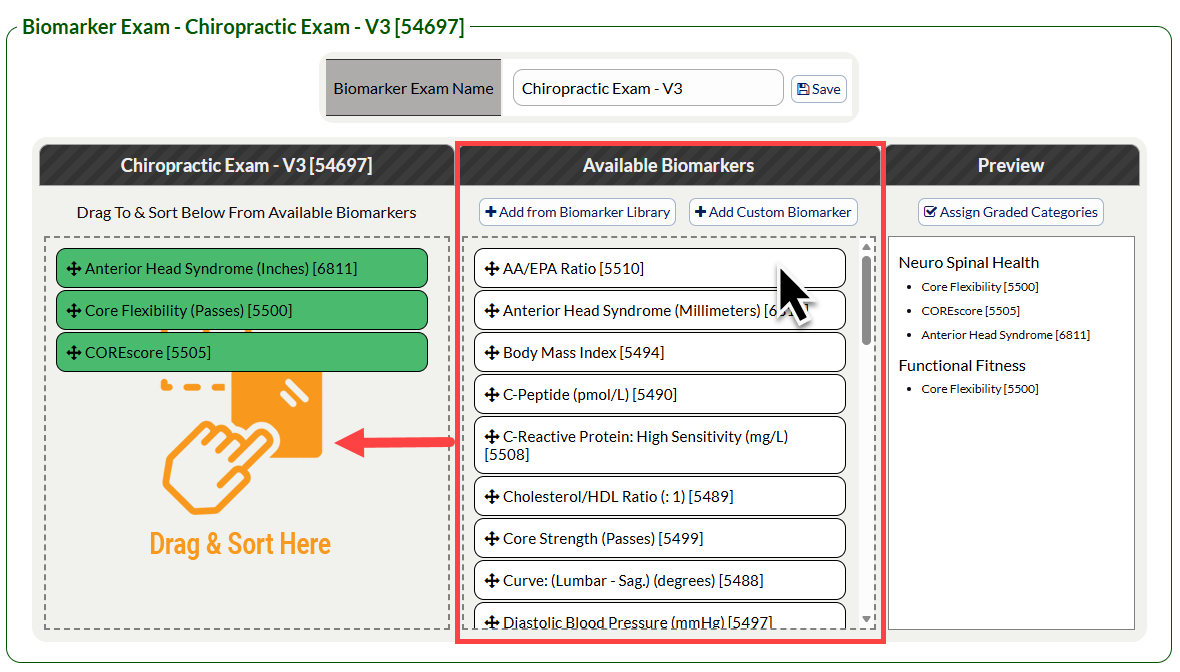
To remove Biomarkers from an exam, click and drag the biomarkers from the exam column (left) back to the [Available Biomarkers] column on the right.
Step 4: Click [Save] to save your changes