Services may be added to your patient's Wellness Scores® as recommendations for care and will appear in your Service Group. This helps the patient understand what it will take to get them on the road to wellness. See the image at the bottom of this article.
Showing services on your patient's Wellness Scores® is optional. If this is something you would like to add to your exams, follow the instructions below:
Start Here: Accessing your Service & Products from your WS Settings:
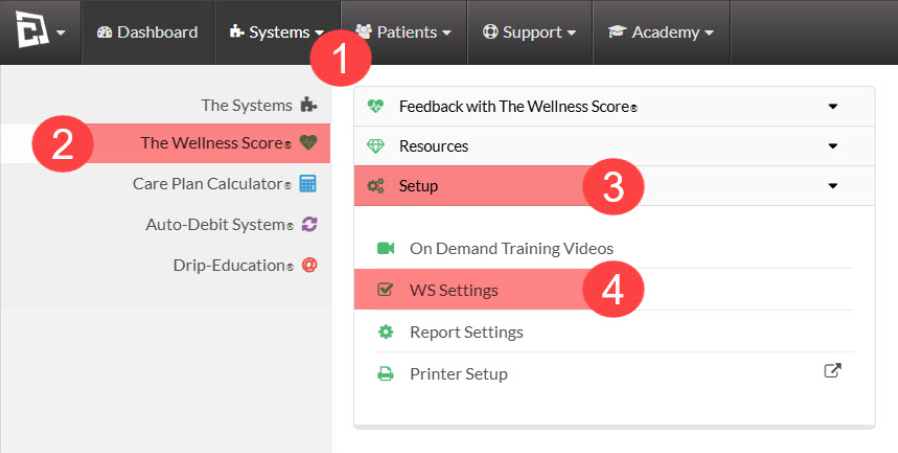
Step 1: Follow the sequence below to access your WS Settings:
Hover over the [Systems] menu
Click on [The Wellness Score®]
Select [Setup]
Click on [WS Settings].
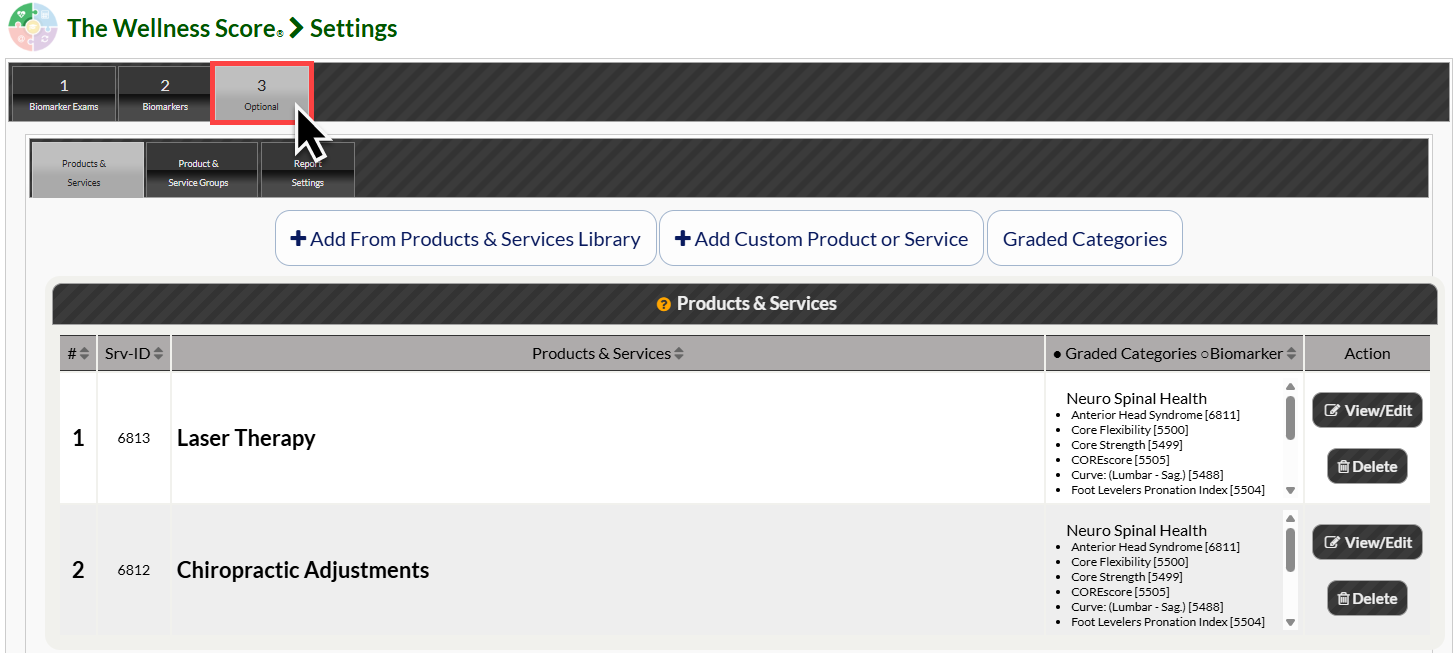
Step 2: Click on the [Optional] tab. This will bring you to the [Products & Services] page where you can manage your recommendations.
Step 3: Before proceeding, determine which method best fits your needs:
Option 1: Services & Products Library– Use this if you want to select from our pre-loaded list of common products & services. This is the fast and easy to use preloaded services.
Option 2: Custom Service or Product– Use this if you have a unique service, specific supplement, or specialized product that isn't already listed in our system.
Option 1: How to add from the Products & Services Library
Follow the steps below to add a service or product from the pre-loaded Library
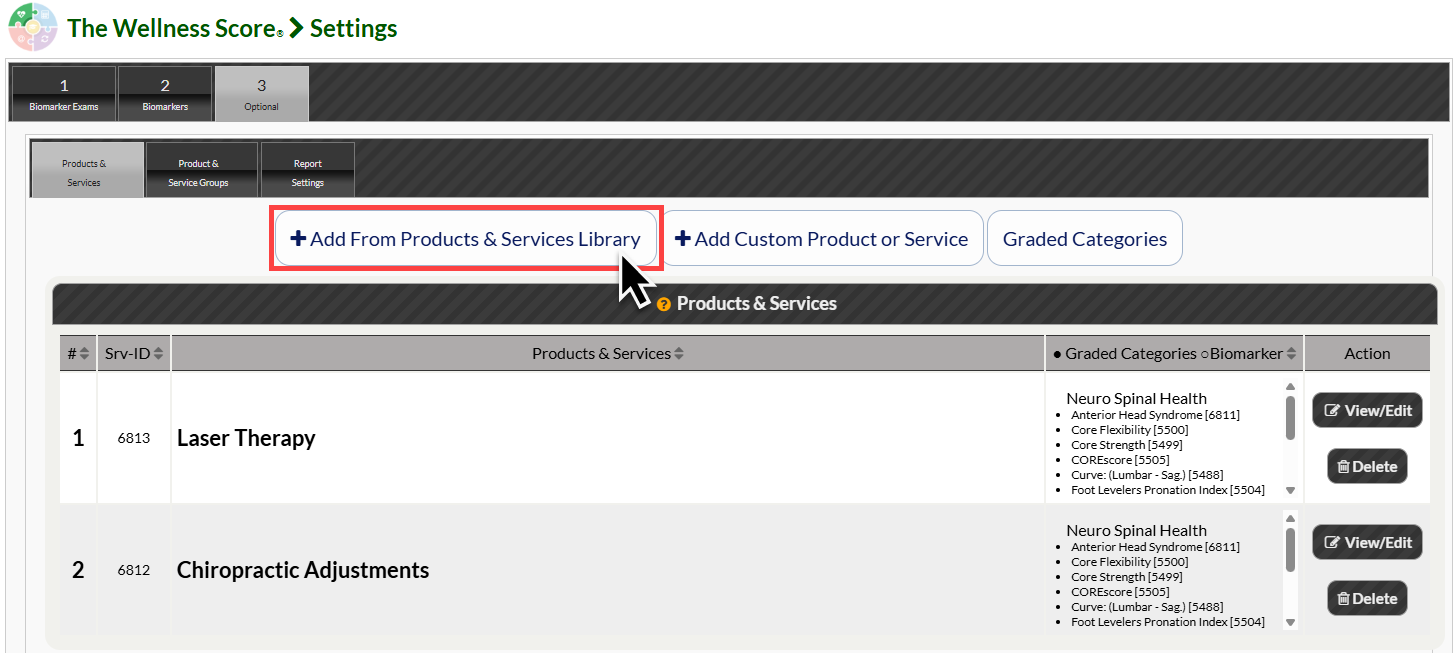
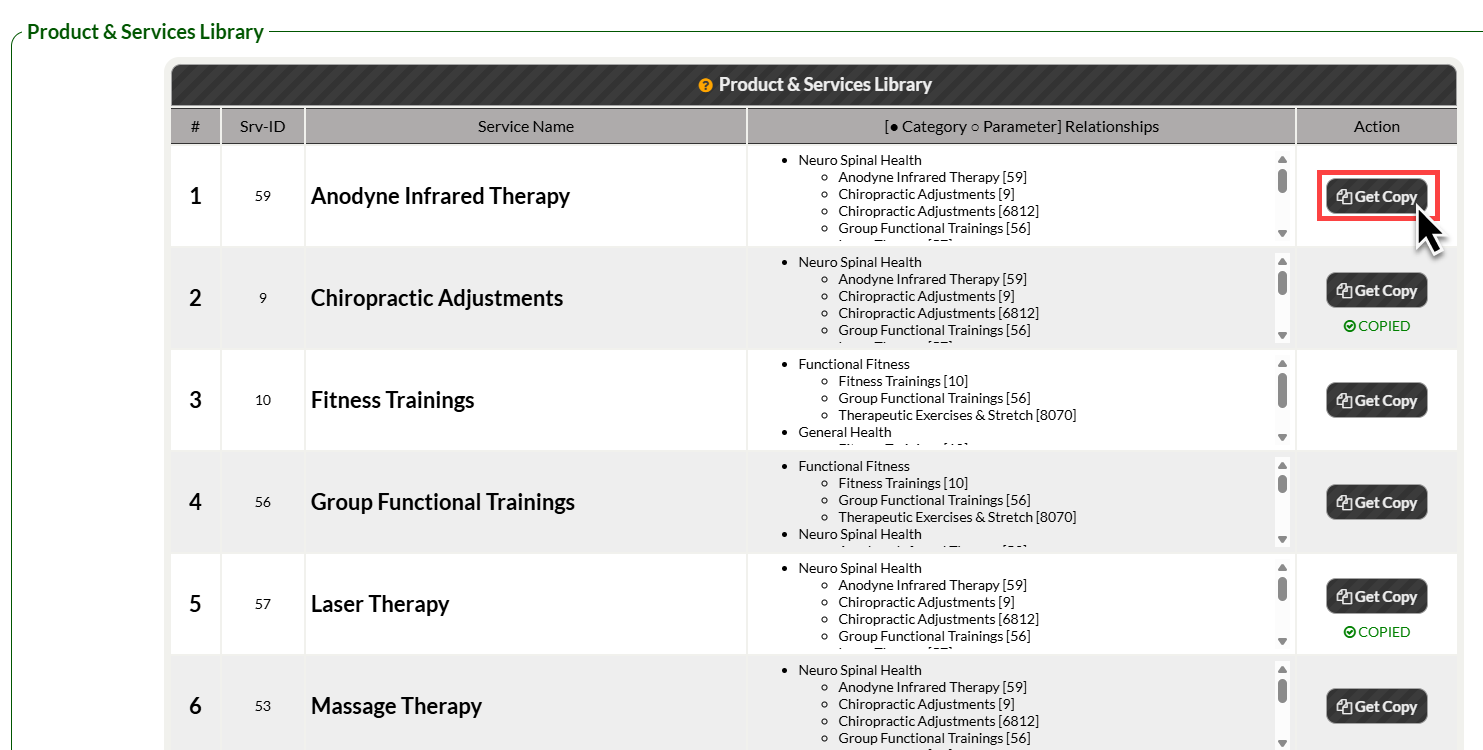
Step 1: To add a product or service from our preloaded library, click [Add From Products & Services Library]
Step 2: Select [Get Copy] to copy the preloaded service or products to your libary. You will see a green confirmation that states the product or service was copied once it complete.
Option 2: How to add a Custom Product or Service
Follow these steps to create a custom service or product.
Step 1: To add a new service, click the [Add Custom Product or Service] button.
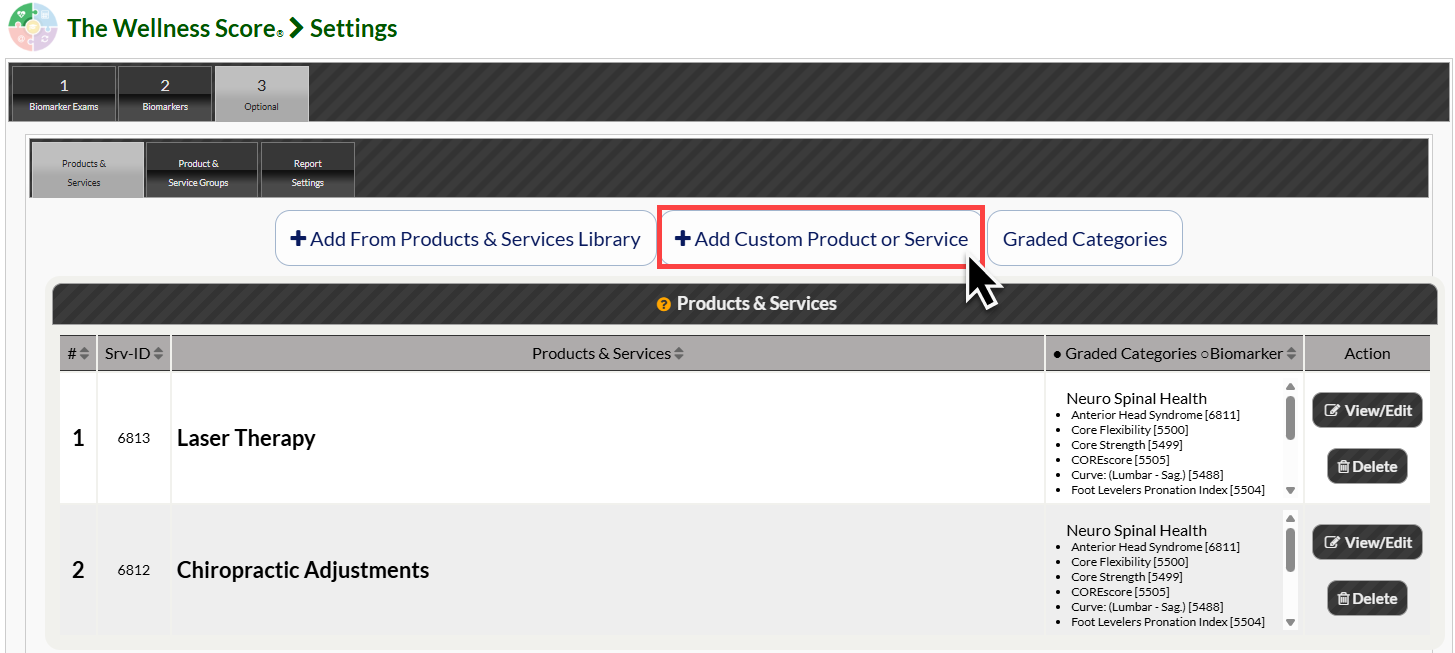
Step 2: This will open a new window. Type the name or your new product or service in the text box. Then click [Save].

Step 3: Once the service is saved, you can edit the description or reference of your service & click [Save] (optional)
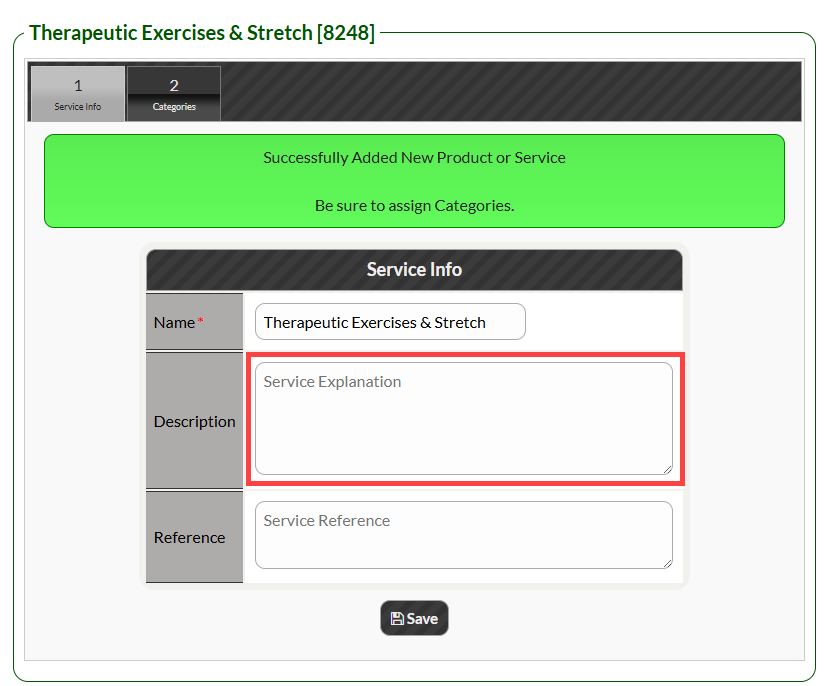
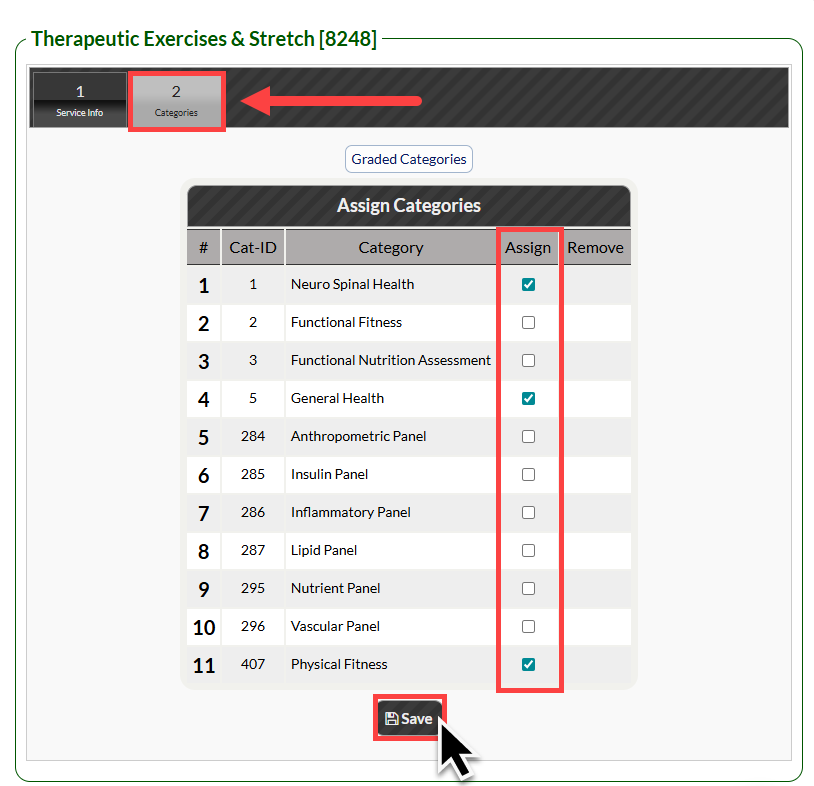
[Important] Next, click on the [Categories] tab to select which Categories you'd like the service/product to apply to, then click [Save]. This will allow the service to apply to your desired Categories on your Wellness Score Report.