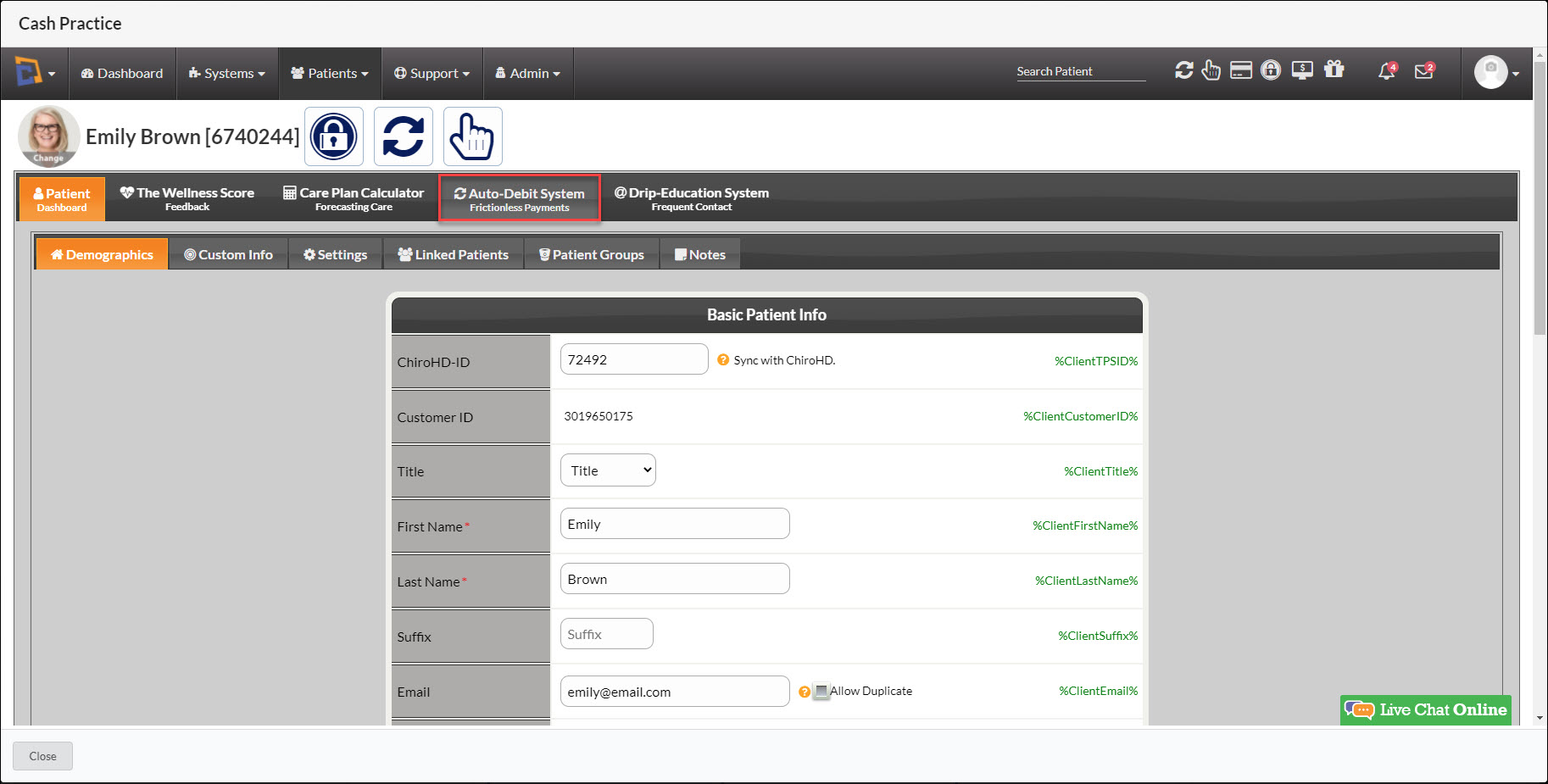
Getting Started:
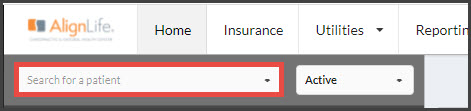
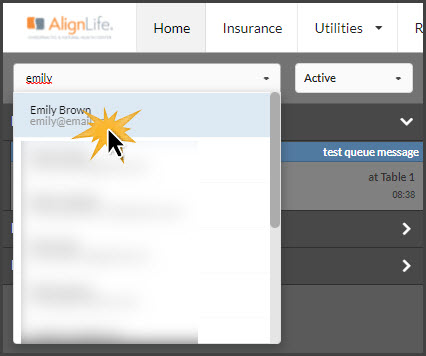
Step 1: In ChiroHD, use the search field to the left of the schedule to locate the patient the transaction needs to be run for, and select them from the drop-down menu.
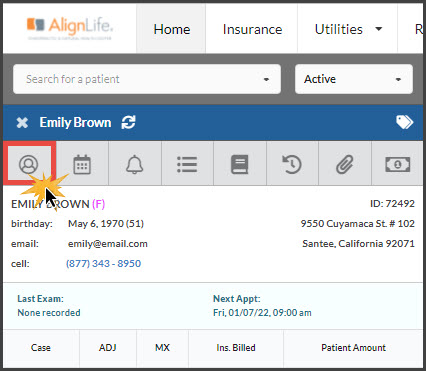
Step 2: Once loaded, click the [Profile] button.
Step 3: Select the [Monthly Payments] tab and click the [Cash Practice Auto-Debits] buttons to launch the tool
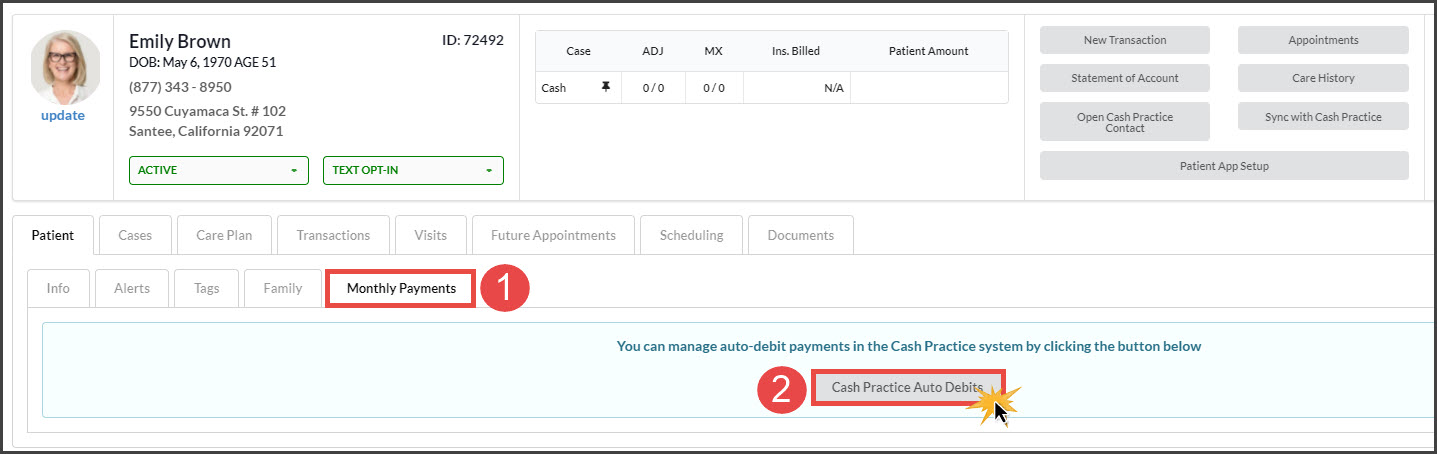
Step 4: Your Auto-Debit System must be in LIVE mode before you can schedule recurring payments. See HERE if you're still in TEST mode.
Select Auto-Debit options
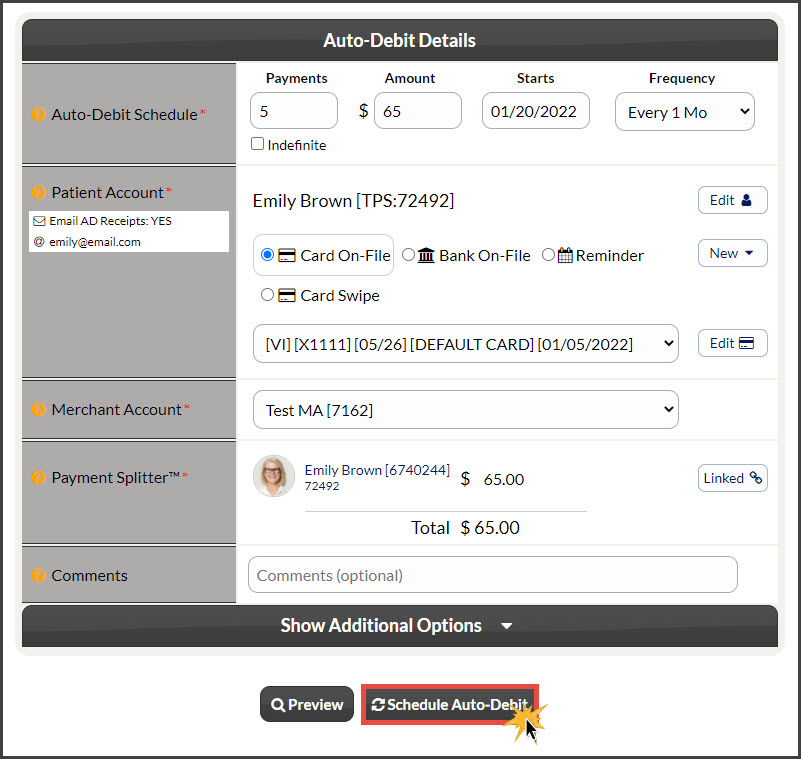
Payments: Enter the number of payments for the scheduled auto-debit or check the indefinite box to have the payments go forever.
Amount: Enter the amount the auto-debit is for.
Starts: Click the date to open a calendar that will allow you to choose a start date. This is when you want the auto-debits to begin.
Frequency: Select the payment frequency (Weekly, Bi-Weekly, Monthly, Bi-Monthly, Quarterly, Semi-Annually, or Annually).
Patient Account: This is pre-selected
Billing Type: Choose from:
Card On-File: (used in this example) Key enter the credit card information OR pull stored credit card information that has been previously saved on file in the patient account. Click the [New] button to add new information to the Billing Vault
Bank On-File (EFT): Routing and account number off of the check. Click the [New] button to add new information to the Billing Vault
Reminder: Auto-Debit Reminders are to be used when the patient has a monthly payment but it is not running automatically in Cash Practice® (i.e. over the counter with a check or cash). Click HERE for instructions on how to schedule Auto-Debit Reminders.
Card Swipe: Use a Cash Practice® USB Card Swiper or Scriptel Signature device to swipe a card and collect payment information for the auto-debit.
Merchant Account: The defaulted merchant account will be displayed, but if using multiple merchant accounts with us, make the correct selection here. For more information, contact our Merchant Services Department by phone at (877) 343-8950 x102) or email MerchantAccounts@CashPractice.com
Comments: (OPTIONAL) Add a comment for your team's eyes only. This will be displayed on the Posted Payments Report when reviewing the transaction details in the future.
Show Additional Options: (OPTIONAL) By clicking the drop-down, you have the capability to assign Auto-Debit Groups, Drip-Education campaigns for frequent contact, Patient Groups to better organize your patient lists, and a Care Plan Option
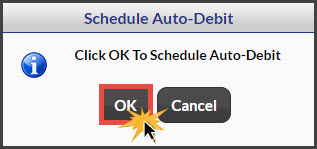
Step 5: Select the [Schedule Auto-Debit] button. Select the [OK] button to proceed.
Step 6: (OPTIONAL) Capture the[e-signature] from the patient.
Step 7: Print the authorization form by clicking on the [Logo] located on the left side of the page. Once the scheduled payments run, they are instantly posted to the patient's account in ChiroHD.
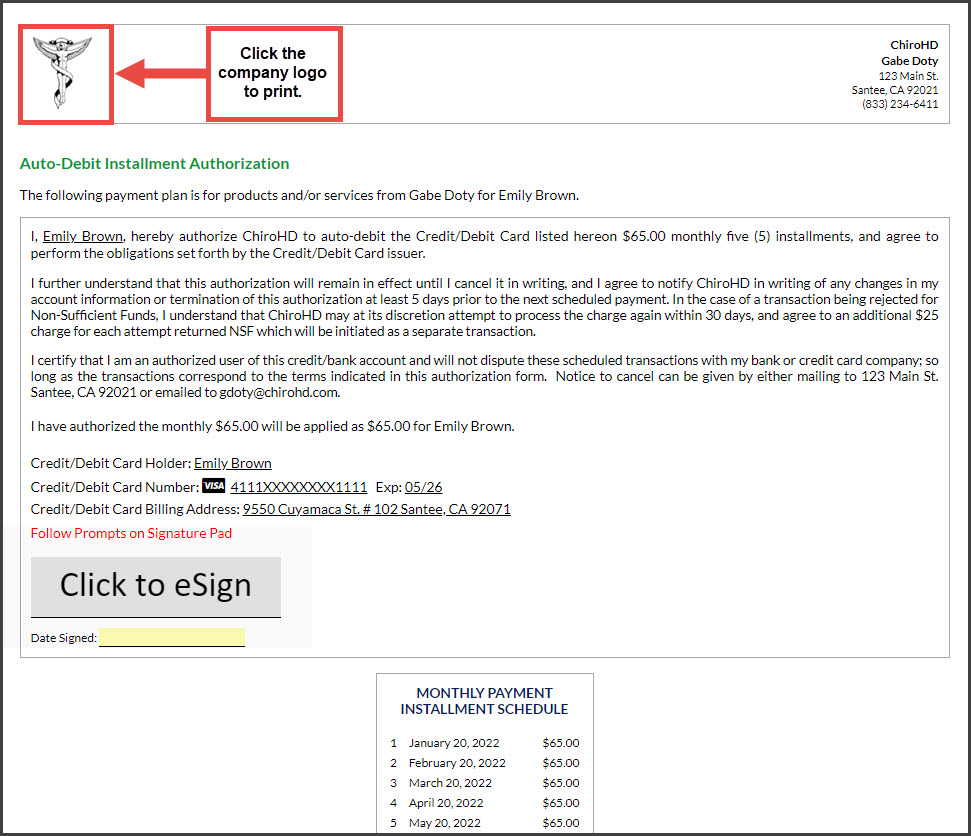
The payment will auto-post on the scheduled date.
To review or edit the recurring payment, you may go into the patient record within ChiroHD and click on the [Open Cash Practice Contact] button.
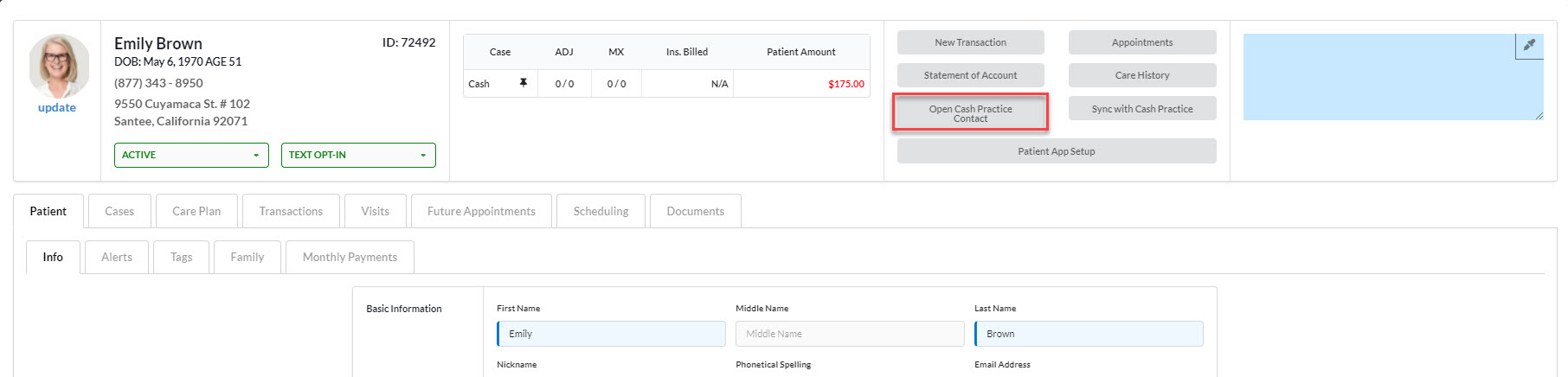
This will open up the patient record within Cash Practice. From there, click on the [Auto-Debit System] tab. For further instructions on how to view/edit a recurring payment, see this article.