Getting Started:
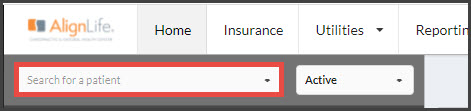
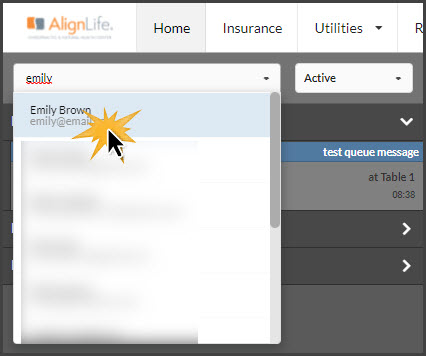
Step 1: In ChiroHD, use the search field to the left of the schedule to locate the patient the transaction needs to be voided/refunded for, and select them from the drop-down menu.
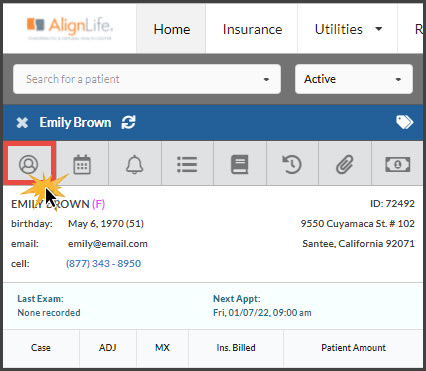
Step 2: Once loaded, click the [Profile] button.
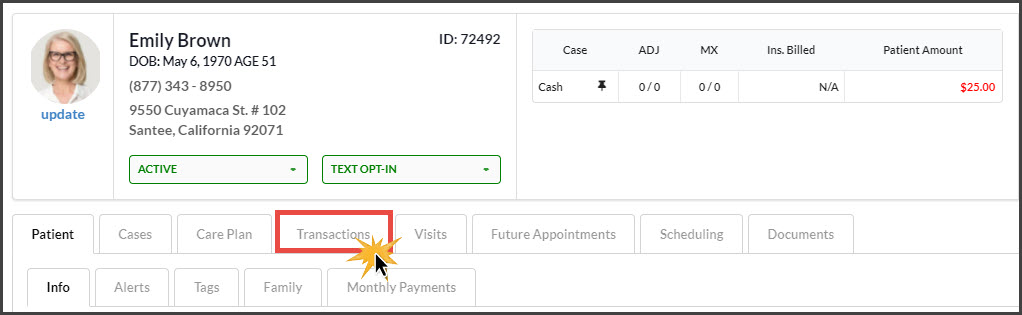
Step 3: Select the [Transactions] tab.
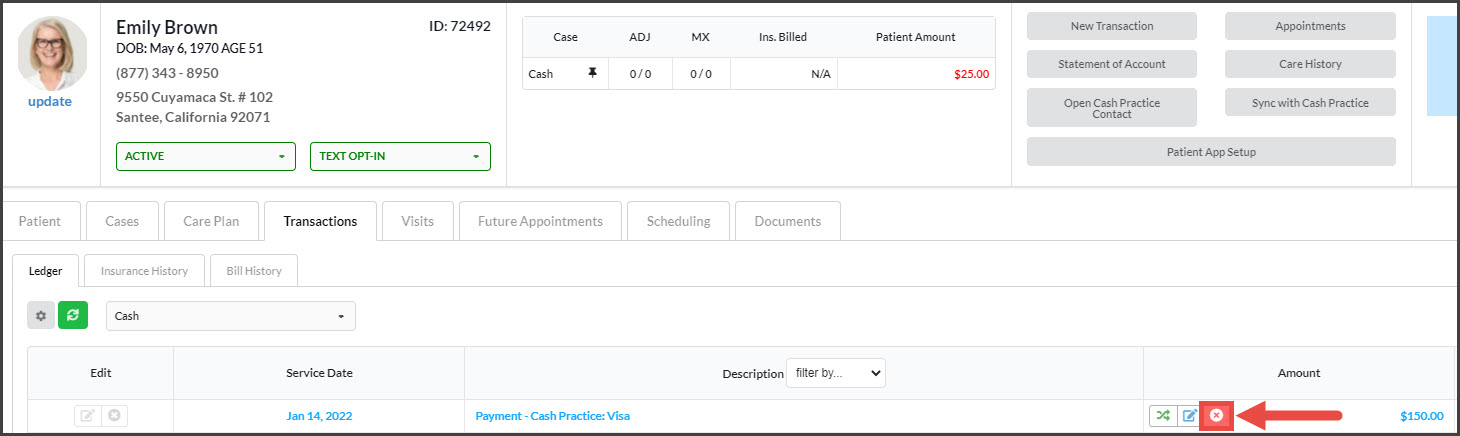
Step 4: Locate the transaction needing to be voided or refunded, and click the [RED X] button under the "Amount" column.
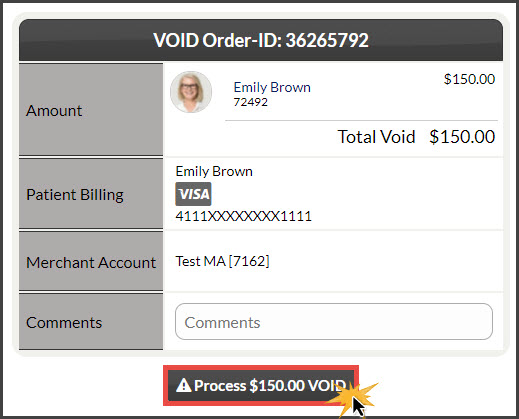
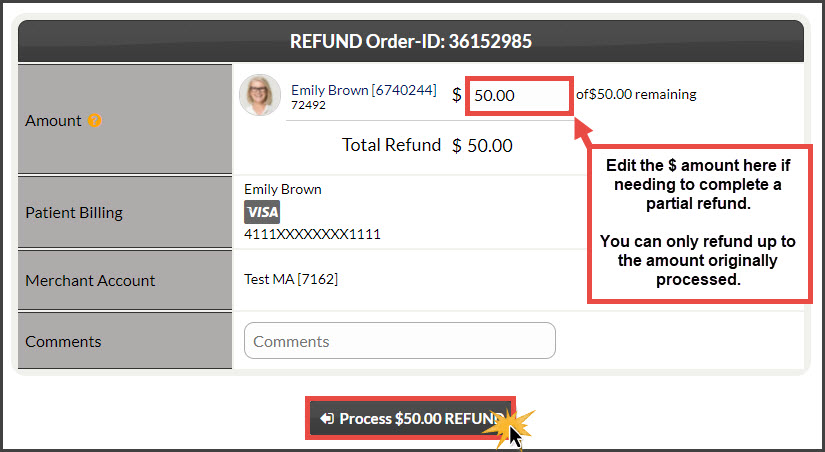
Step 5: If the transaction was run today, you will have the option to void the entire payment. If the transaction was run on a past date, you will have the option to refund the entire amount or change the $ amount to a partial, lesser amount. Add an optional comment, and then select the [Process] button. See both examples below:
REFUNDS: If the batch has been settled, then you will be able to perform a partial or full refund against the original card.
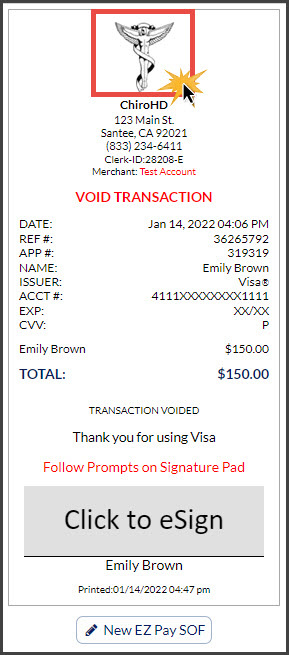
Step 6: (OPTIONAL) Capture the [e-signature] from the patient.
Step 7: Either the void or refund receipt will display. If needed, print the receipt by clicking the company logo at the top. Once finished, click the X in the top right corner of the window or click on the [Close] button at bottom left. The void/refund will automatically be posted in the patient's account in ChiroHD and the Dashboard of Cash Practice.