

NOTE: Must have ChiroTouch® version 6.1.23 or higher.
To edit an existing Wellness Score® report in the Provider All-In-One application, follow these steps:
Step 1: Access your ChiroTouch® account and select the [Provider - All In One] button.
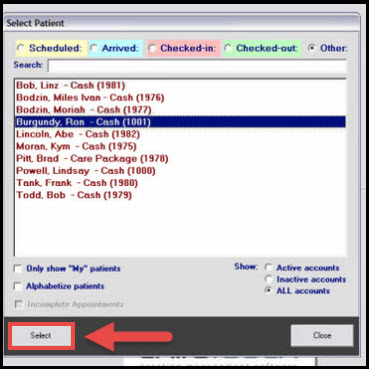
Step 2: Start by searching for your patient by pressing [Select Patient] in the top right-hand corner.

Step 3: Highlight the name of the patient, and press the [Select] button
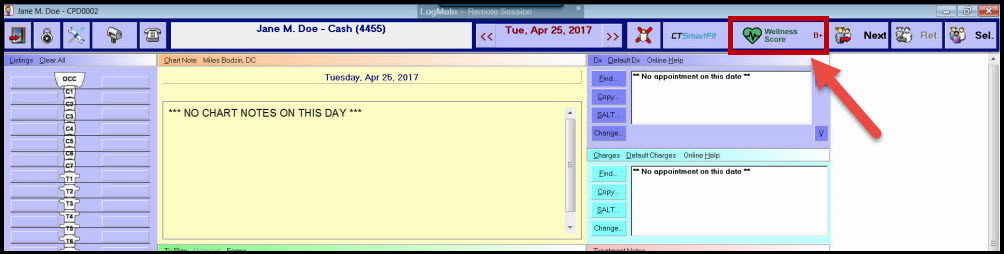
Step 4: Once inside of the patient account, select [The Wellness Score®]. *Note* The patient's current Wellness Score Grade will display next to [The Wellness Score®] button. If you have never run a report for that patient, it will display an N/A
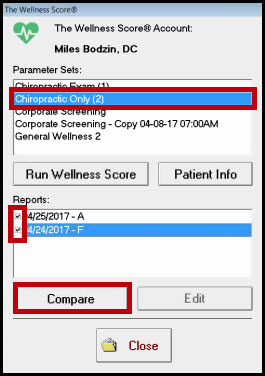
Step 5: Highlight the parameter set that you ran the report under. Once a parameter set is highlighted, it will display the reports that have been run for that patient. When you check the box next to an exam, two options will display at the bottom: [View] & [Edit]. Select [Edit].
Step 6: Here is where you will be able to enter or change the measurements for this report. Once you have confirmed the information is correct, you will select [Save].