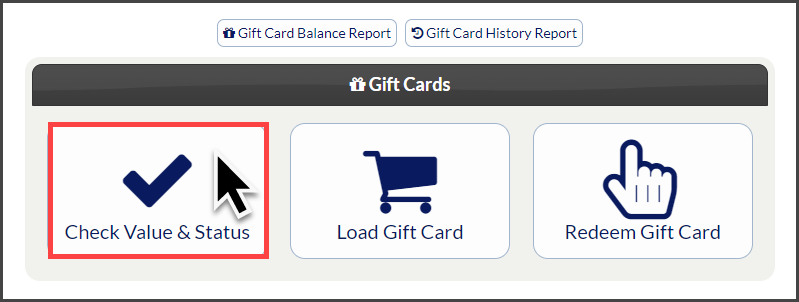
Congratulations on moving on to the next step with gift cards! Where patients, potential patients, family members, or friends of your patients are coming in and purchasing their Gift Cards for much-needed services and products at your office. This article outlines how to properly document purchased gift cards as "Gift Certificates" in ChiroTouch.
Getting started:
Step 1: Load the Gift Card as outlined HERE. Be sure to import these payments from Cash Practice to ChiroTouch by following the instructions HERE.
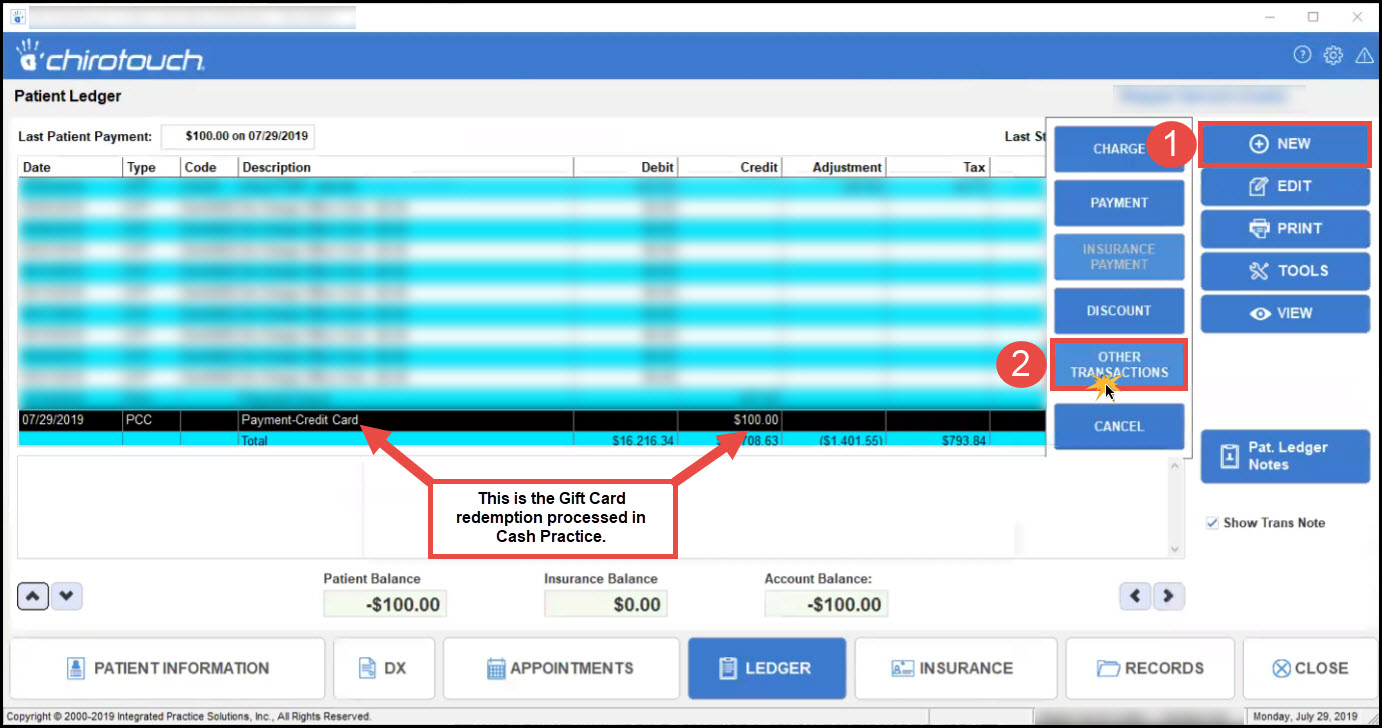
Step 2: To post this Gift Card purchase, head to the Patient's ledger in ChiroTouch's Front Desk → Click on [New] → [Other Transactions].
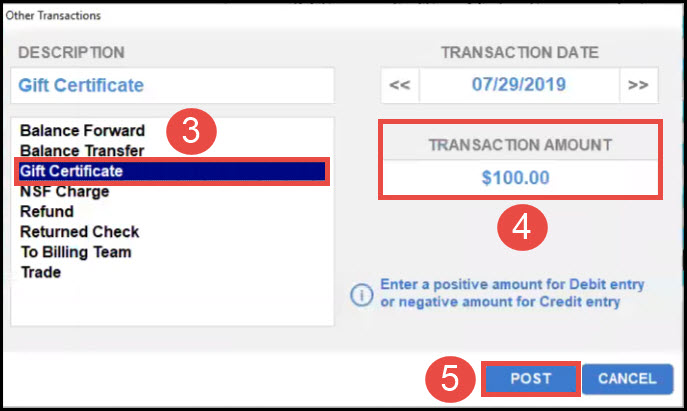
Step 3: From the "Other Transactions" screen, select [Gift Certificate] → [Transaction Amount] is where you will type in how much was purchased → Click the [Post] button.
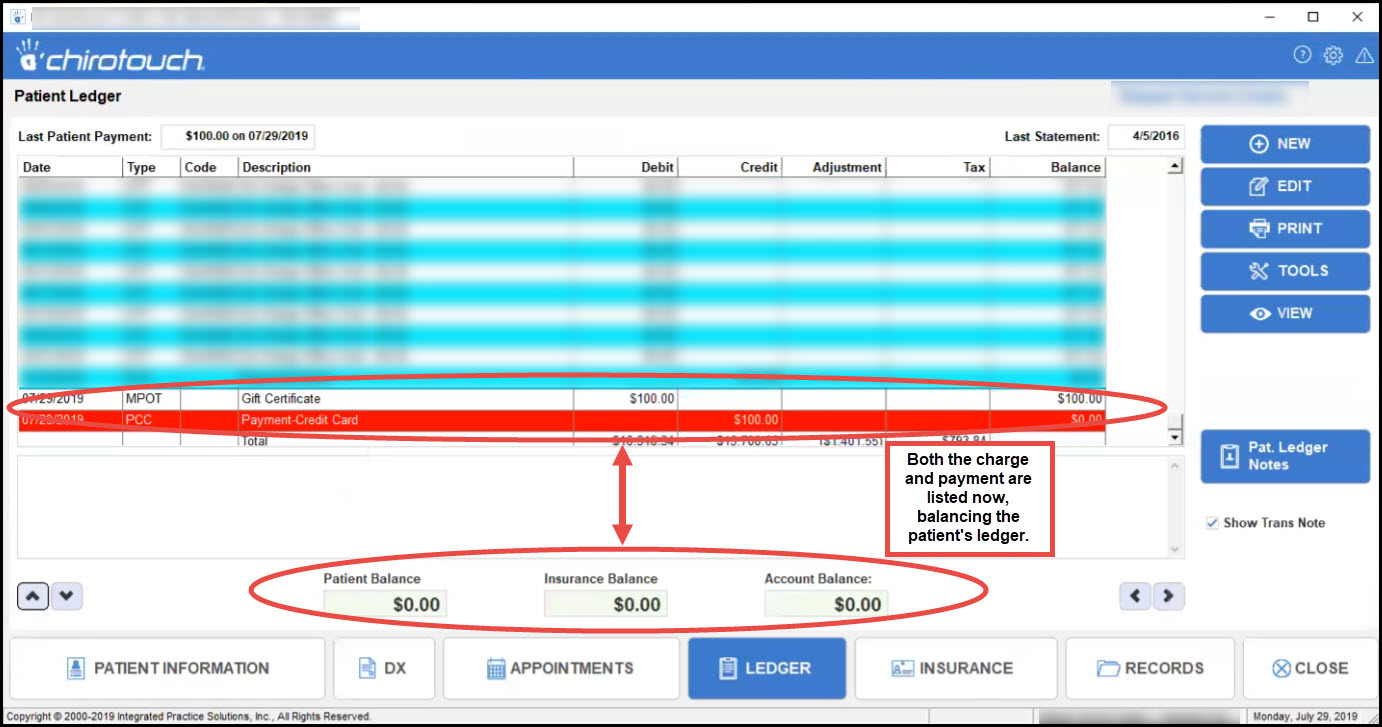
Step 4: Allow a moment for the ChiroTouch Ledger to post the gift card purchase. It will be added just like the image below. Please contact ChiroTouch directly for any questions or assistance with posting charges or services.