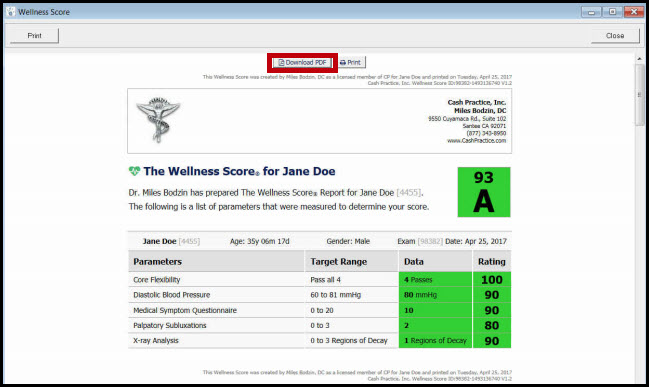
The Wellness Score® System is crucial for patient retention.
One of the biggest reasons a patient will drop out of care is due to the failure of effectively communicating the amount of progress they are making. It is crucial that the doctor does progress exams and provides the patient with a Wellness Score® Progress Report so the patient knows how they are doing. A doctor who fails to do regular progress exams and/or fails to effectively communicate how the patient is progressing will suffer from poor retention.
NOTE: Must have ChiroTouch® version 6.1.23 or higher.
To run a Wellness Score® report for a patient in the Front Desk Application, follow these steps:
Step 1: Access your ChiroTouch® account, and log in to the [Front Desk].
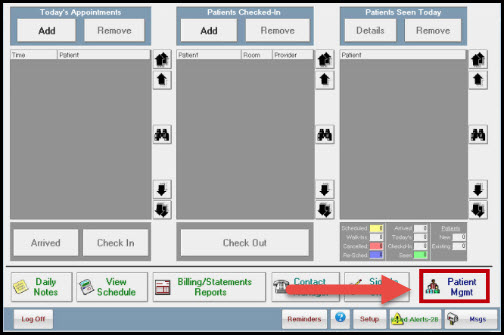
Step 2: t Select [Patient Management].
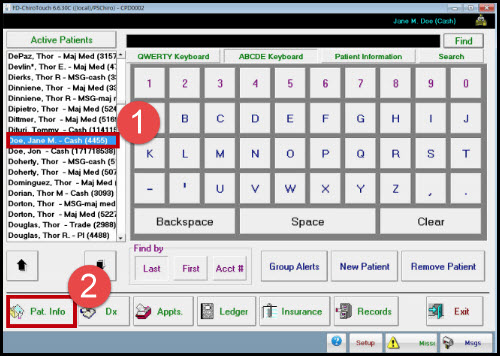
Step 3: Highlight the name of the patient who you ran The Wellness Score® report on, and select [Patient Information].
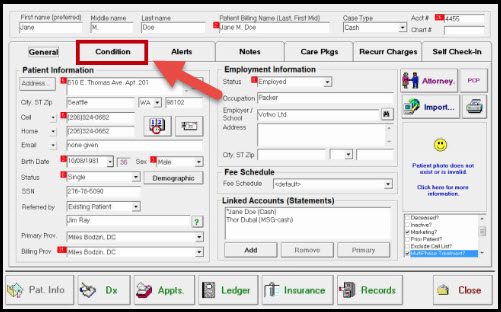
Step 4: Inside of the Patient Information section, select [Condition].
Step 5: Inside of the Conditions tab, select [The Wellness Score®]. *Note* The patient's current Wellness Score® Grade will display next to [The Wellness Score®] button. If you have never run an exam for that patient, it will display an N/A.
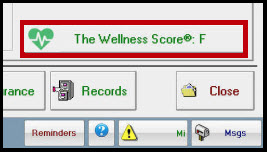
Step 6: (Multiple Providers Only) Select the provider The Wellness Score® report will be run under.
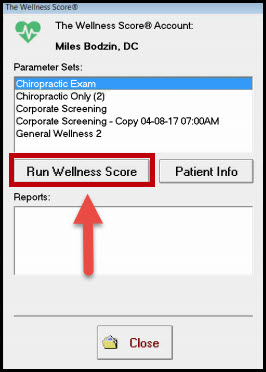
Step 7: A list of [Parameter Sets] will display that may be used. Select the desired parameter set, then click [Run Wellness Score].
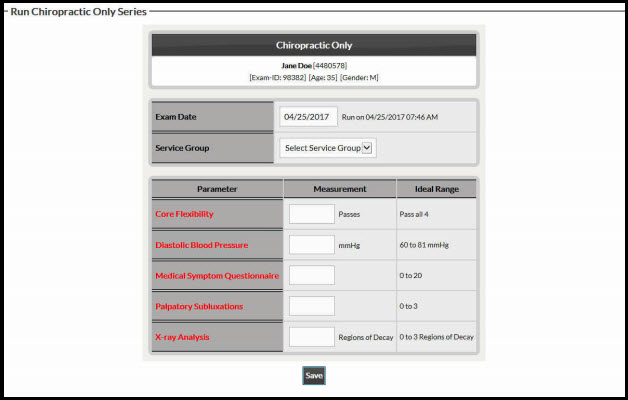
Step 8: Enter the data for the report. Once you have confirmed the information is correct, select [Save].
Step 9: Click the [Close] button in the right-hand corner.
Step 10: (Optional Print) You will return to the report menu → check the box for the report you just ran→ and select the [View] button→ Click the [Print] button in the top left-hand corner.
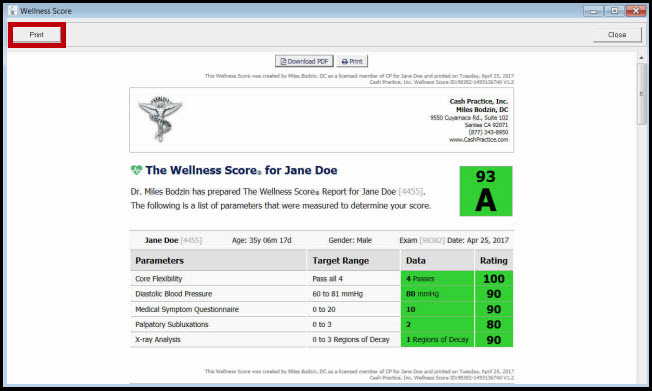
Step 11: (Optional Download to PDF) You will return to the report menu → check the box for the report you just ran→ and select the [View] button→ Click the [Download to PDF ] button at the top middle of the report.