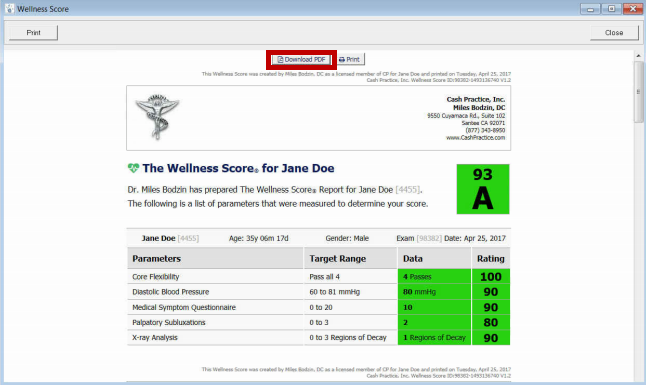
Scroll down to read the step-by-step instructions:
Step 1: Access your ChiroTouch® account by opening CT Provider and logging in.
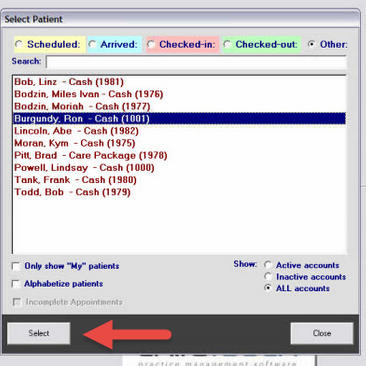
Step 2: Start by searching for your patient by pressing [Select Patient] in the top right-hand corner.

Step 3: Highlight the name of the patient, and press the [Select] button.
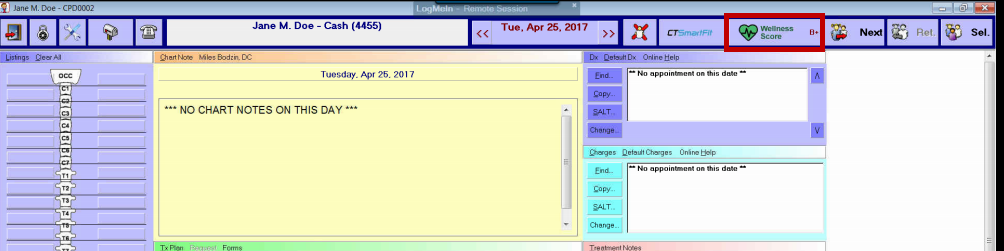
Step 4: Once inside of the patient account, select [The Wellness Score®]. *Note* The patients current Wellness Score® Grade will display next to [The Wellness Score®] button. If you have never ran a report for that patient, it will display an N/A.
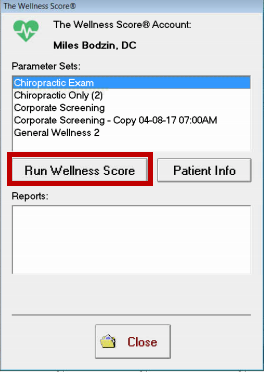
Step 5: A list of [Parameter Sets] will display that you can highlight. Highlight the parameter set that you want to ran the Wellness Score® report under.
Step 6: Enter the data for the report. Once you have confirmed the information is correct, you will select [Save].
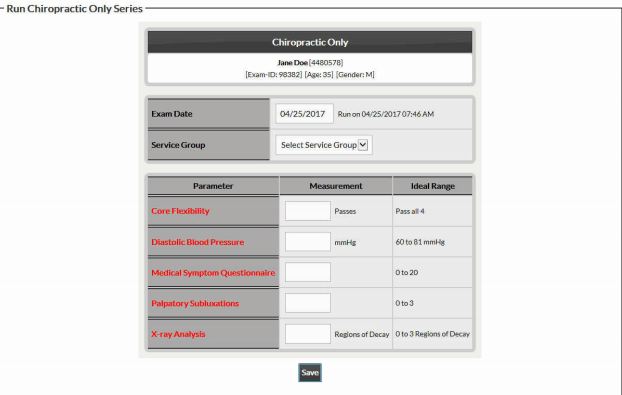
Step 7: Select the [Close] button in the right-hand corner.
Step 8: (Optional Print) You will return to the report menu → check the box for the report you just ran→ and select the [View] button→ Click the [Print] button in the right-hand corner.
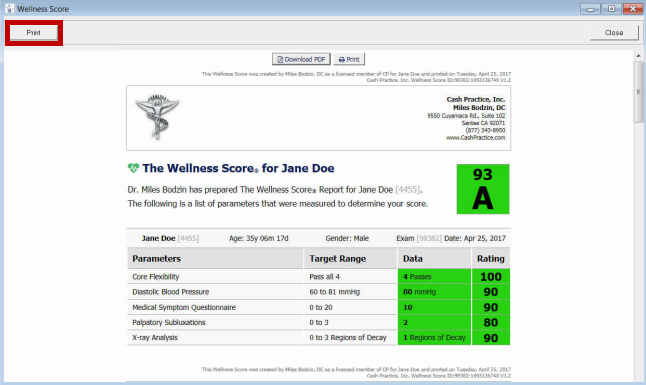
Step 9: (Optional Download to PDF) You will return to the report menu → check the box for the report you just ran→ and select the [View] button→ Click the [Download to PDF ] button at the top of the report.