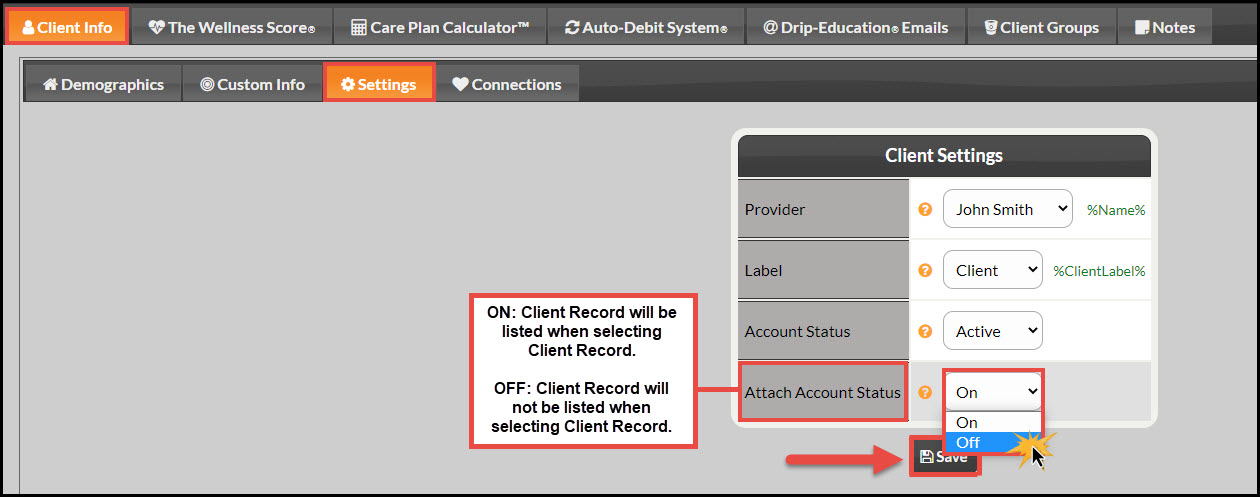
When would I need to turn on/off a patient's account?
If you have a patient you want to delete or inactivate but are unable to, you can still have their account hidden when attaching patient accounts from any Auto-Debit System® payment tool, Care Plans, or Drip-Ed® Emails. This will remove any confusion on which patient account to use.
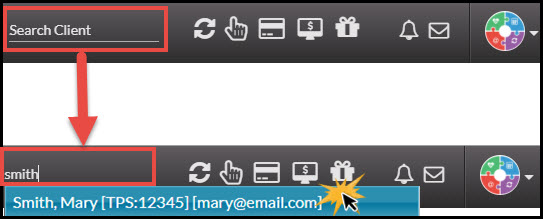
Step 1: From the top-right side of the website, head to [Search Patient], type the name of the person you are looking for, and select their name from the drop-down menu. This then directly brings you to the Patient Record.
Step 2: Click on the [Settings] tab → Change [Attach Account Status] to [ON] or [OFF] and click [Save]. This setting can be toggled on/off anytime.