

A patient may be deleted as long as the patient does not have an active auto-debit, active Drip-Education® campaign, Wellness Score® reports, or any billing history.
Step 1: From the [Patients] menu → Select [Search Patients].
Step 2: Enter the necessary search criteria and click [Search]. We find the fastest way to find one person, in particular, is to enter the first two letters of the first name and the first two letters of the last name.
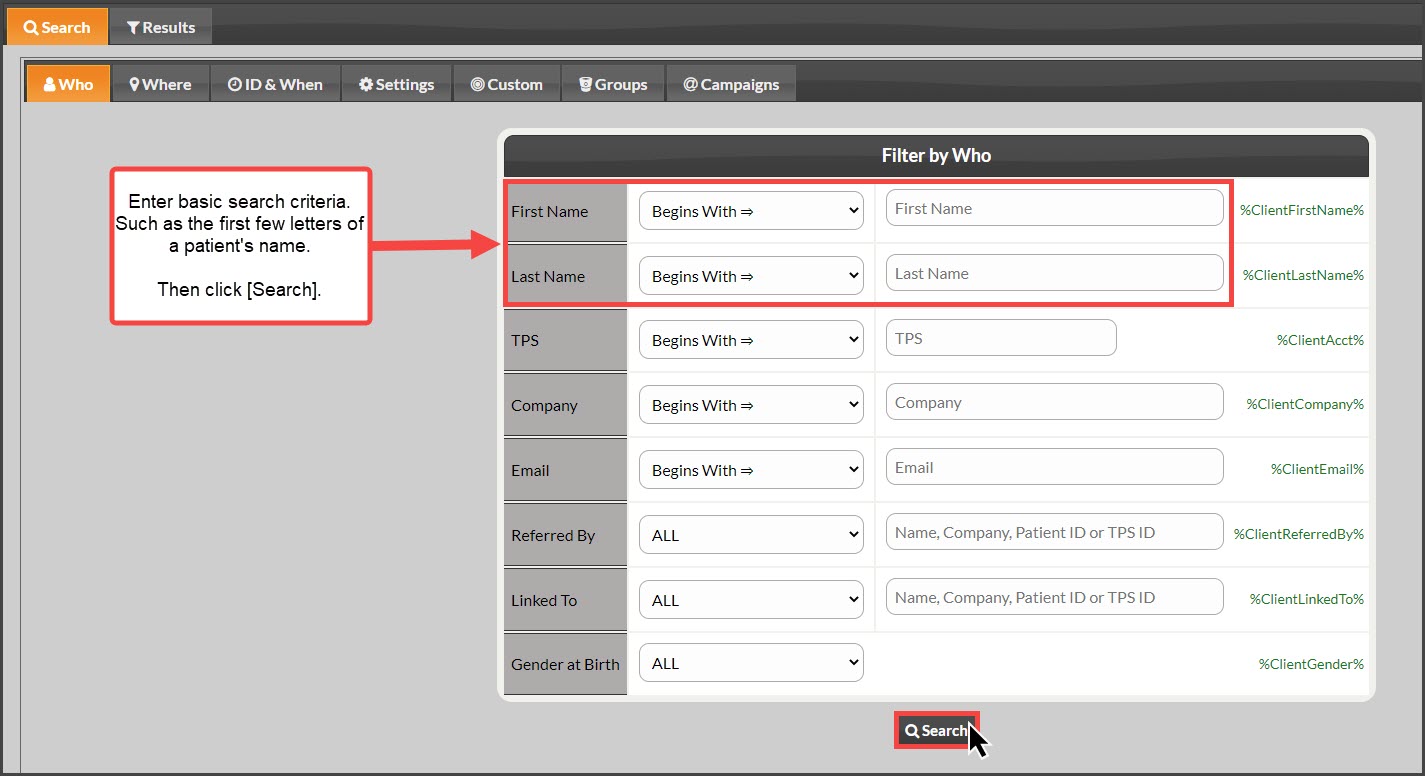
Step 3: Under the [Delete] column there will be a [Delete] button if the patient is qualified to be deleted.
NOTE: Why can't I delete someone's patient account? We suggest that you inactivate the patient account instead. See: How do I inactivate a patient account?
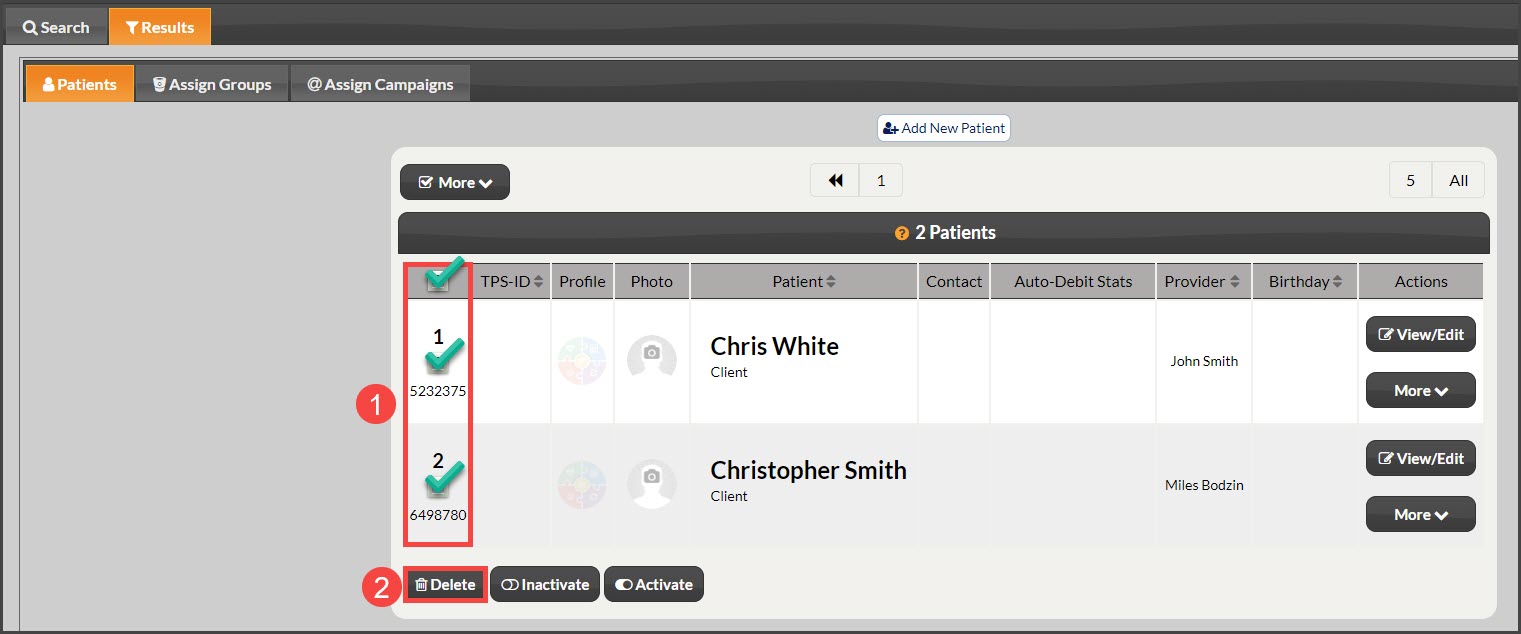
If you want to delete more than one patient at a time:
Step 1: Follow steps 1-2 above.
Step 2: Locate the empty box icon (in the far left-hand column next to the "TPS-ID" column) and select that to check all patients. You may also individually check the boxes to the left of each patient you wish to delete.
Step 3: Select the [Delete] button.
NOTE: If you cannot delete the account, you may be able to Inactivate the Account instead.
Note: You must be logged in to the primary member's account or have the user account privilege turned on to delete.