

Click the Self Help button to use the Cash Practice® walkthrough when logged into your account.

Getting started:
Step 1: At the top right of your account, click on the [Gift Card] icon.

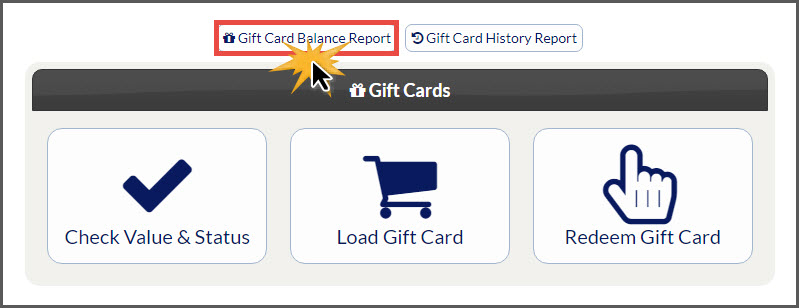
Step 2: Select the [Gift Card Balance Report] button at the top middle of the page.
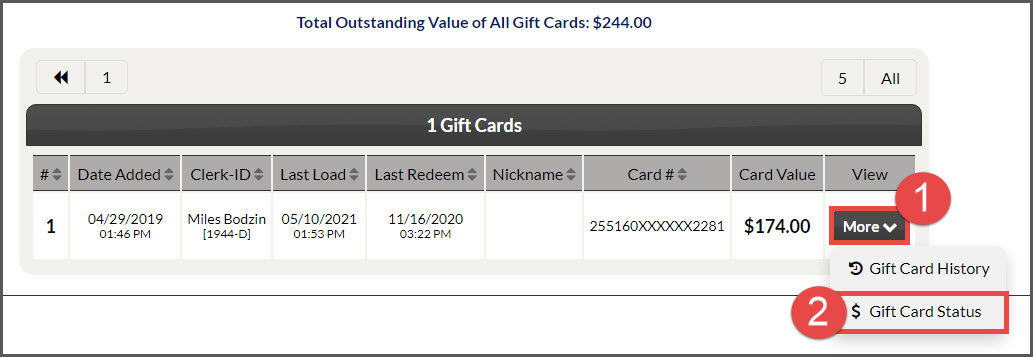
Step 3: This will open the Gift Card Balance Report which lists out all of the cards within circulation for your account. Locate the desired card you wish to transfer the balance from → click on the [More] drop-down menu → then click on the [Gift Card Status] button.
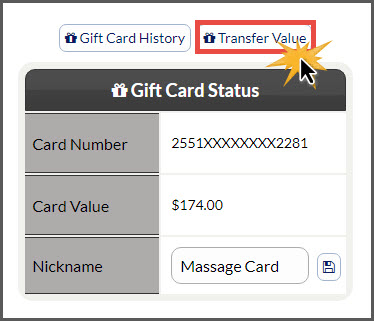
Step 4: The page will load to show the [Gift Card Status]. Review the [Card Value] which is the amount available for transfer, then click the [Transfer Value] button.
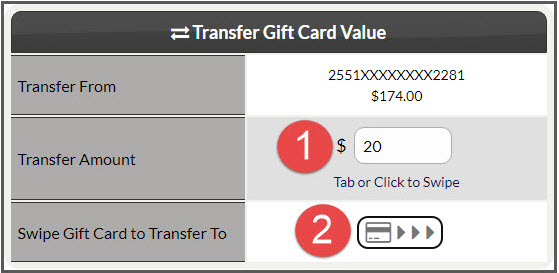
Step 5: Enter the amount to be transferred, then select [Tab or Click to Swipe]. Swipe using the Gift Card the balance will be transferred to.
Step 6: The screen will reload showing an alert on the screen notifying you that the amount was successfully transferred from one card to the other. To exit this screen, click the red [X] in the bottom right corner of the window.
If you are unable to access or use the Gift Cards feature, please contact your Account Administrator to request permission. Instructions on how to locate and edit permissions are HERE. Make sure to click over to the Auto-Debit System® section to locate the Gift Cards permissions.