Important: To create a professional and trustworthy experience for your patients, we highly recommend you customize your online forms. By uploading your company logo and adjusting the colors to match your website's branding, you can build confidence and assure patients that their billing information is being submitted in a safe and secure environment.
Pay Now Link Overview:
Pay Now Link Instructions:
*Notice: This feature is only available for members with the Auto-Debit System that have an active MOTO merchant account. This is the merchant account that's used for all key-entered and card-on-file transactions when using the Virtual Terminal or Scheduled Payments.
NEW! We added the ability for you to attach an invoice when generating emailing the patient with the Pay Now form. Watch the video below for more information
Getting Started:
Step 1: From the top of the navigation menu → select the Generate Pay Now Link icon.

Generating a Pay Now Link to Send to a Patient With Your Cash Practice Account
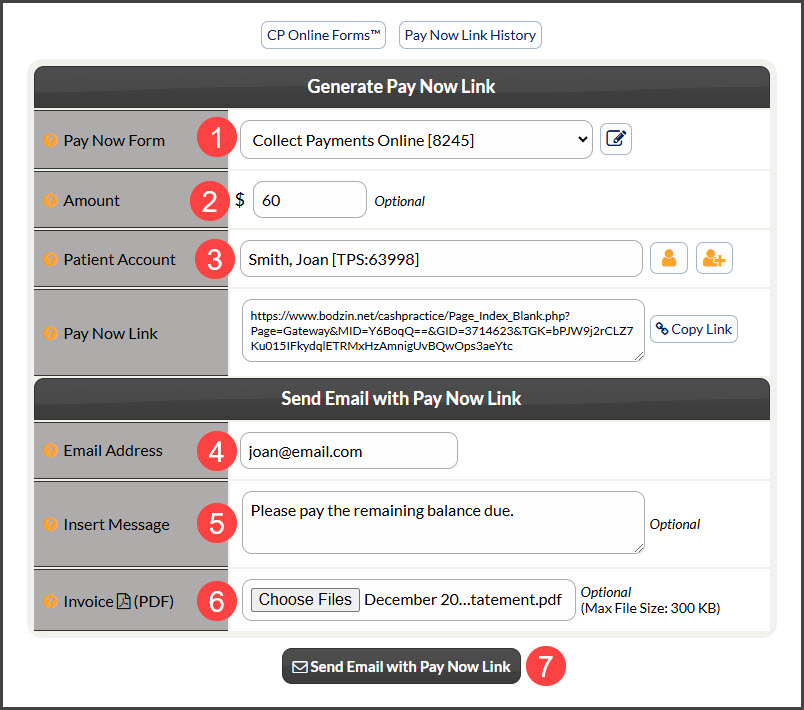
Pay Now Form: Select which CP Online Form to send to the patient. We recommend the pre-loaded [Collect Payments Online].
Amount (optional): Enter the set amount that will be listed on the form. This is not changeable by the patient. If you leave it blank, the patient will be able to enter the amount to pay themself
Patient Account: The menu will search for patients that match the information entered into the field. Enter the patient's first name or last name, company, patient ID, or TPS ID, then select the Patient Account from the menu. New Patient Account: If this is a new patient and they have no patient record saved in Cash Practice® yet, select the [Add New Patient] button to the right. All that is required to create a new patient account is a first and last name.
Email Address: Confirm or Edit Email Address
Insert Message: Optional and will only be seen by the patient receiving the email.
Invoice (PDF): Attach a PDF invoice for the patient to view any charges incurred that they need to pay for.
Send Email With Pay Now Link
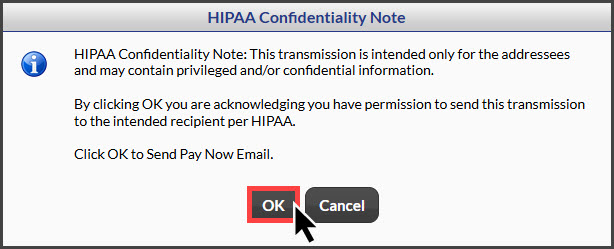
A HIPAA Confidentiality Note will appear, read, then click [OK].
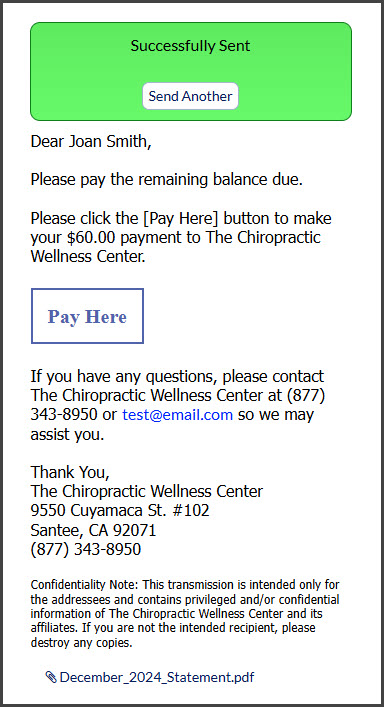
The page will refresh with a preview of the email as well as a success alert with the option to the [Send Another] screen if you need to send this to more patients. To close the screen, click the red X in the top right corner.
Generating a Pay Now Link to Send With Another Email or Texting System
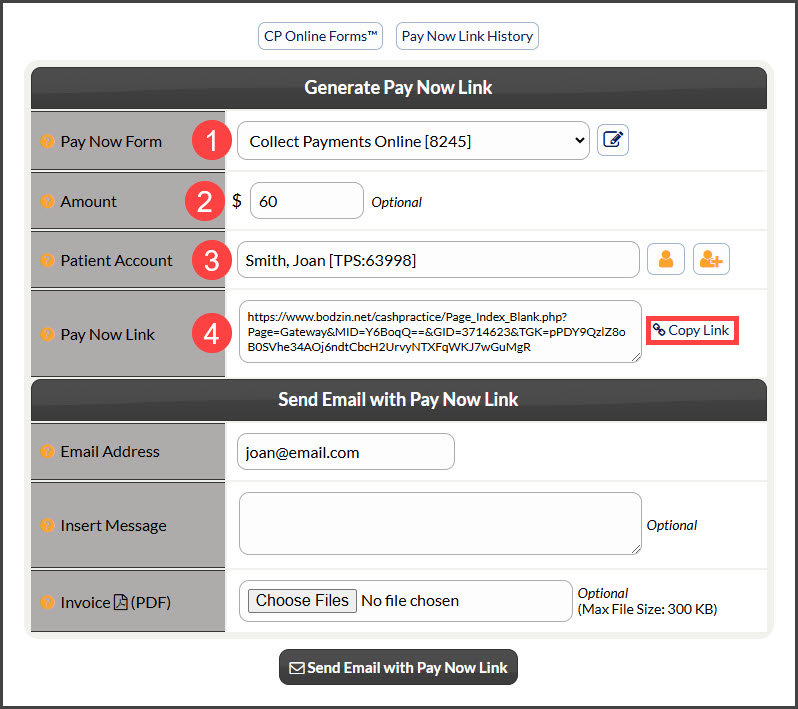
Pay Now Form: Select which CP Online Form to send to the patient. We recommend the pre-loaded [Collect Payments Online].
Amount (optional): Enter the set amount that will be listed on the form. This is not changeable by the patient. If you leave it blank, the patient will be able to enter the amount to pay themself
Patient Account: The menu will search for patients that match the information entered into the field. Enter the patient's first name or last name, company, patient ID, or TPS ID, then select the Patient Account from the menu. New Patient Account: If this is a new patient and they have no patient record saved in Cash Practice® yet, select the [Add New Patient] button to the right. All that is required to create a new patient account is a first and last name.
Copy Link: Copy the link a paste it into your email, text service, or another platform that you use to communicate with patients.
What happens next?
Your patient will receive an email with a [Pay Now] button, bringing them to the Payment Form, and the payment will be complete! This will then be posted on your End Of Day Report for the current day or you can search for them by following the instructions HERE.