Important: To create a professional and trustworthy experience for your patients, we highly recommend you customize your online forms. By uploading your company logo and adjusting the colors to match your website's branding, you can build confidence and assure patients that their billing information is being submitted in a safe and secure environment.
To [activate/inactivate] the online forms, please choose the correct instructions for the Auto-Debit Form OR the Drip Ed™ Form:
(ADS Form)
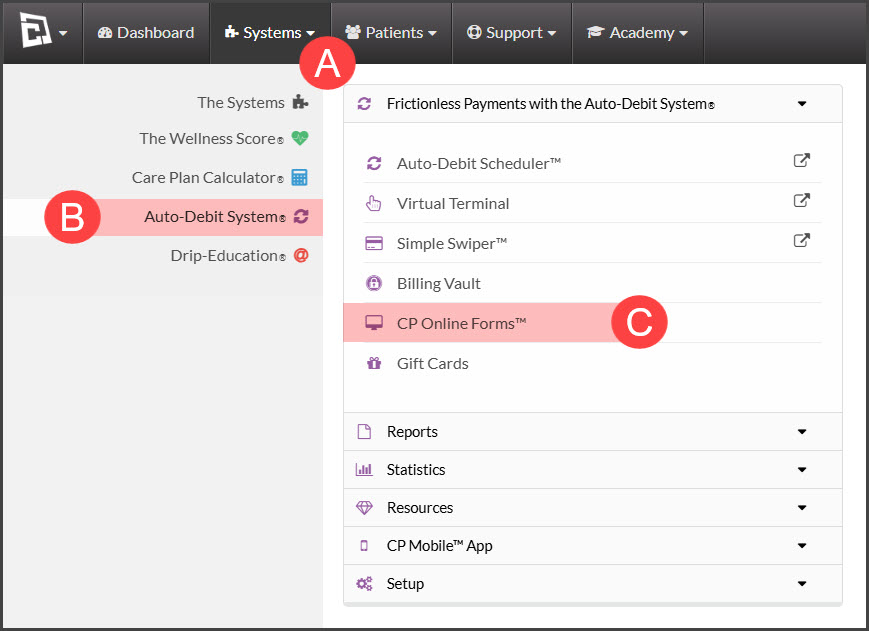
Option 1: Follow the sequence below.
A: Hover over the [Systems] menu
B: Click on the [Auto-Debit System® ]
C: Select [CP Online Forms™]
(Dip-Education System® Form)
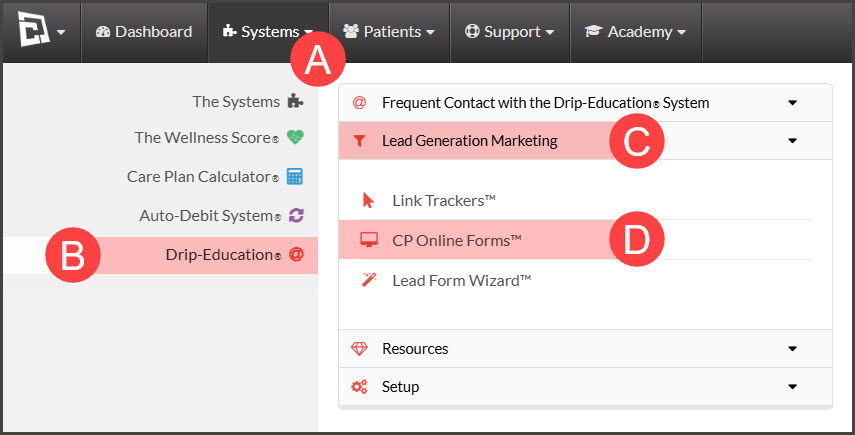
Option 2: Follow the sequence below.
A: Hover over the [Systems] menu
B: Click on the [Drip-Education®]
C: Select [Lead Generation Marketing]
D: Choose [CP Online Forms™]
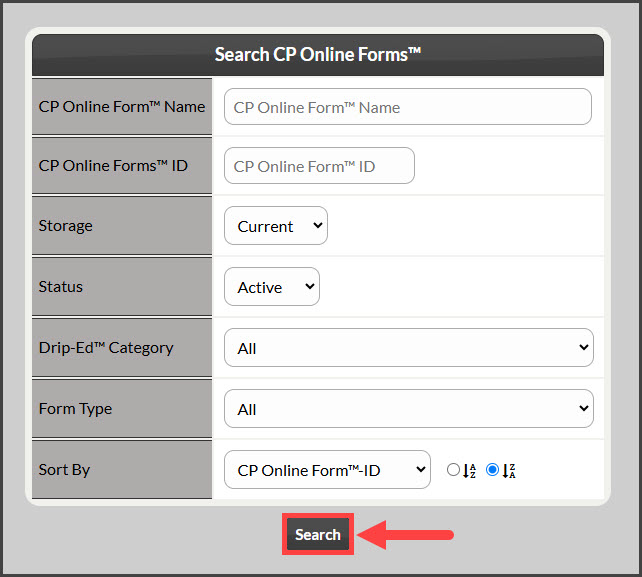
Step 1: From the search options, search for the form you want to take action on.
Step 2: From the list of forms, locate the form you want to take action on. Click on the [Edit Form] button.

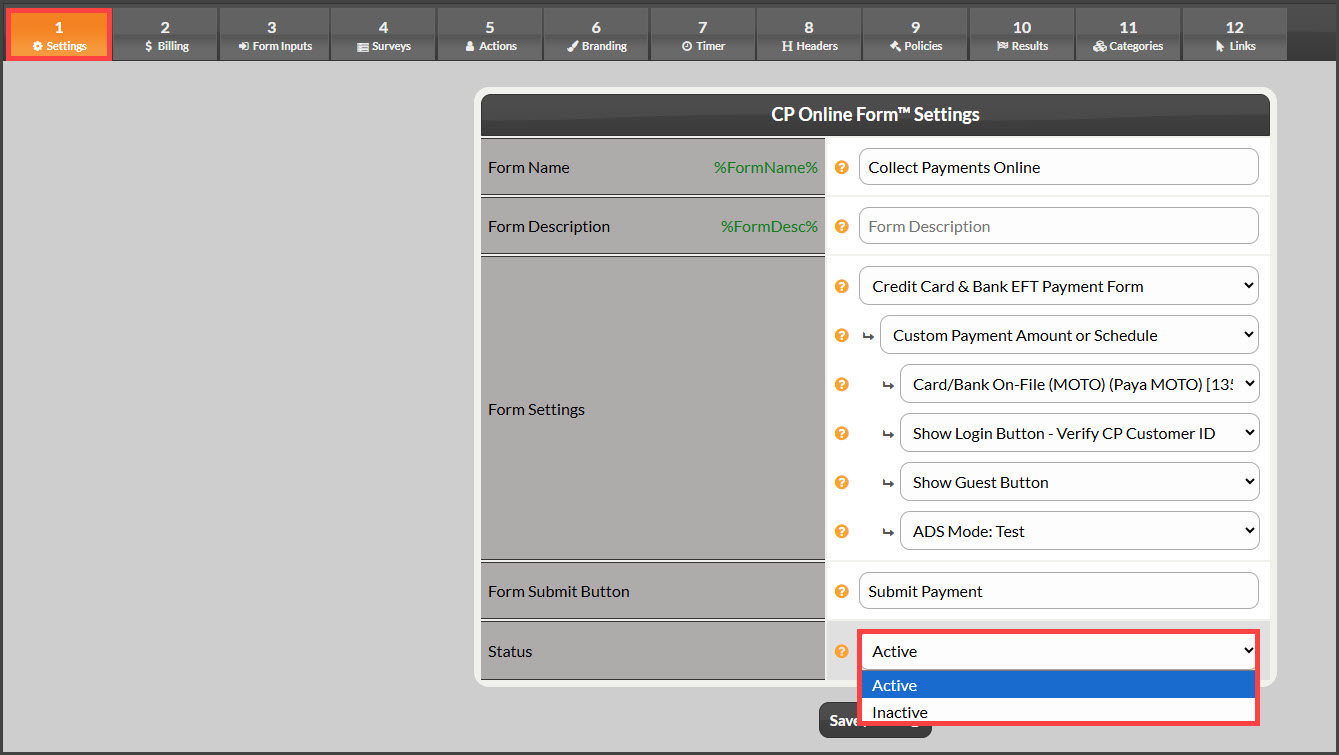
Step 3: From the [Step 1 Settings] tab→ locate the [Status] field and change the status of the form to [Active] or [Inactive] → click [Save].
Active - will allow the form to be used.
Inactive - will not allow the form to be used.