

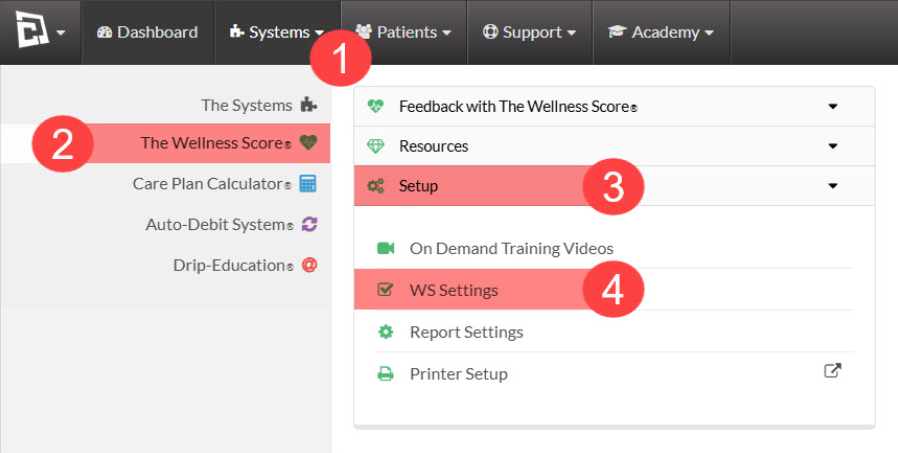
To customize your Wellness Score reports, follow the sequence below to access your WS Settings:
Step 1:
Hover over the [Systems] menu
Click on [The Wellness Score®]
Select [Setup]
Click on [WS Settings].
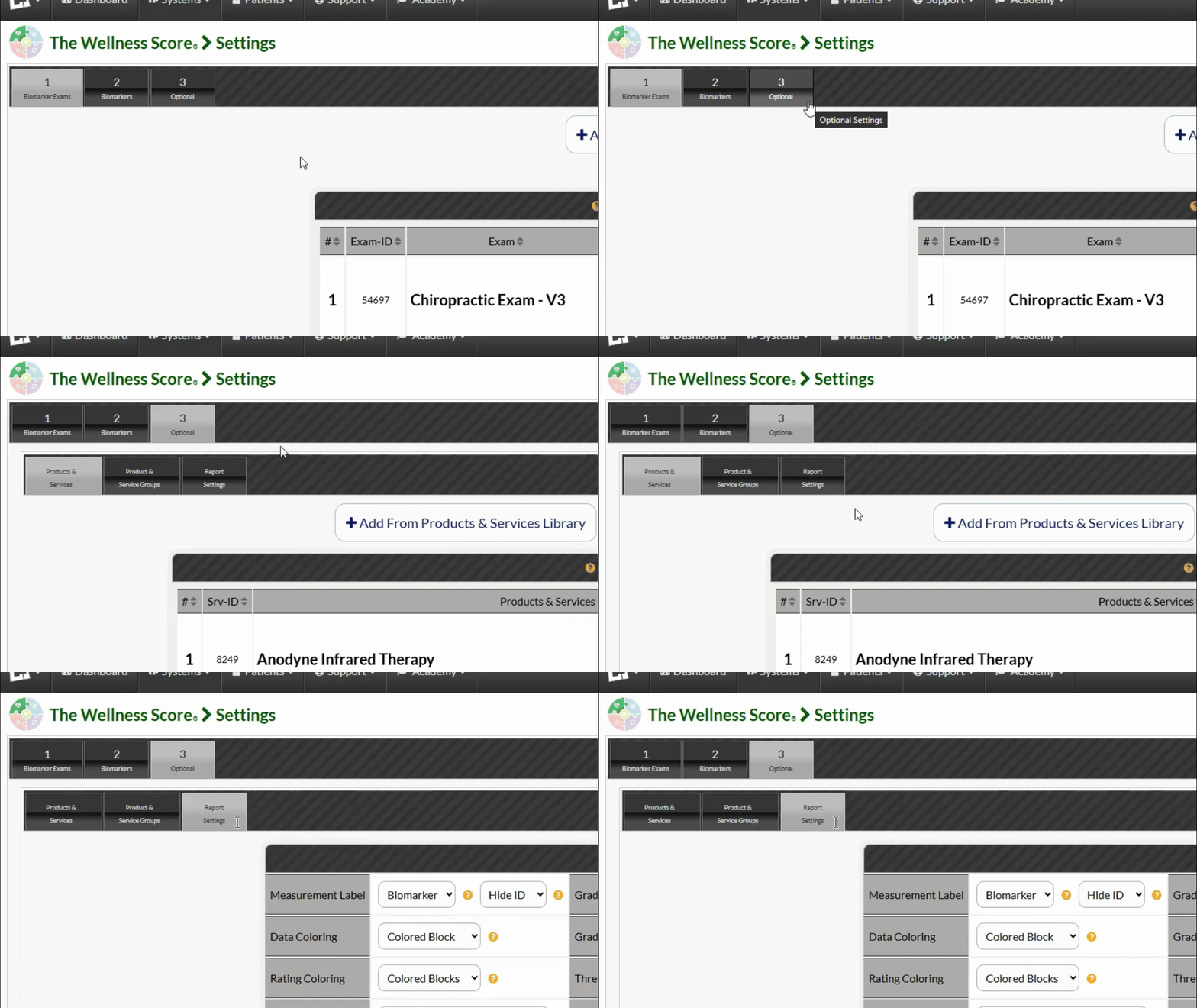
Step 2: Open Report Settings
Click on tab number three for your [Optional] settings and then in the sub tabs click on Report Settings.
Step 3: Customize your reports
From here, customize your Wellness Score report with different variations of report settings by selecting your options from the drop down menus. Your changes will save automatically once you leave this page.
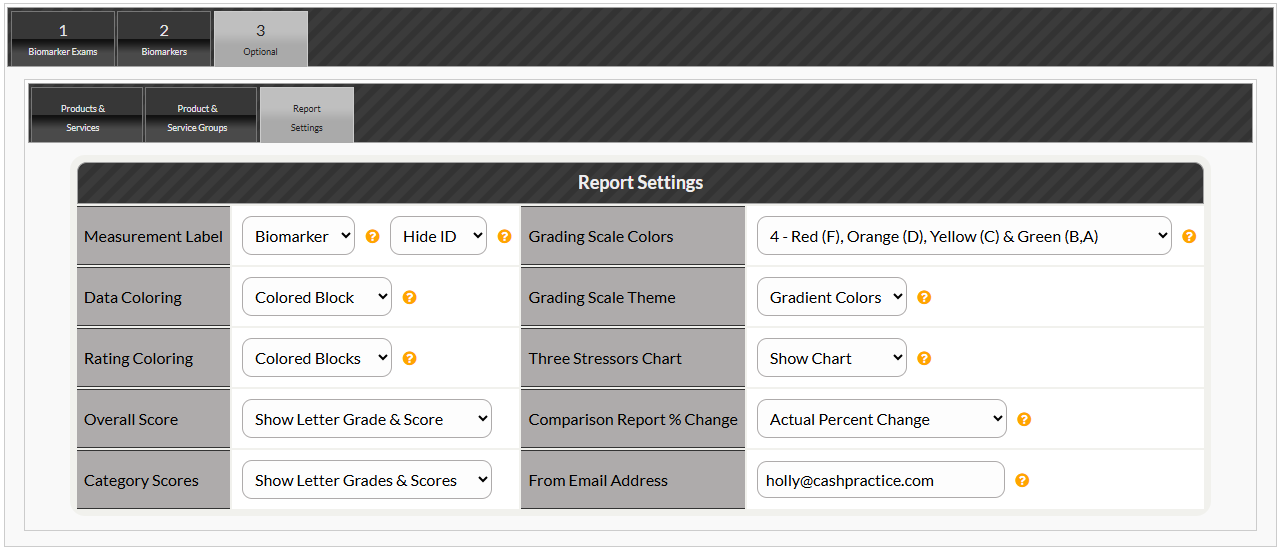
Customizations & descriptions:
See below for examples and descriptions of each report setting.
Measurement Label: How do you want to label to the tests on your reports? Choose either: Biomarkers or Parameters.
Show ID: Displays the biomarker ID on the Wellness Score Report
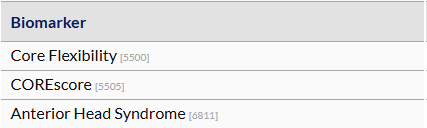
Hide ID: Hides the biomarker ID from the Wellness Score Report.
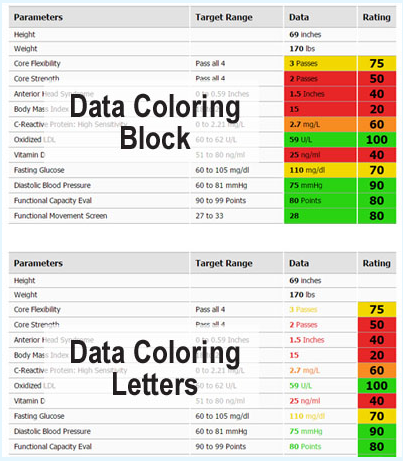
Data Coloring: Choose to show block coloring behind the data measurements or display the data measurements in colored letters/numbers.
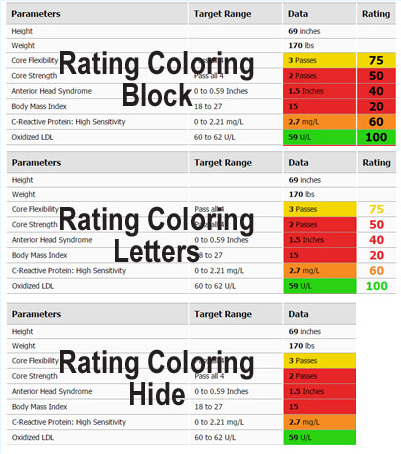
Rating Coloring: Display colored blocks behind the rating, show the rating in colored text, or hide the rating column altogether.
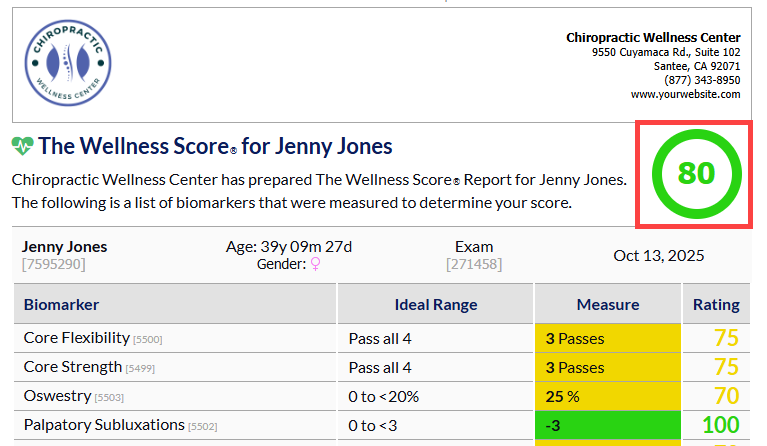
Overall Score: Display both the letter grade & score or show only the numbered score for the patient's overall wellness score.
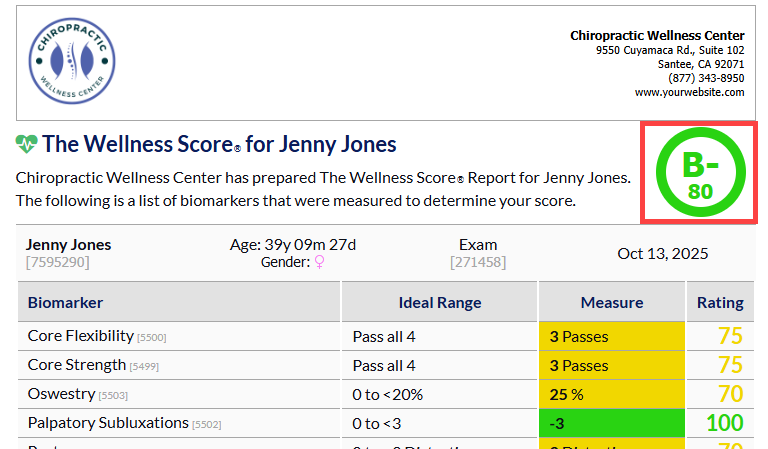
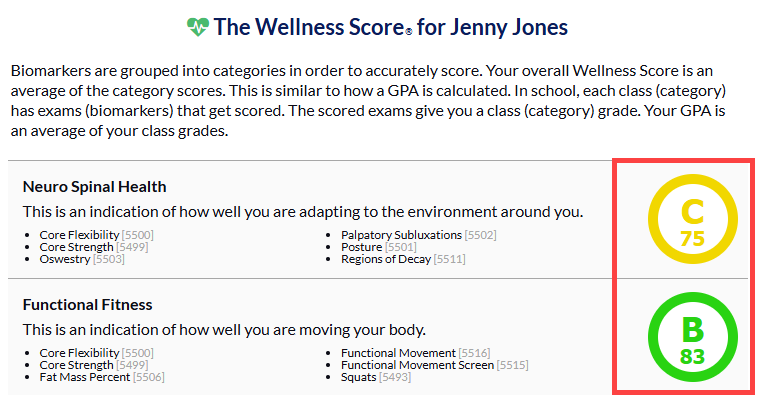
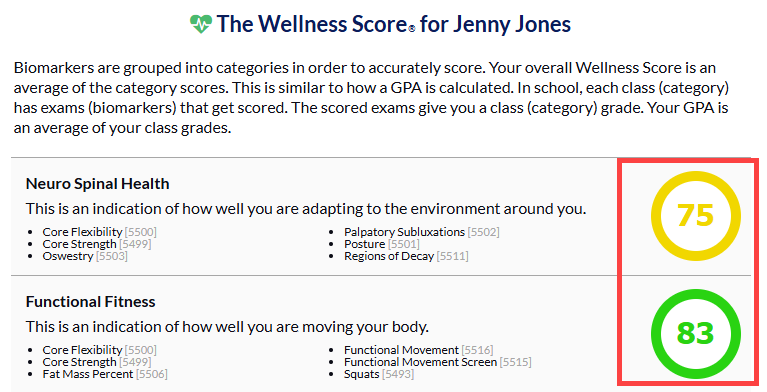
Category Scores: Display letter grade & score for category scores or show only the numerical score.
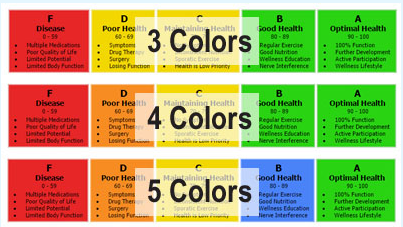
Grading Scale Colors: Choose the color options for your grading scale:
3 Colors: Red, yellow, and green
4 Colors: Red, orange, yellow, and green
5 colors: Red, orange, yellow, blue, and green
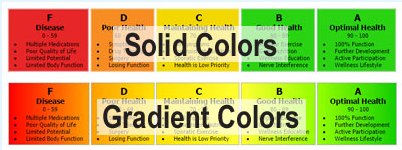
Grading Scale Theme: Display solid colors for each grade or a gradient as the scale moves between each grade.
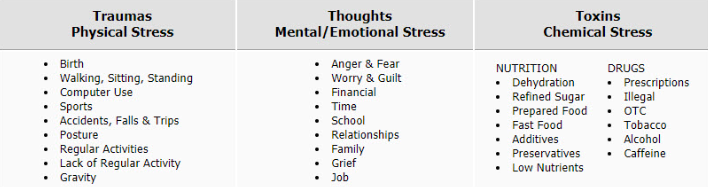
Three Stressors Chart: Hide or display the chart.
Comparison Report % Change:
Actual Percent Change - When comparing reports, the percent change will be the actual amount of change.
For example, if the score changed from 20 to 90, the calculation would be ((90 - 20) / 20) x 100 = 350% improvement.
Max 100% Change - When comparing reports, the percent change will be calculated so the max would be no more than 100%.
For example, if the score changed from 20 to 100, the calculation would be ((90 - 20) / (100 - 20) x 100 = 88% improvement.
From Email Address: This is the email address the reports are emailed from. By default, the setting is %Email% which inserts the Admin email on file. If you would like to change this, enter a different email address here.