To pause a campaign email, begin by searching for the patient who needs to have the campaign paused.
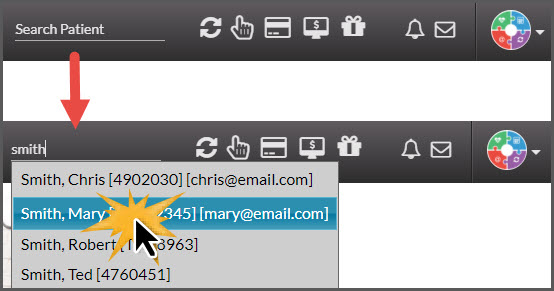
Step 1:Begin typing in your patient's First or Last name in the [Search Patient] bar near the top-right corner of the Dashboard → select the patient record from the drop-down menu.
Step 2: Click on the [Drip-Education® Emails] tab → then select the [Email History] button.

Step 3: Here, you will see the campaigns previously assigned to this patient. Locate the campaign you would like to pause and select [Pause] from the Status drop-down menu.
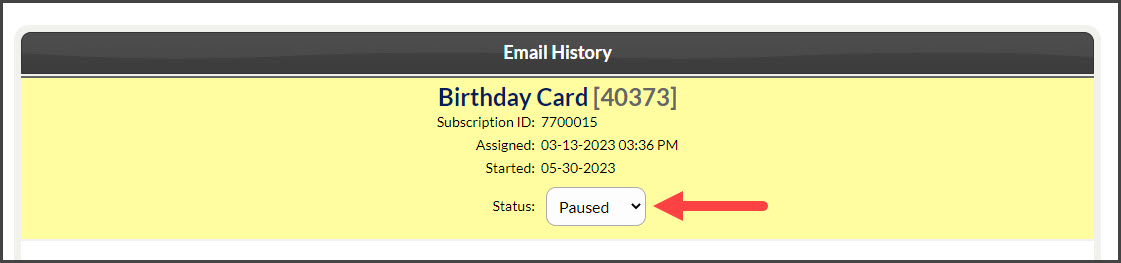
(You will then see the Drip-Ed Campaign's active green color turned to an inactive yellow color)
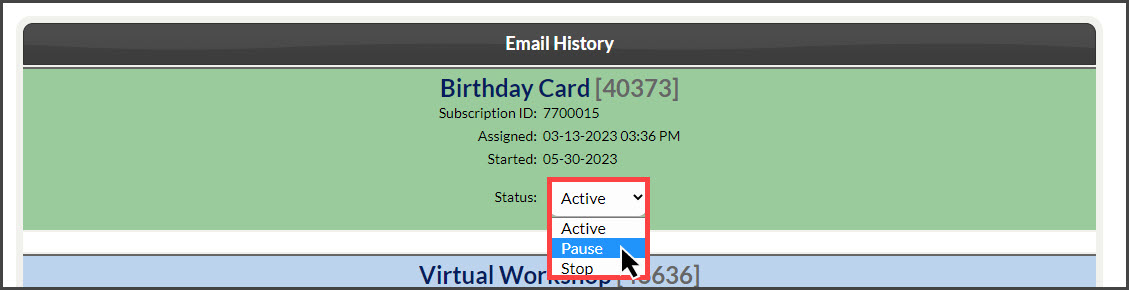
NOTE: You will also have the ability to RESUME or STOP the campaign at any time, by choosing either option from the [Status] drop-down menu.