Yes! Send yourself reminders via your Drip-Ed™ Campaigns!
You can have an email within a campaign sent to an alternate email address when the campaign is assigned. For Example, let's say you assign a welcome campaign to a patient when they enroll in care and you want an email sent to the provider on the 30th day of the campaign to remind them to give exercises to do at home, do a re-exam, take new x-rays, etc.
NOTE: Follow these steps only if you want the email to be routed to someone other than the patient.
Getting started:
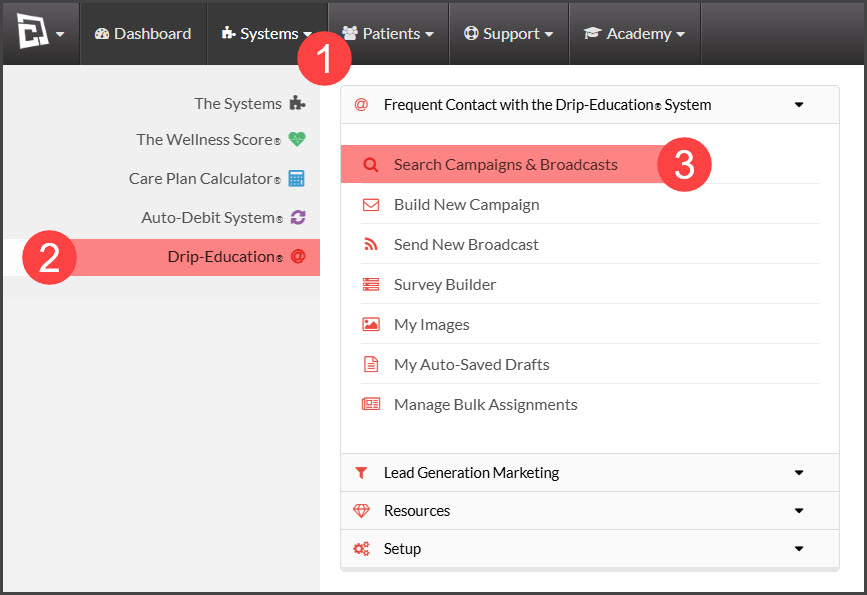
Step 1: Hover over [Systems] → [Drip-Education®] → [Search Campaigns & Broadcasts].
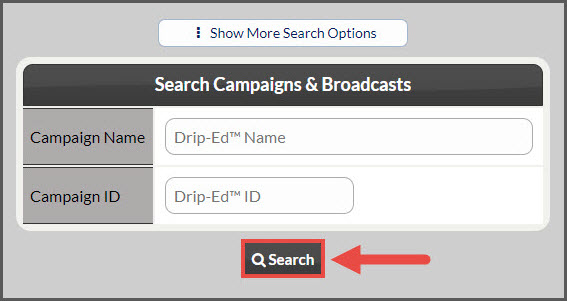
Step 2: Narrow down your search using the options available. Click [Search].
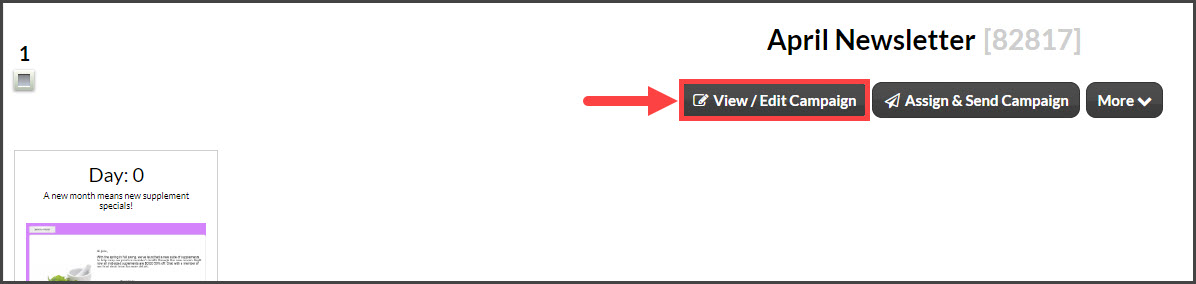
Step 3: Click the [View/ Edit Campaign] button.
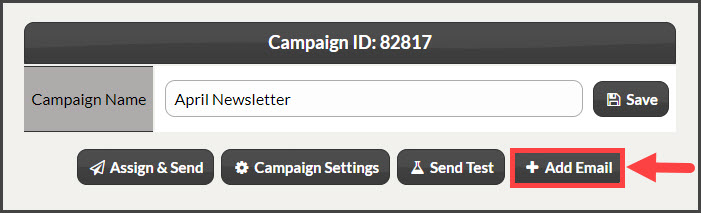
Step 4: Click the [+ Add Email].
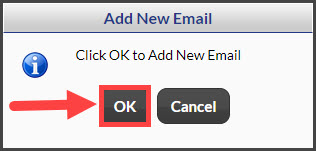
Step 5: Click the [Ok] button to add the new email.→ The page will reload.
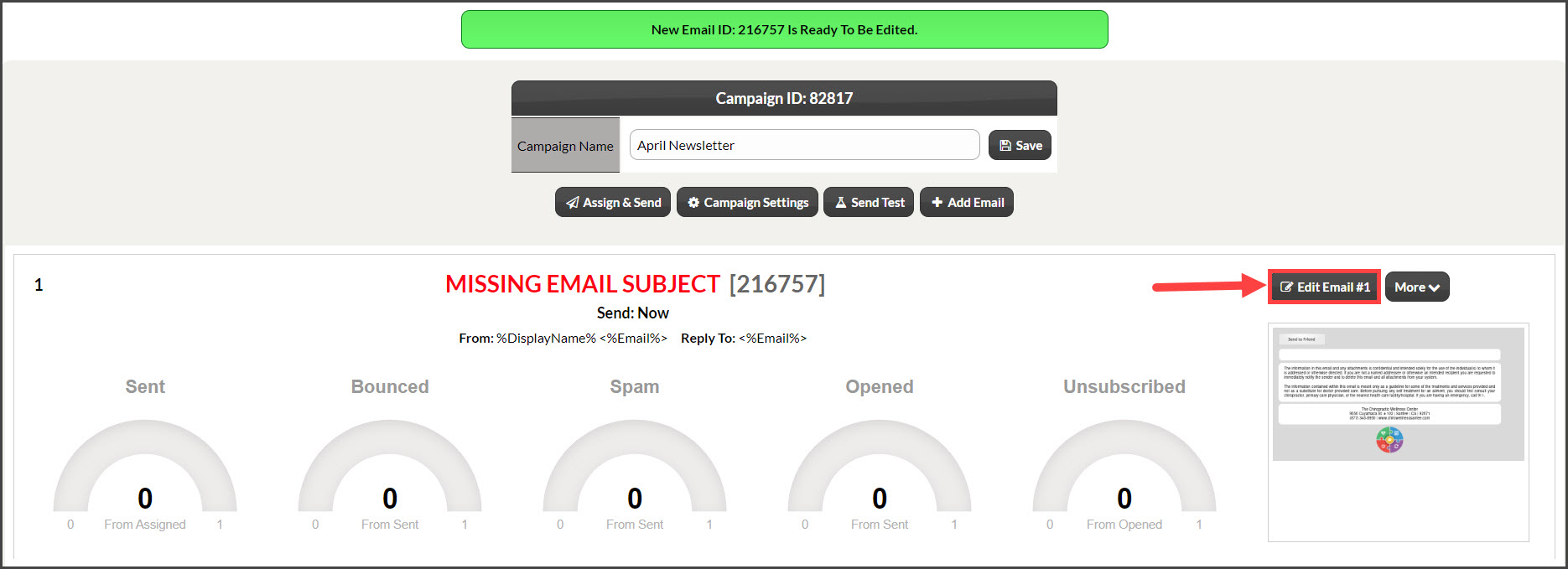
Step 6: Click the [Edit Email #1] button on the right of the new email.
Step 7: Select [More] → [Email Settings].

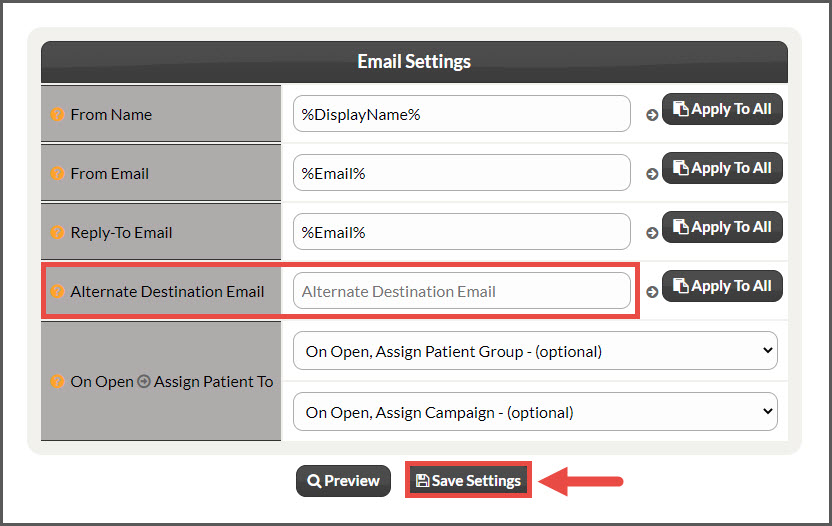
Step 8: In the "Alternate Destination Email" field, type the email address you would like to have this email send to instead. Click [Save Settings], then close the page.
Step 9: Additional Recommendations
If this email is to be sent to the Admin or Team Members, be sure to add crucial information that helps determine why the email was sent and to whom it pertains.
For example:
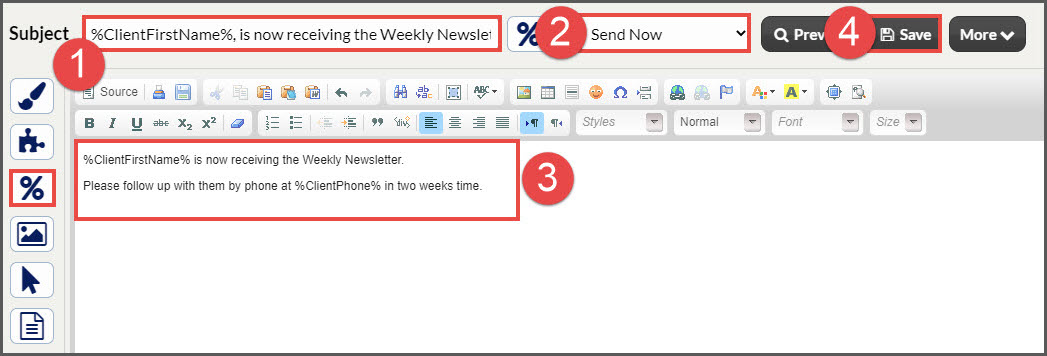
Subject: Add in an email subject that makes it clear where and why this is being delivered. Use the Maile Merge Variables [%] to customize further.
Change the Frequency: Maybe you want this email to be sent to the office a week after the original email is assigned and sent to the patient. Maybe as a follow-up email for the team to call the patient.
Content: Use the Mail Merge Variables [%] again to designate who was assigned the campaign as well as any additional information needed
[Save] any/all changes made.